-
Penis-Hymen
Long before Wordle was a thing, my family played a group game that started out awkwardly called "The Five Letter Word Game", but eventually came be known as "Penis-Hymen".
Each player as Guessee (can be played by a single person, as a Guessor) chooses a five-letter word with the following constraints:
- No proper nouns
- No repeat letters
- In the common language of the players
Each player as Guessor then offers up guesses. Importantly, guesses are not similarly constrained (except for #3). Importantly, the Guessee only indicates how many letters in the guess occur in their word. No hint of placement was given or expected. The winner is the Guessor who successfully guesses their Guessee's word in the fewest guesses, but you're never limited to 6 guesses.
We… loved this game. Played at family gatherings, played it on car trips, played it over text messages. I used an implementation of it as the basis for a talk I gave for a local Python Users Group.
I've been playing the daily Wordle for a while now, and it increasingly aggravates me how willing the Wordle editors are to violate #2. I don't know whether Wardle's original Wordle implementation ever used words with repeating letters, but I encounter it multiple times per week under the New York Times.
-
My One Month in GrapheneOS
I've been using iPhone since the day it was released and over the years, I've slowly been getting more and more disappointed with the platform. I'm currently using a two-year old iPhone 15 Pro Max. I decided recently to switch to Android to see how some other folks live. I wanted to try and get away (by choice or necessity) from some of the 800 pound gorillas in the tech space, and I'd been hearing a lot of positive stories lately about GrapheneOS, so I looked at getting a best of breed compatible phone model. I bought a Google Pixel 10 Pro XL in an unlocked state, and installed GrapheneOS on it via the web installer (ironically, using Chrome on my MacBook Air).
What really got me looking
Now admittedly, my phone is 2+ years old, but the battery life was starting to feel pretty atrocious. Coupled with the fact that I seem to have a tempermental USB-C port, I could only reliably charge over MagSafe/Qi, and even that was finicky at times. I hated waking up to a 20% charge. Furthermore, on the iOS side, a neverending march towards patronizing safeguarding and lock-in left me feeling further and further from my phone feeling like my phone.
What I liked about the Pixel with GrapheneOS
Contrasting it with a brand new phone without any hardware decay is a little unfair, so we'll take the newness points as read. I was excited about the prospects of the OS being More Open™ and configurable. By default, GrapheneOS has several features that are a double-strike for privacy and performance. A ruthless approach to turning off unnecessary networking (WiFi and Bluetooth are set to turn off if not used after a short period of time) and automatically rebooting the device after some interval of inactivity both increase security and privacy by reducing vulnerability windows and increase battery life by shutting down power draining services like searching for networks or connected devices.
Even Google services, should you want them, are constrained in GrapheneOS. The Services which provide for rich inter-application communication (and external service telemetry and feedback) are run in a sandboxed environment, unlike the privileged position it maintains in mainline Android. This allows (arguably) for a tighter rein on how much insight external services can glean on your activity on the device.
And I liked that you can easily, without a developer account, sideload applications from a variety of sources (more on that later).
From an interface standpoint, I appreciated the ability to have the PIN entry keypad scrambled, so even over-the-shoulder snooping would be made that much more difficult.
What I disliked about the new setup
All that freedom comes with a price. Notably, seemingly, a lack of any overarching interface guidelines. The explicit, dedicated "Back" button of yore is now exposed via gestures, but triggered, if not arbitrarily, fuzzily, depending on just where you swipe from on the screen. Perhaps it's consistent, but just different enough from iOS' affordances that I was regularly losing my place among apps and views within apps. I never developed a good sense of navigating the "stack" of interactable views lying just beneath (behind?) the surface.
And the keyboard. Excuse me, keyboards. I would have paid good money just to find a keyboard with the iOS layout. I'm honestly surprised one doesn't already exist. I eventually settled on the Gboard to reclaim swipe typing, and I took care to remove its network permissions. But 19 years of muscle memory was too hard to overcome in the one month I gave it.
GrapheneOS suffers from other restrictions. Outside of a few EU-specific applications, there's no abilty to make use of the Pixel's secure enclave, so no ability to use Google Wallet. No tap-to-pay, no easy collection and presentation of membership cards for insurance or transit. For what it was worth, I tended to keep my physical wallet with me, but still, so often I'd reach for my phone, just to do a double-take, put it back in my pocket, and reach for a credit card.
I had hoped that the opinionated approach to PIN entry would have somehow permeated the entire OS, but that wasn't the case. Once you'd authenticated with a scrambled PIN to unlock the device, any time you re-entered your PIN, you were presented with a standard 10-key layout. That felt like a promise not met. Ultimately, I opted for biometric logins once the phone was unlocked via PIN, and that annoyance largely went away (replaced by an all-too-frequent frustration at the touch identification via screeen - possibly my screen protector was to blame, I'm not sure).
And even the new hardware provided stumbling blocks. I could never get my Pixel (even with a MagSafe (or whatever the Android branding equivalent is) case) to connect to my car's Qi charger. That was a physical speedbump of a bummer.
What I wanted to like
GrapheneOS provides multiple user profiles, and a private space, but the distinction isn't clear, and the restrictions placed on them felt arbitrary and ultimately unhelpful. When I first learned of them, I imagined I'd be able to fracture my online persona into all the various aspects and interests, and in some way, reclaim compartmentalization of my Self from the Algorithm. But these features aren't quite that granular or discriminate. And even within the community, it's difficult to find any consensus on what they're useful for or how best to arrange your device to better safeguard your online interactions. There's not even consensus on the best sources or means of getting apps on the device. On the spectrum of walled-garden to wild-west, it's hard to find a comfortable place to stop.
What ultimately brought me back:
Explaining my decision to switch to Android to people I interact with almost always centered around The Green Bubble™. iMessage was both the most obvious, but also the most ubiquitous signifier that things were different. Coupled with an inability to respond to my son's Screen Time requests or to locate my college student on-campus, the gap became too wide. If I were already adrift, a solo wanderer in the smartphone sea, I think I'd be… okay.
But goddamn, if I don't find myself utterly reliant on the iOS tap-the-top-of-the-screen-to-scroll-to-the-top-of-a-scrollable-view thing.
What I've changed about how I use iOS:
Security folks have long warned about the dangers of biometric access to our smartphone devices. Bizarrely, courts have ruled that passcodes are worthy of witholding and cannot be compelled, but biometric aspects of your own body are not and can be. To that end, I've disabled FaceID on my iPhone for unlocking the device, but re-enabled it to quickly authenticate servies and tools once unlocked.
I've considered being more deliberate about how and when I enable WiFi and Bluetooth as well.
What I'd love to see come to iOS:
One of the first things I wanted to do with GrapheneOS was create things like Shortcuts. Nonexistent (at least at the AOSP-level). But also, once back on iOS, I was surprised to find that there don't seem to be any ways of establishing timers or triggers based on any timed events. I'd love to see something similar for WiFi and Bluetooth disabling after X minutes of inactivity and an option to restart the device and bring it back to a Before First Unlock state periodically.
More and more, I continue thinking that the best way forward is a return to pure utility device. Dumbphones, featurephones, call them what you will. A return to appliances that do one thing and one thing well.
Anyone wanna buy a Google Pixel 10 Pro XL and a set of Pixel Buds Pro?
-
Adventures in Bookbinding
The Question
Almost a year and a half ago, my good friend Stu reached out one morning with a question:
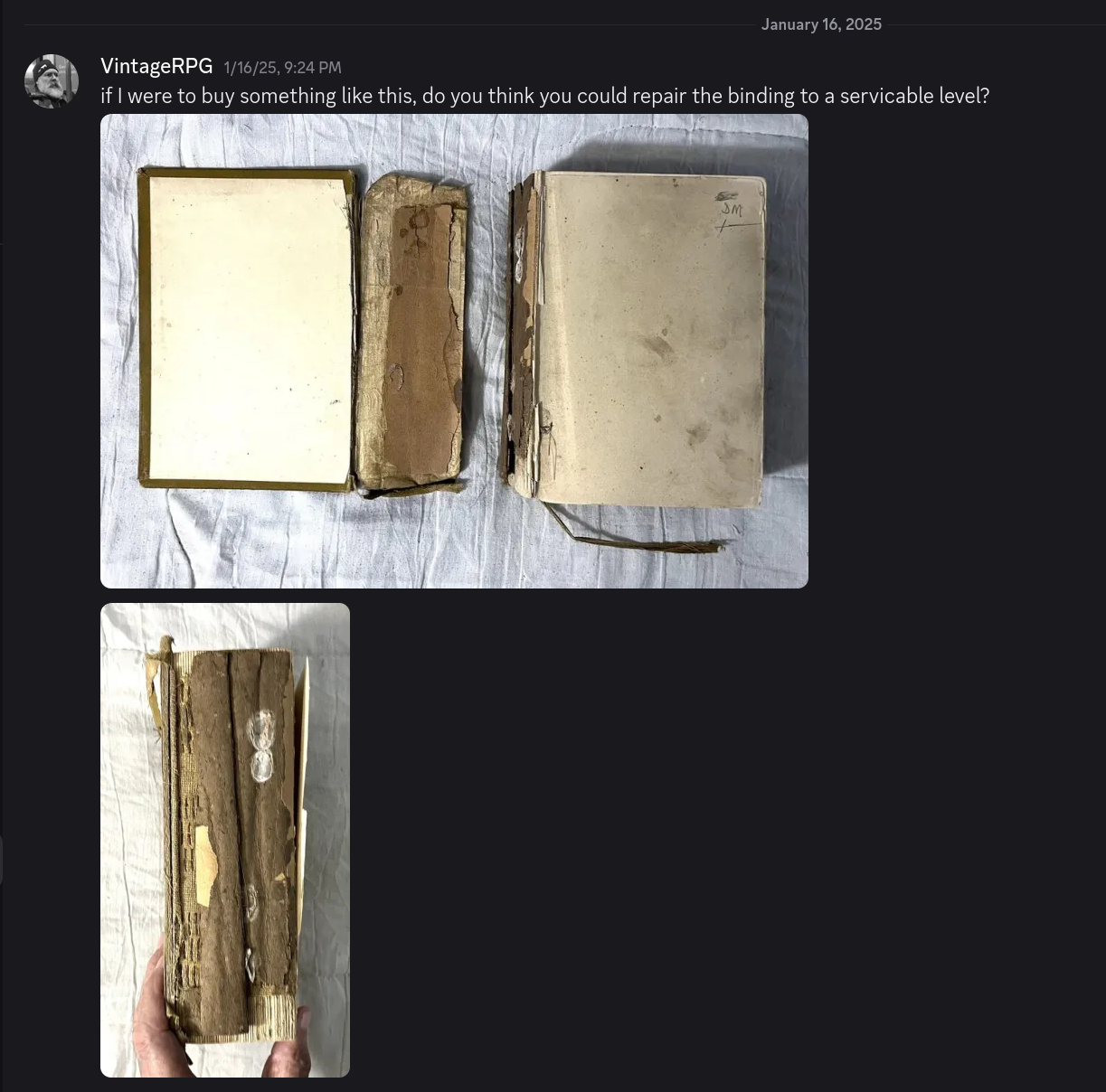
Could I, indeed! I had not too long before started teaching myself bookbinding techniques by watching DAS Bookbinding videos on YouTube, and had taken a few tentative steps myself, acquiring or making tools and supplies to do it.
Stu's project was certainly bigger, but I felt up for the task, and readily agreed. I ordered the book off eBay and some additional supplies I anticipated needing and set to work assessing the state of the book. It would prove to be eighteen months of learning, false starts, and procrastination before ultimately coming together just before attending the most recent Geek Flea in Stu's hometown.
Around this time, I discovered Four Key Book Arts, another YouTube channel and Dennis had recently posted a three-part series on restoring a book of very nearly the same vintage as Sea & Land. It was the perfect tutorial as I had to perform almost exactly the same repairs.
Assessing the cover
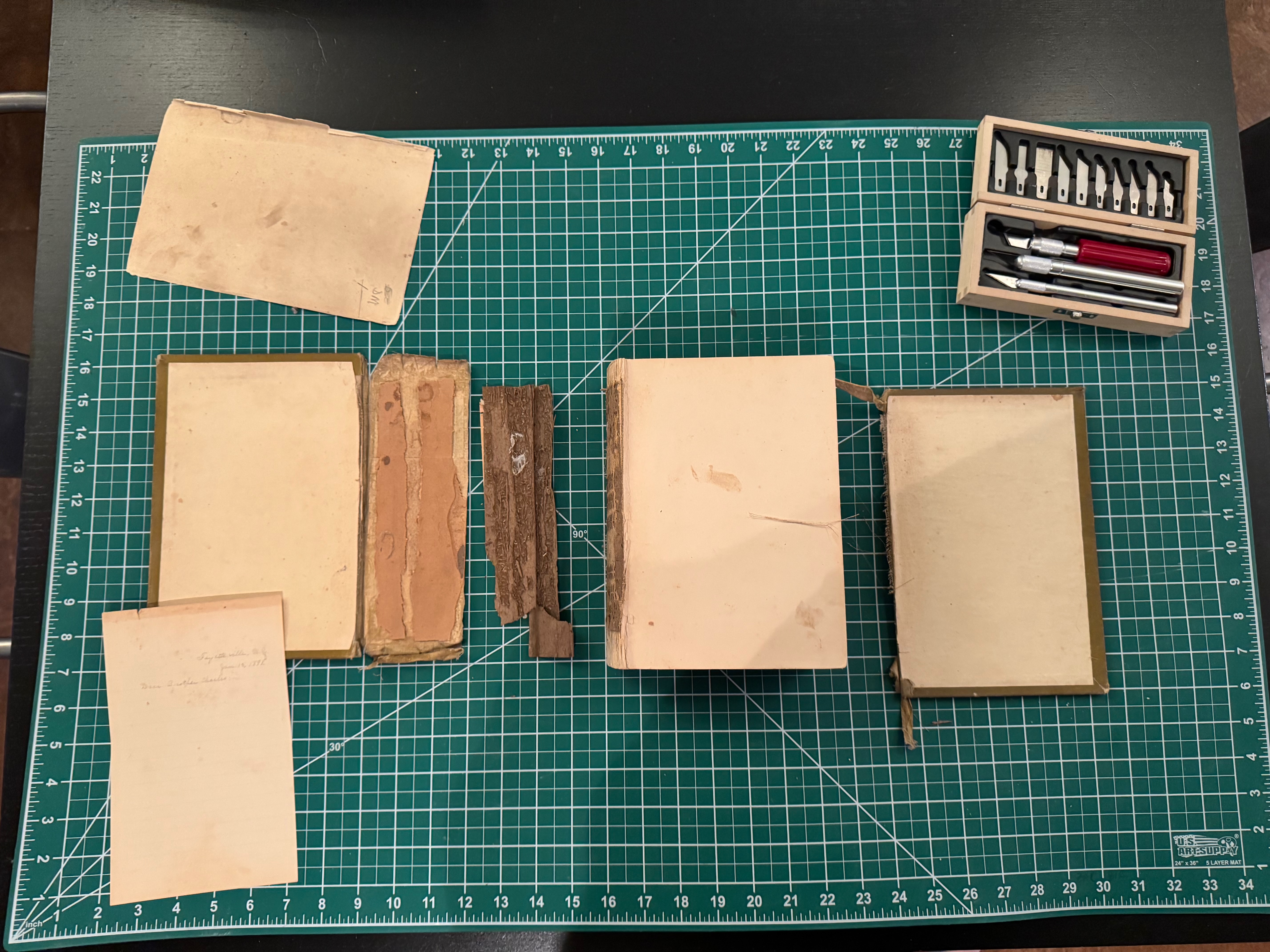
The book arrived, and I was immediately impressed by its bulk, despite its small stature. The front cover and spine were completely separated, and the back cover was hanging on literally by a few threads.
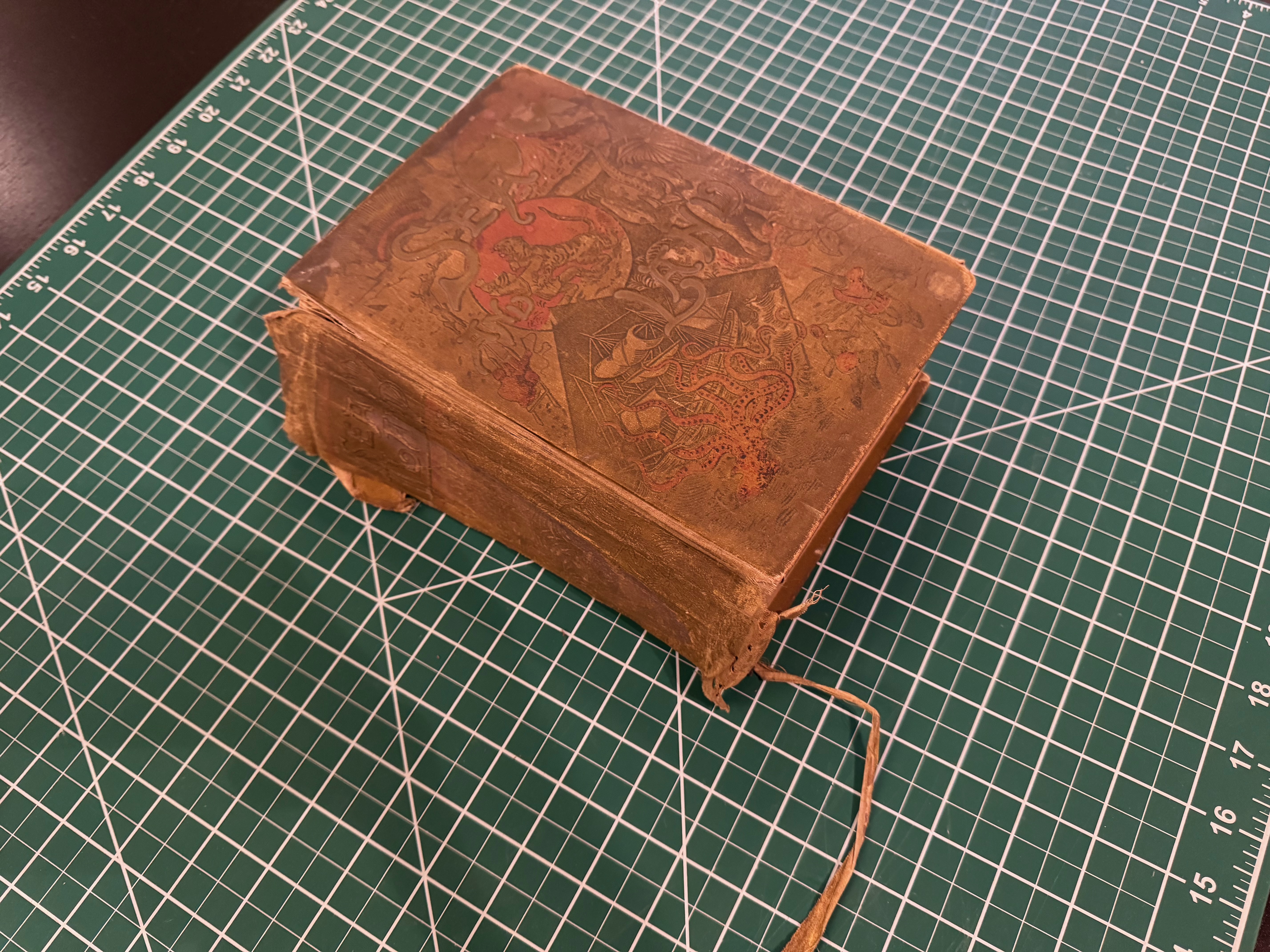
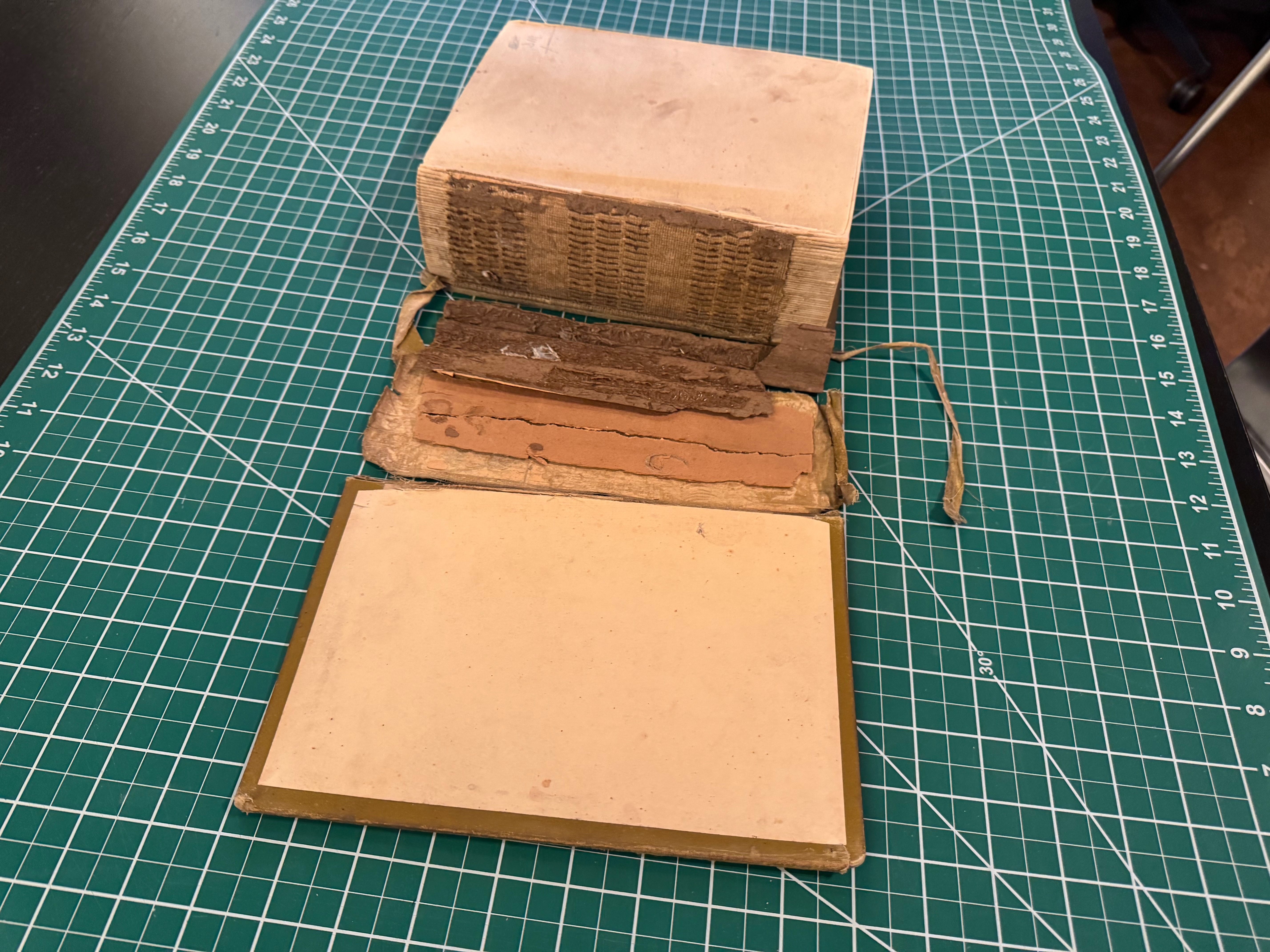
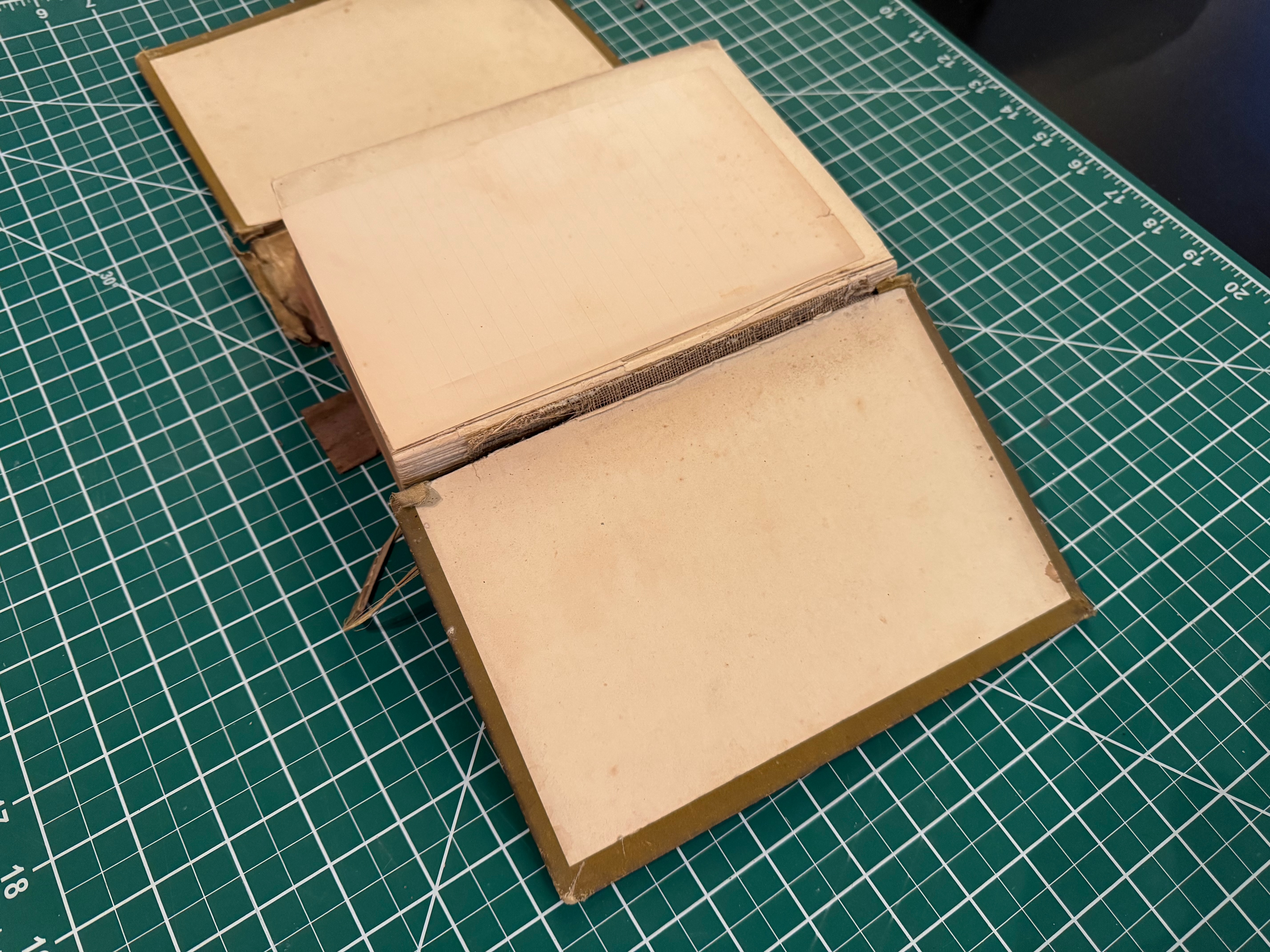
Removing the cover
A deft stroke with a razor blade and the back cover was off. I was reasonably certain by this point that the original cover wouldn't be, uh, recoverable. With the text block fully free, it was time to look at their overall condition.
Examining the signatures
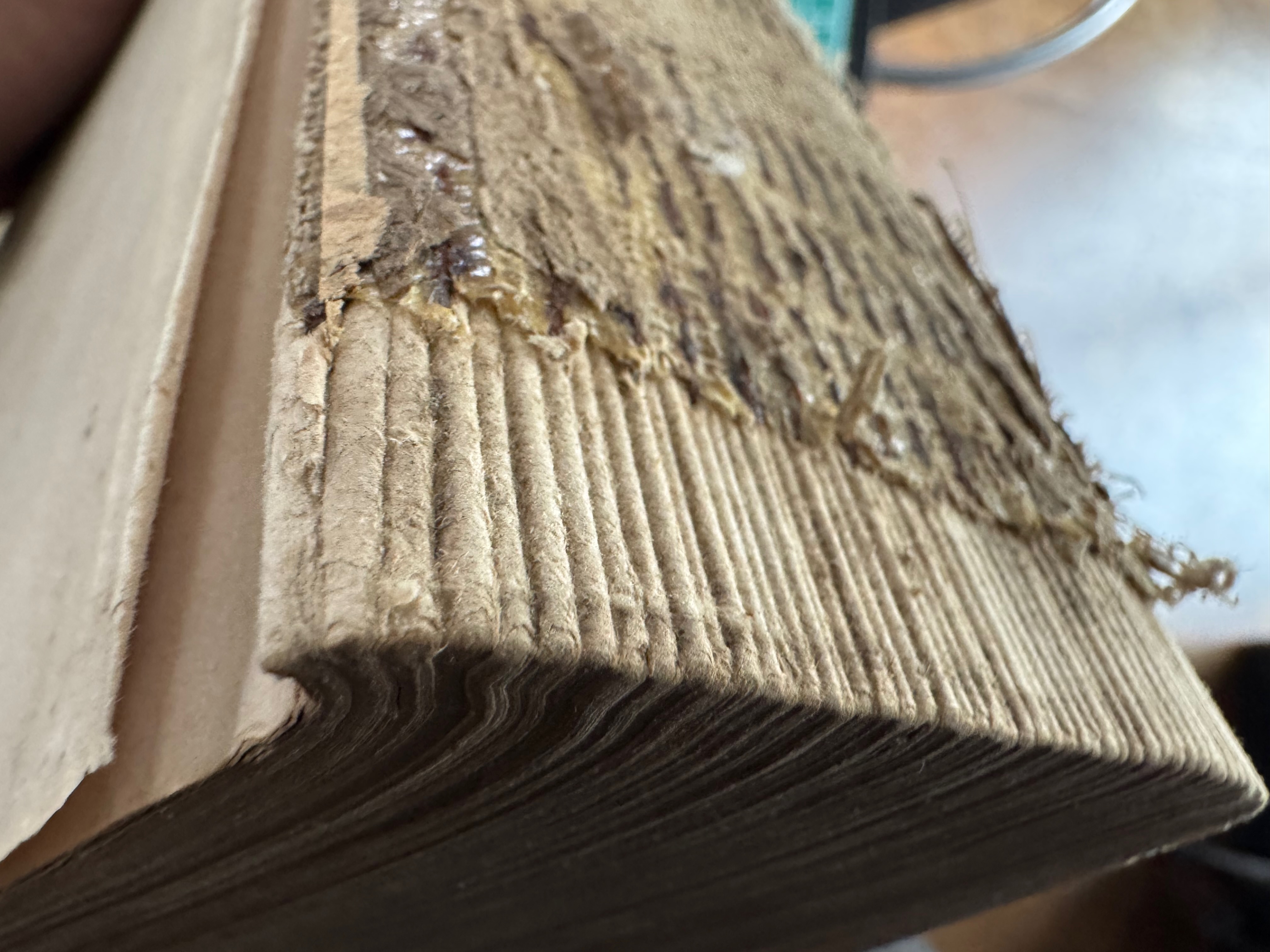
The signatures all looked complete, and I could tell that they'd undergone a rounding process before that left a thick shoulder consistent with the thickness of the cover. But once they all came apart, they'd need to be re-flattened, or "knocked down".
Hidden treasures
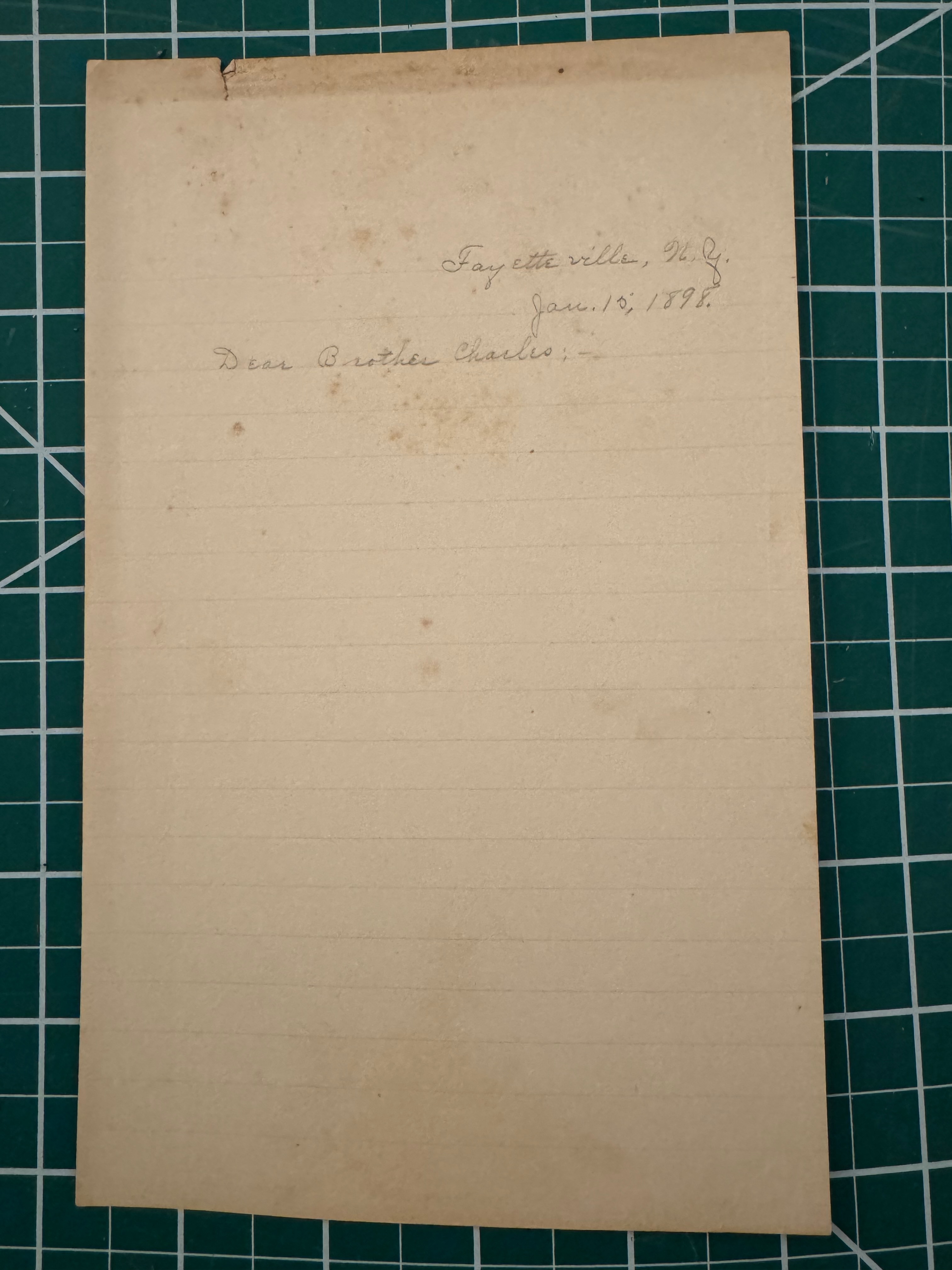
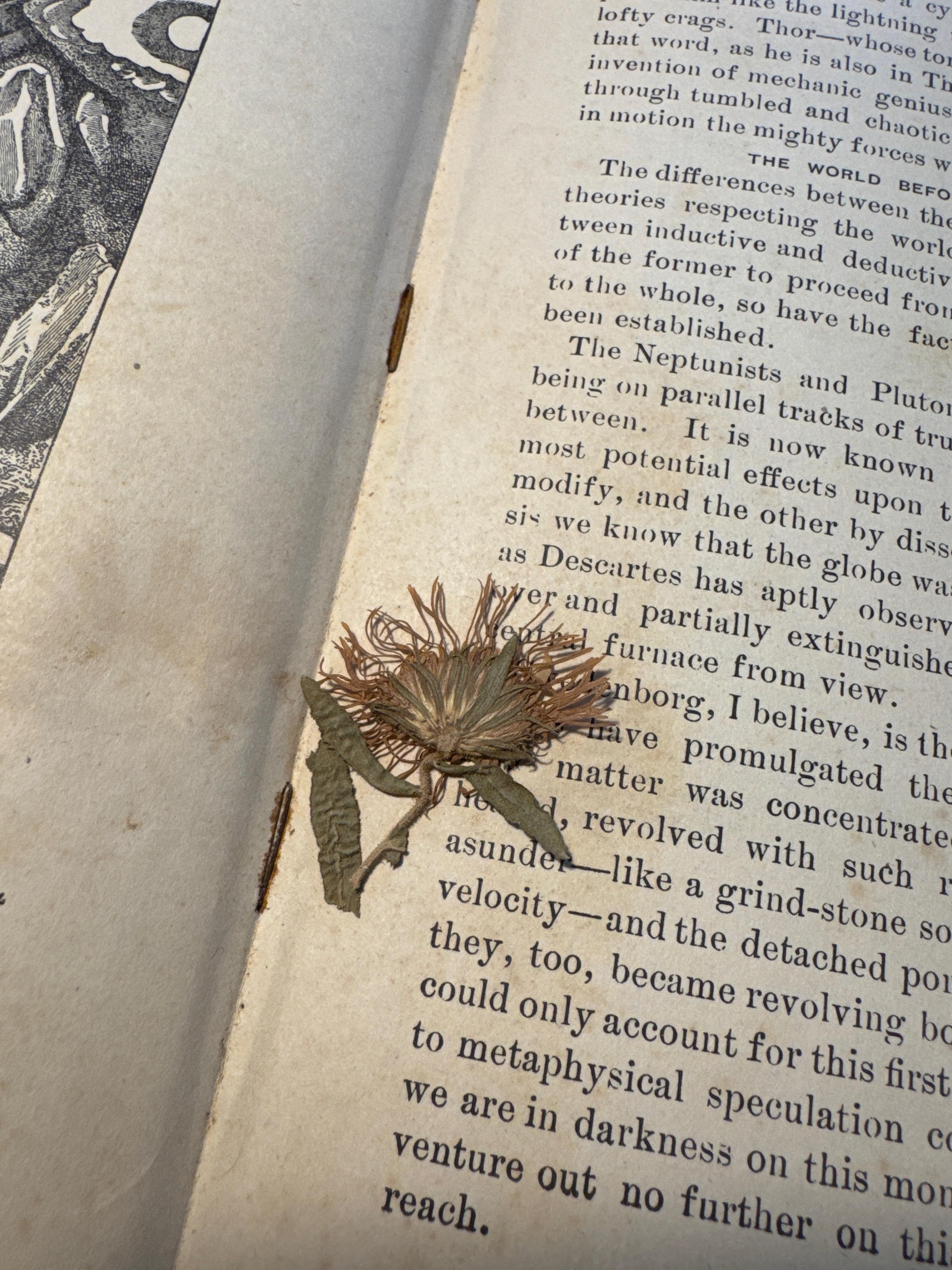
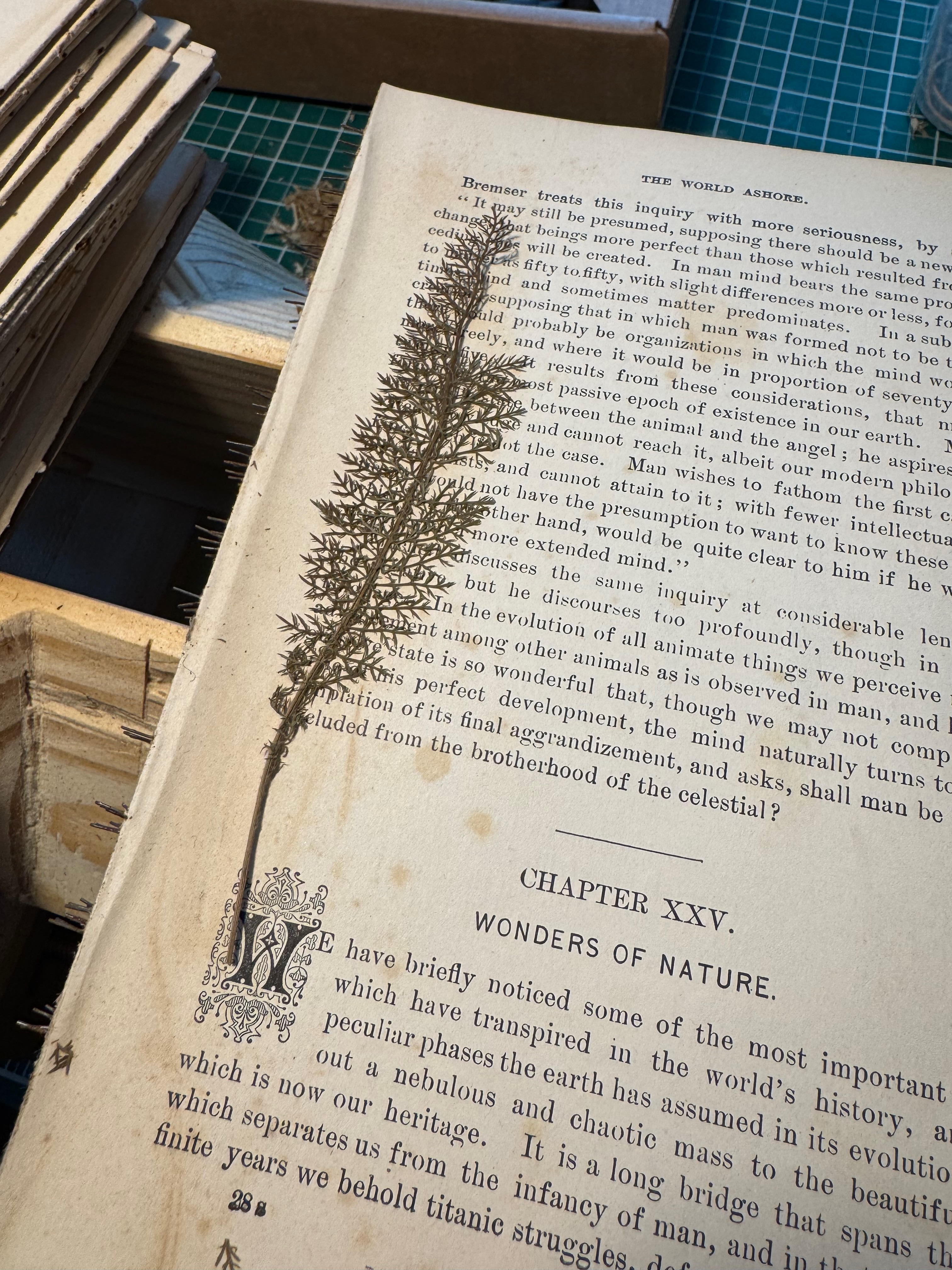
Looking through the book itself, I came across an original note from some previous owner's sibling, as well as a few pressed flowers and plants.
Matching the endpapers
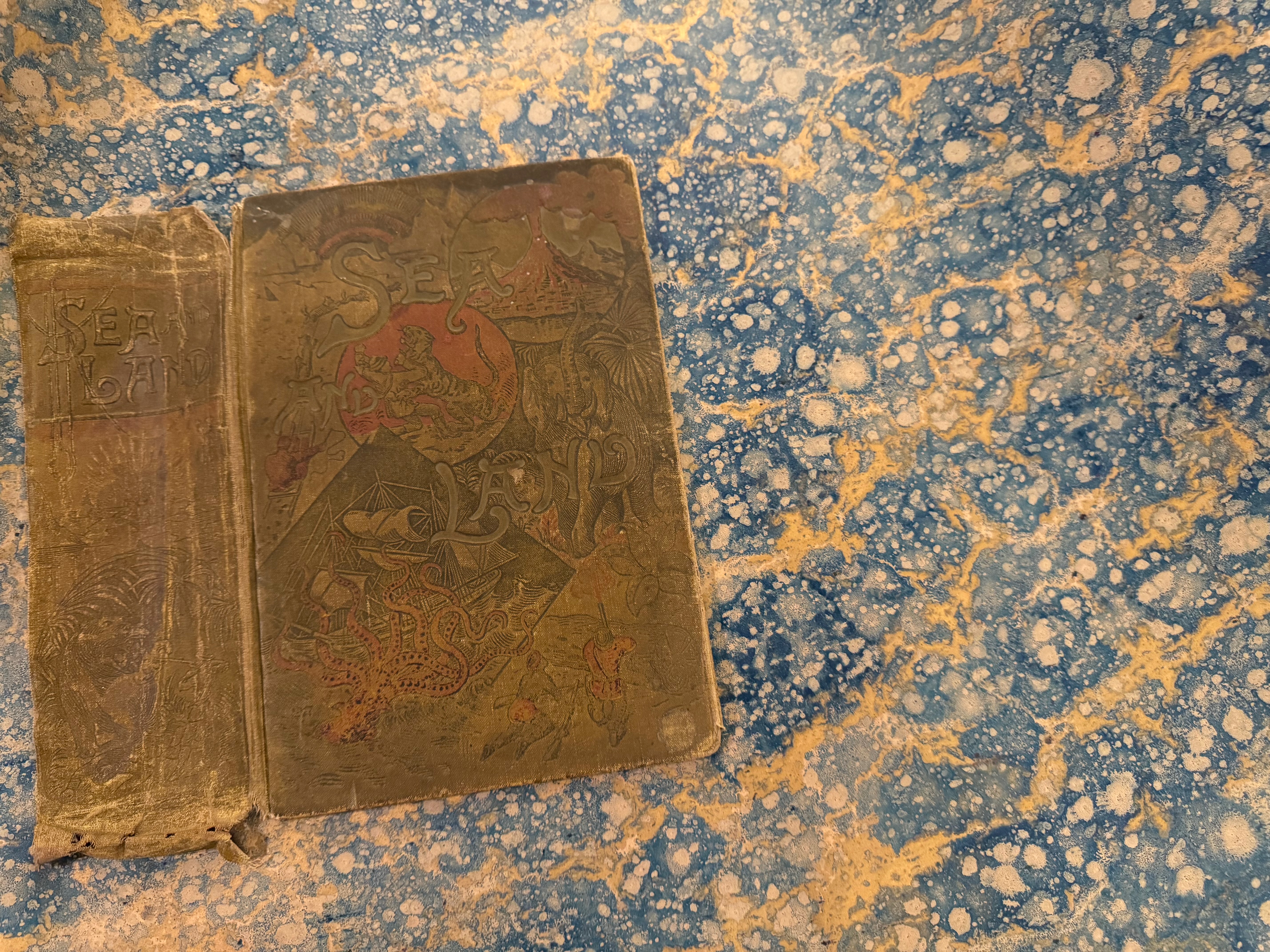
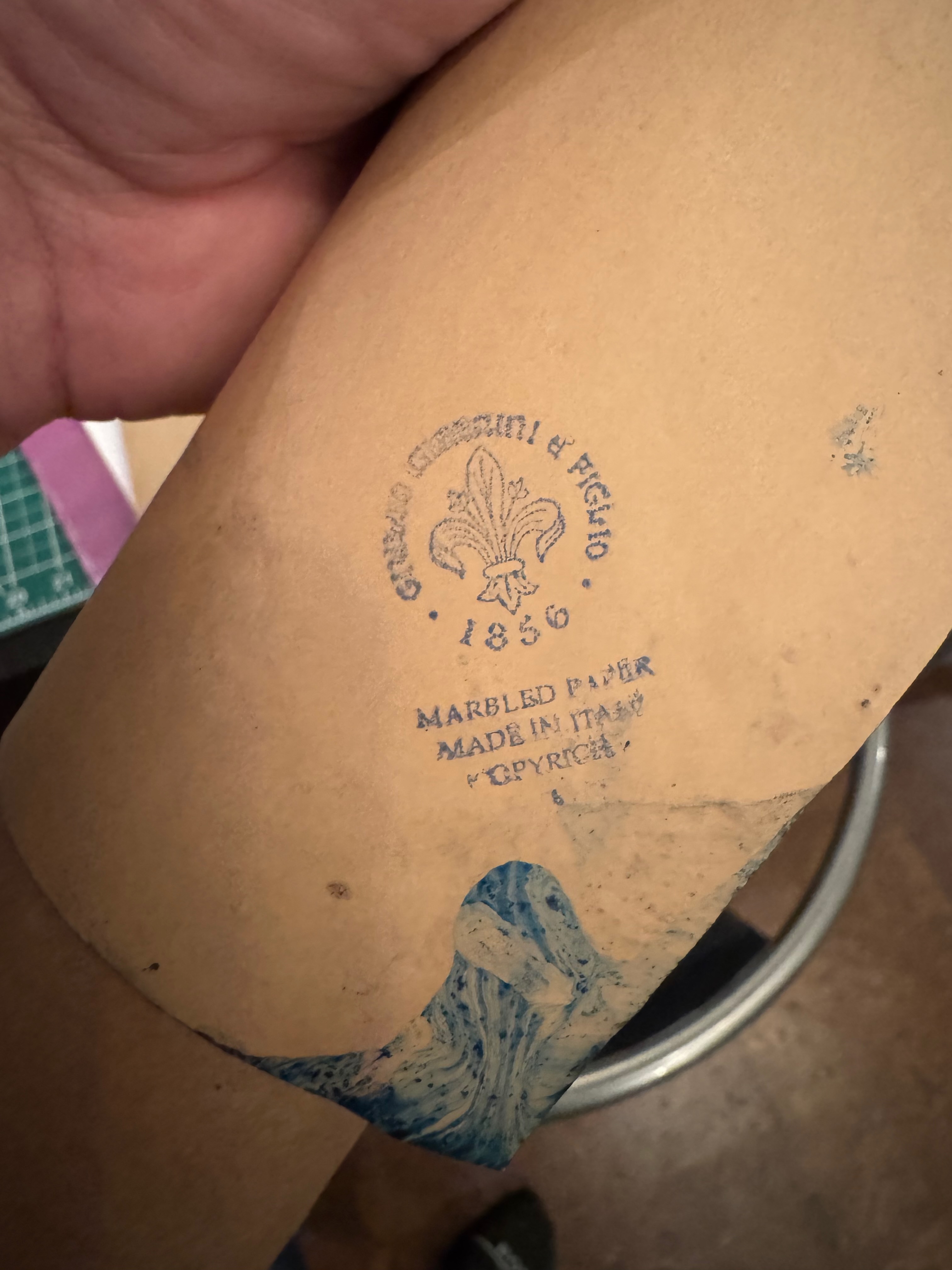
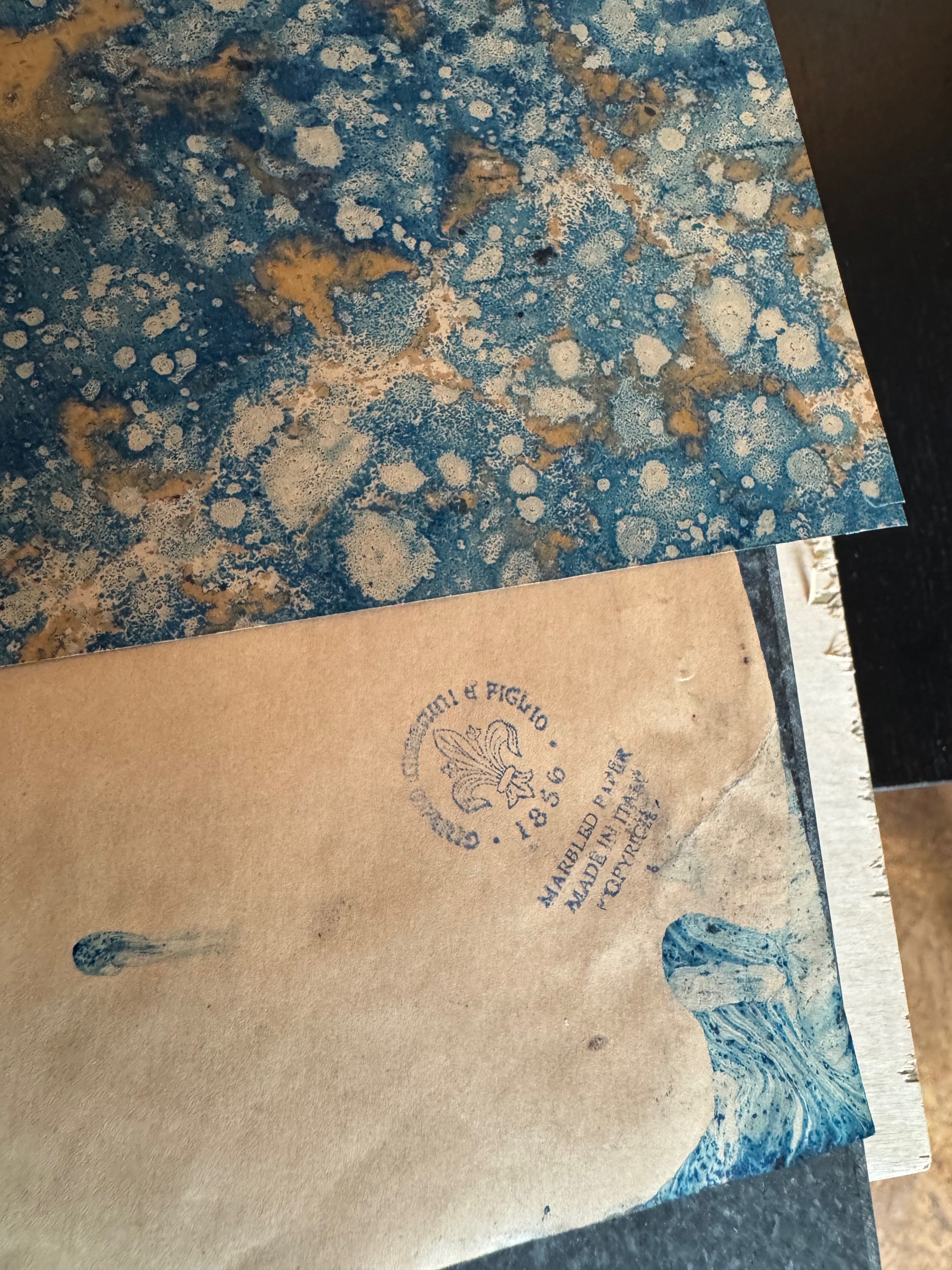
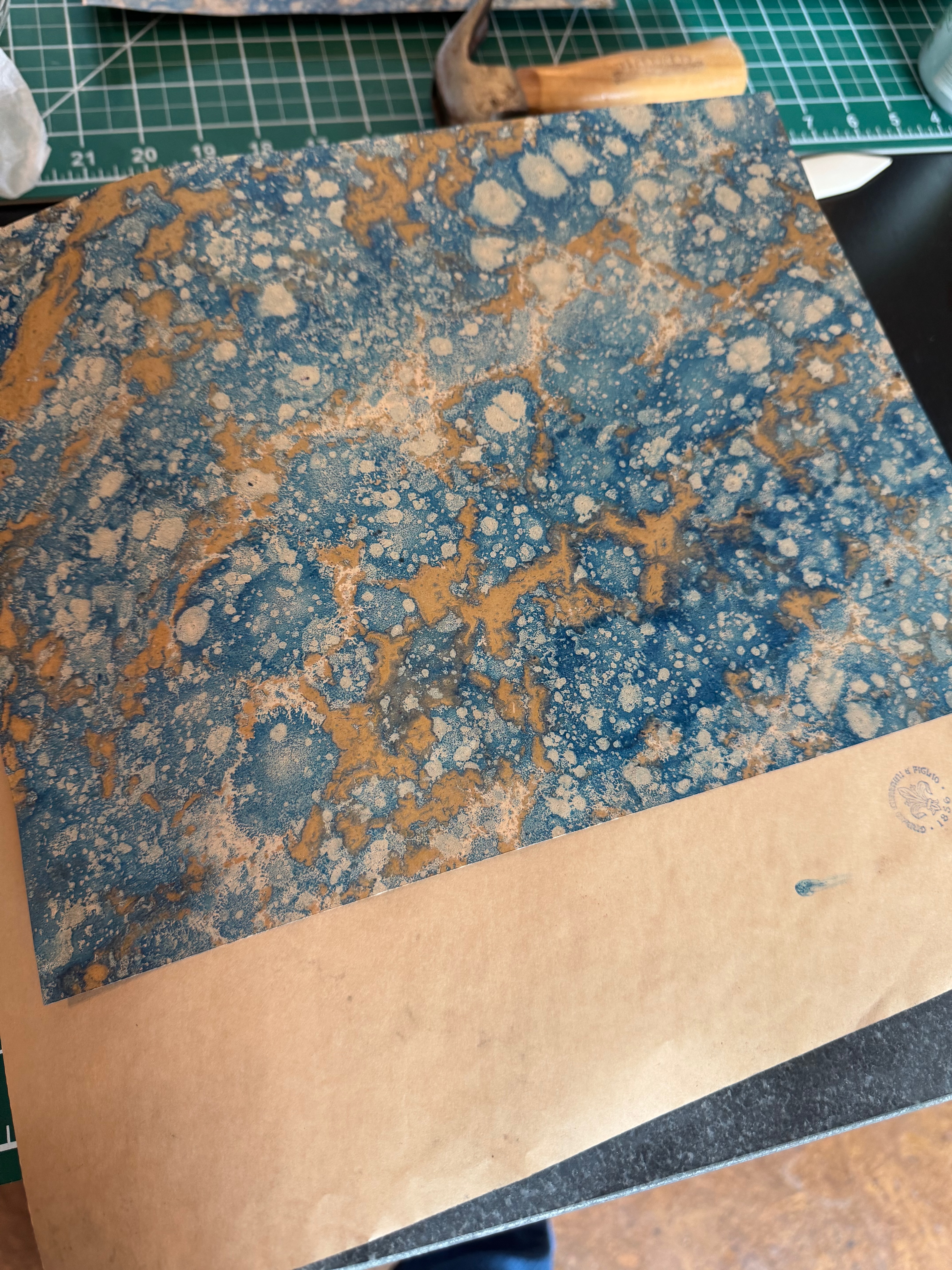
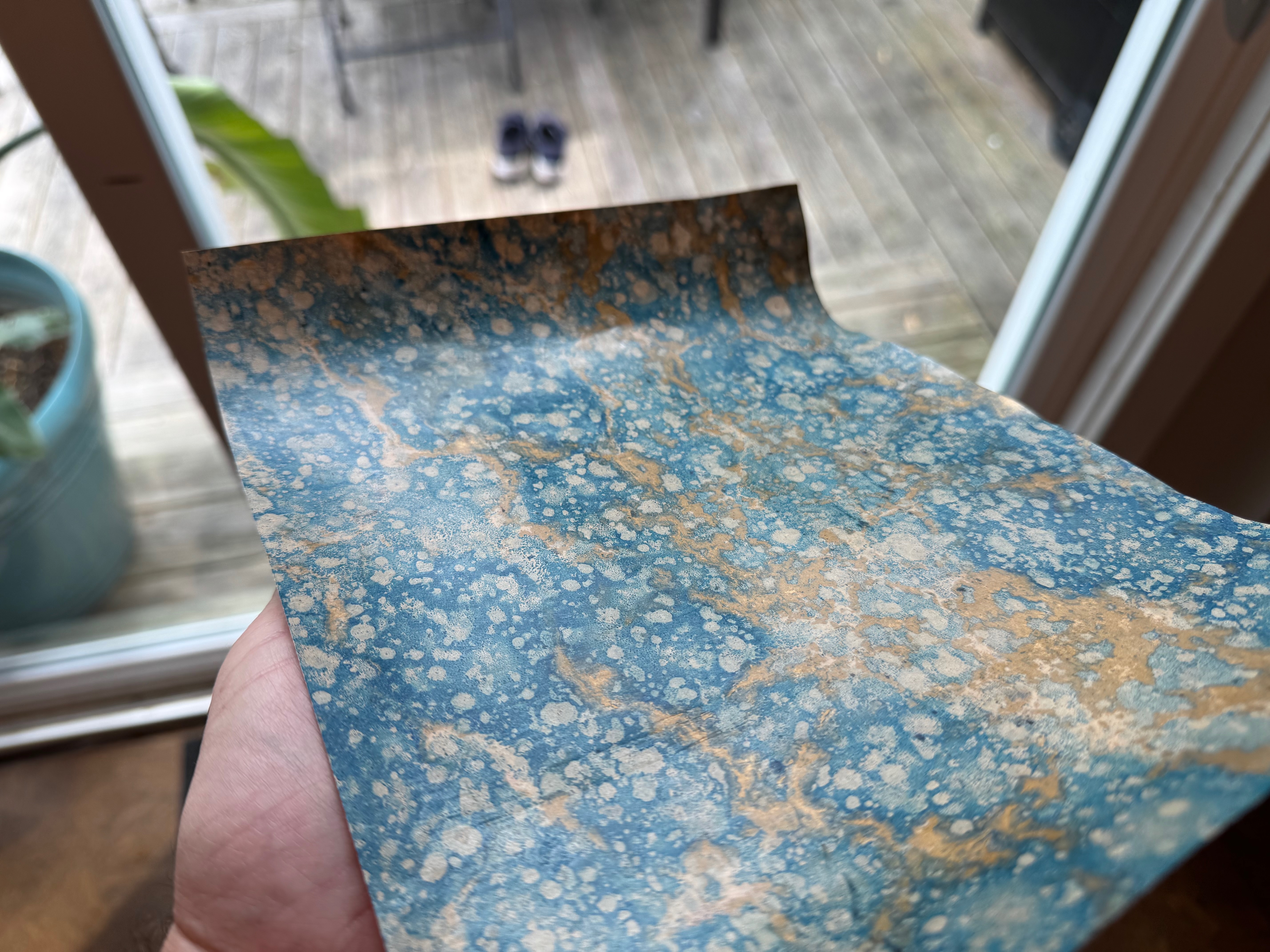
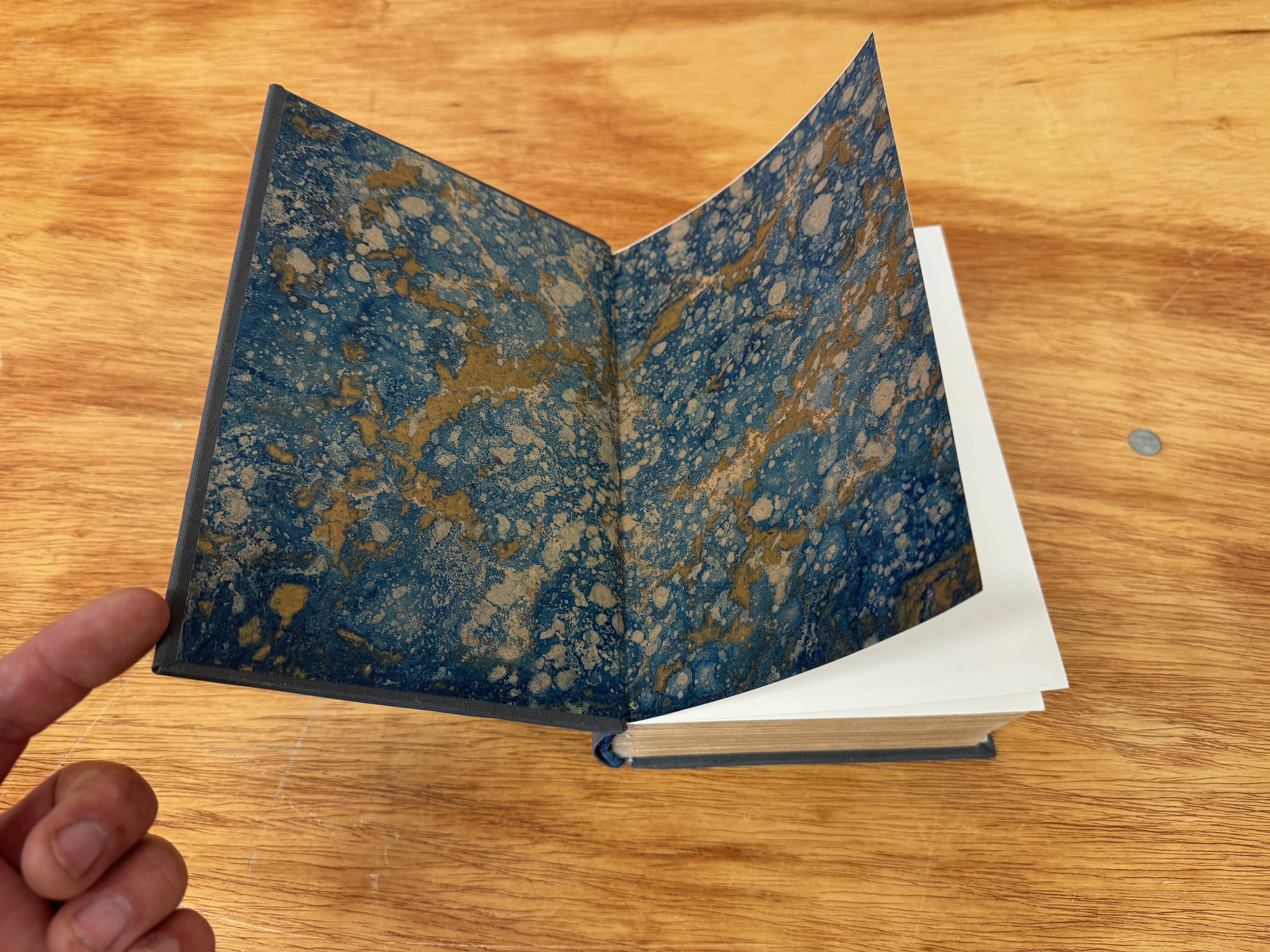
Given the title of the book, I decided to go with a gold and blue marbled paper. I felt it would match the period in looks and suit the theme well.
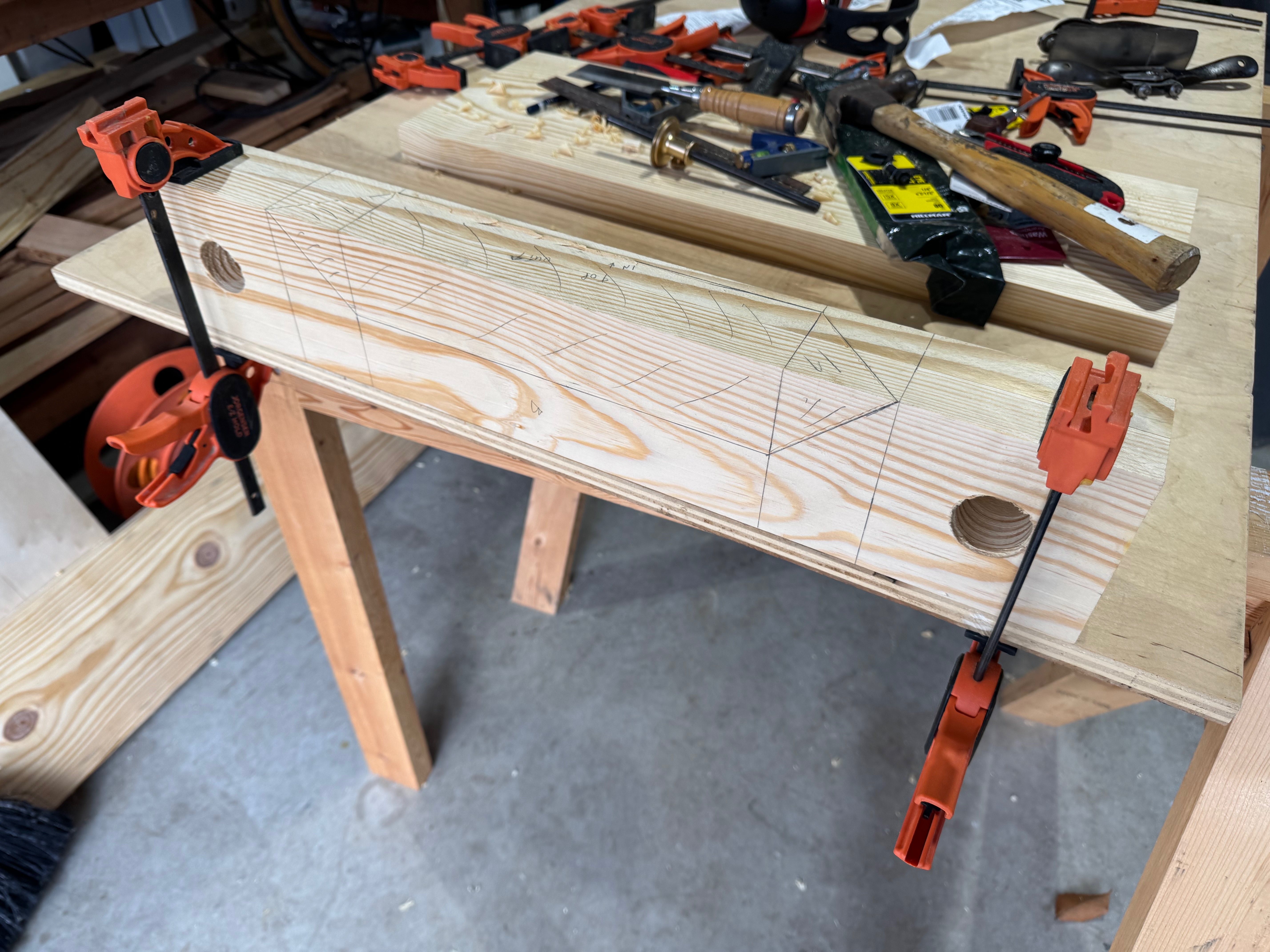
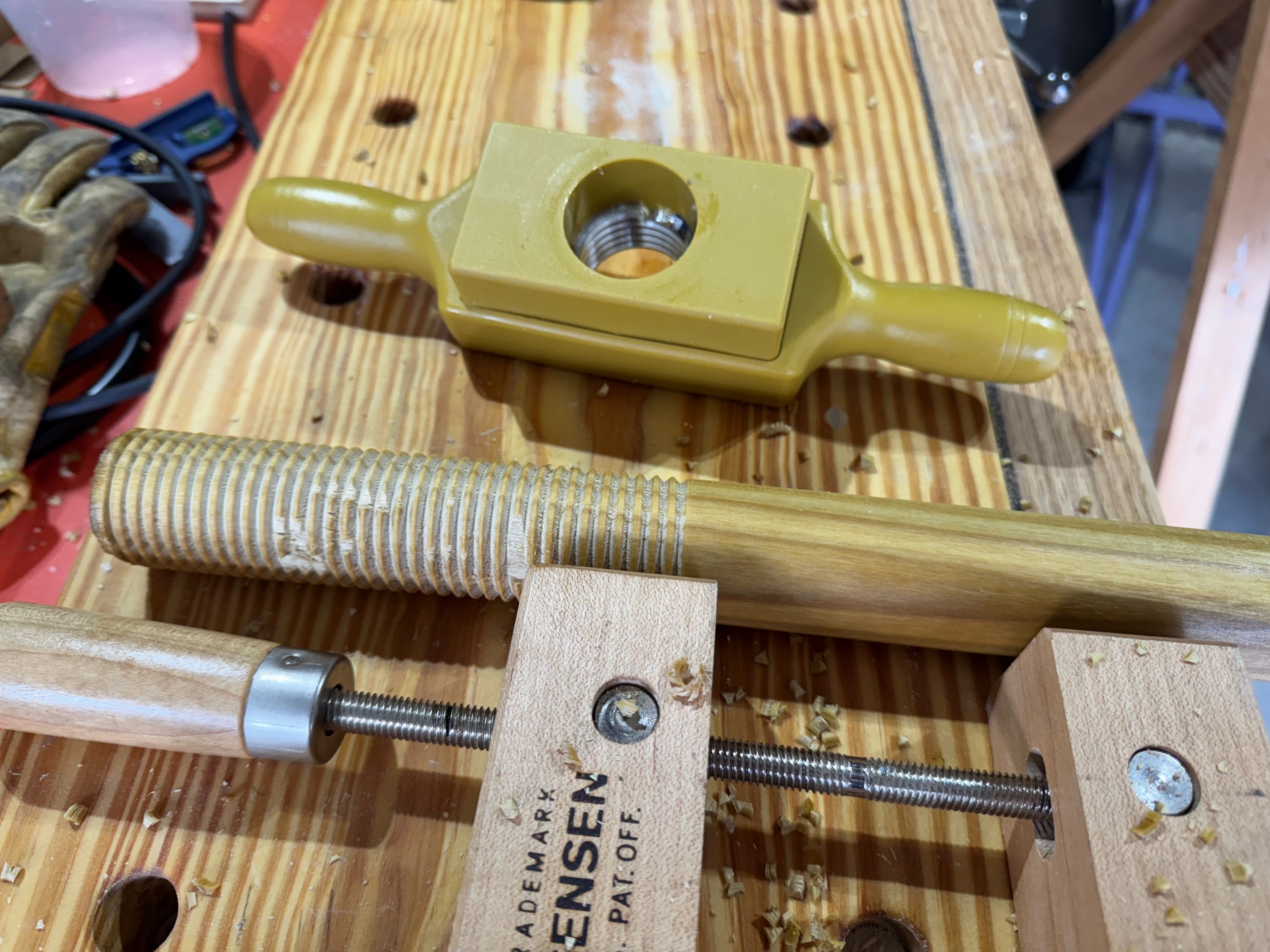
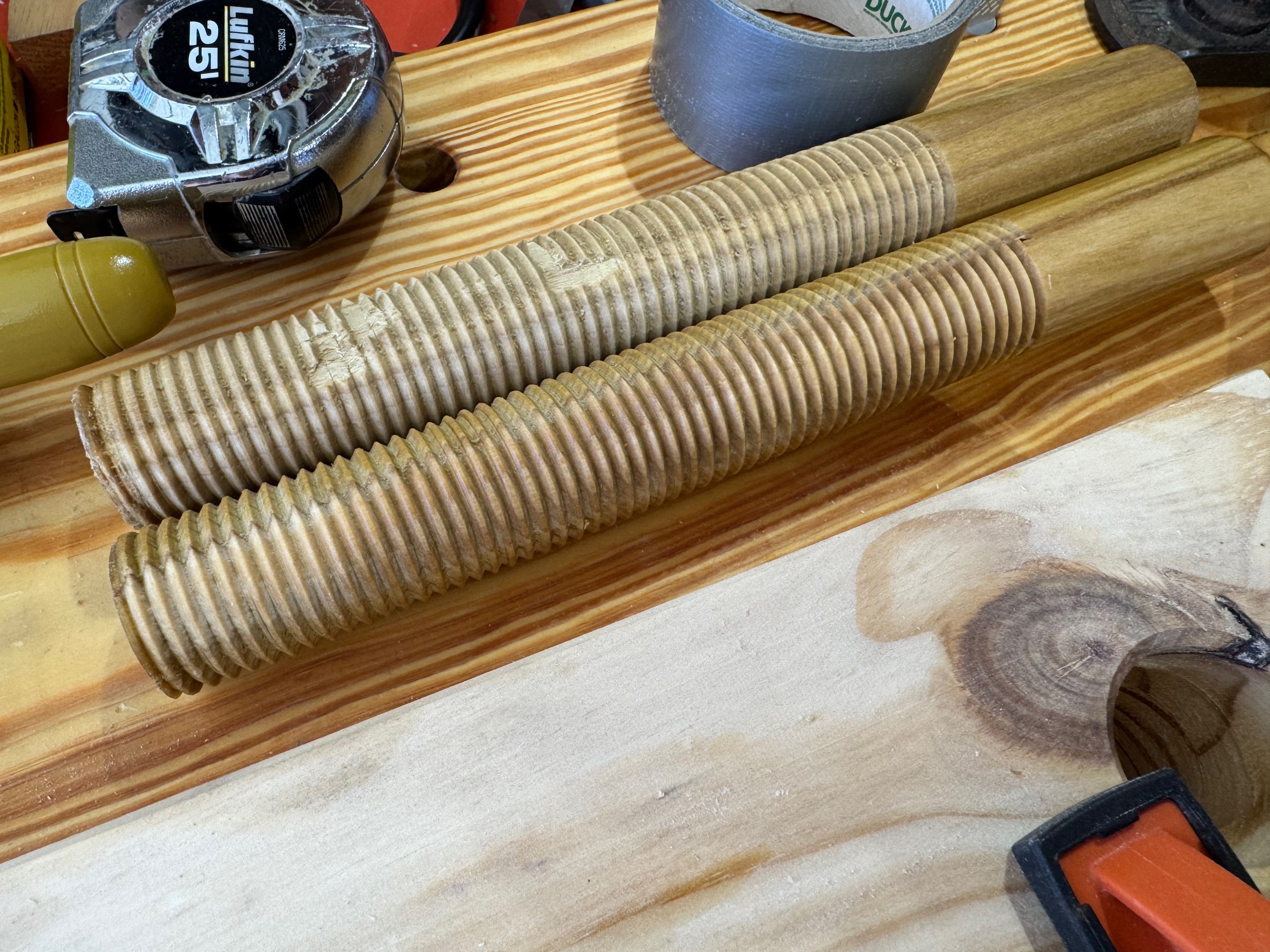
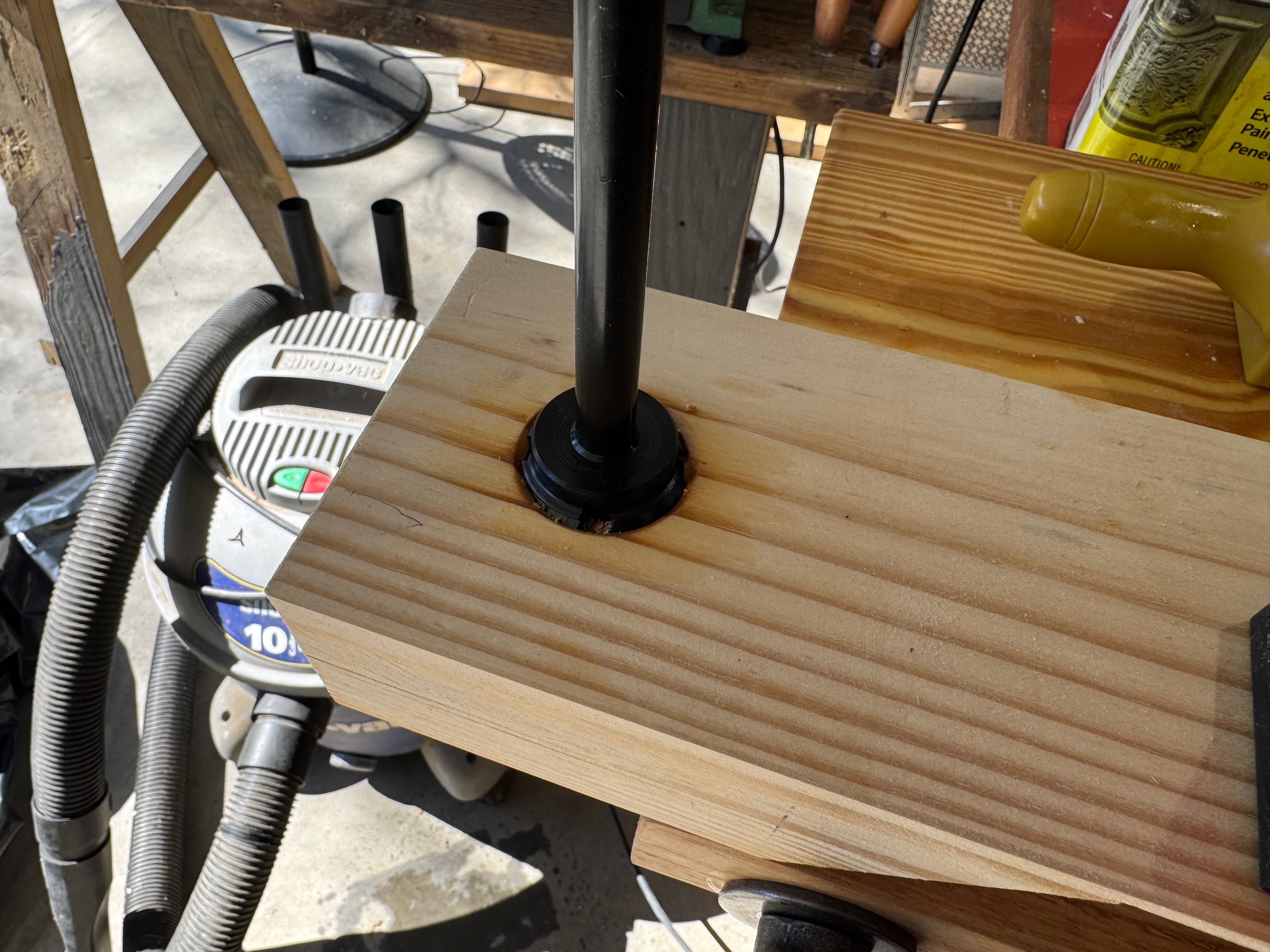
Building the lying press
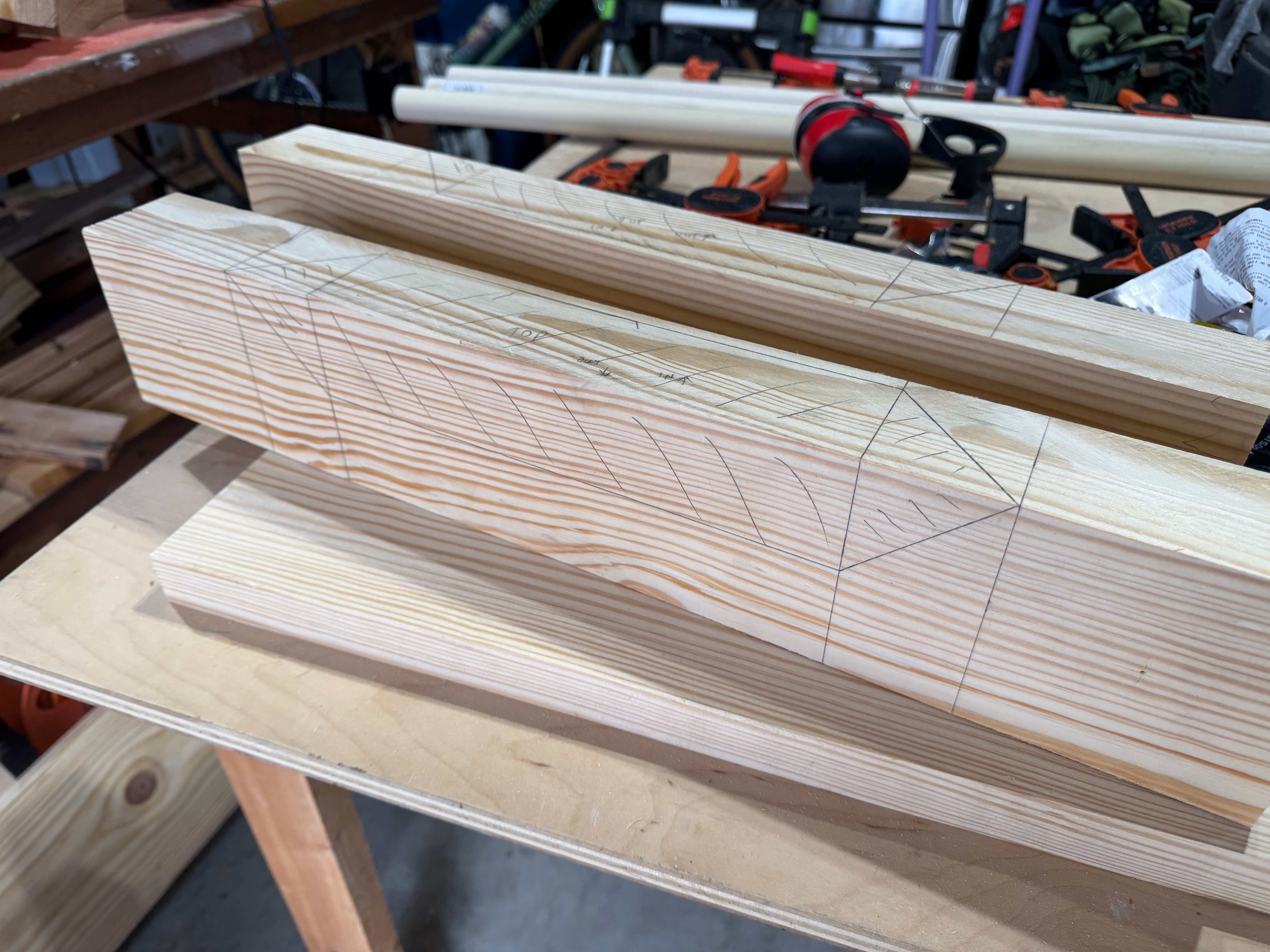
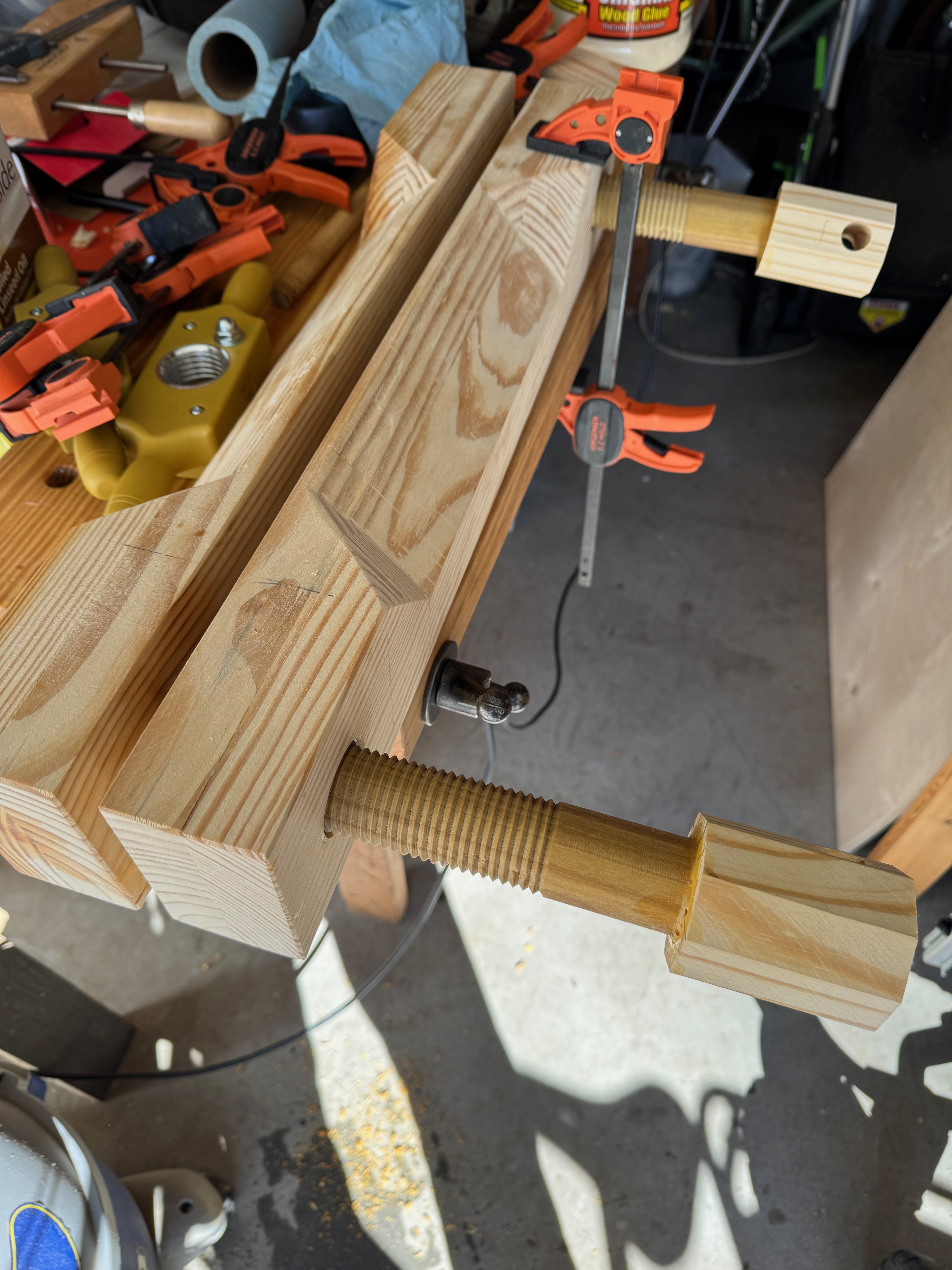
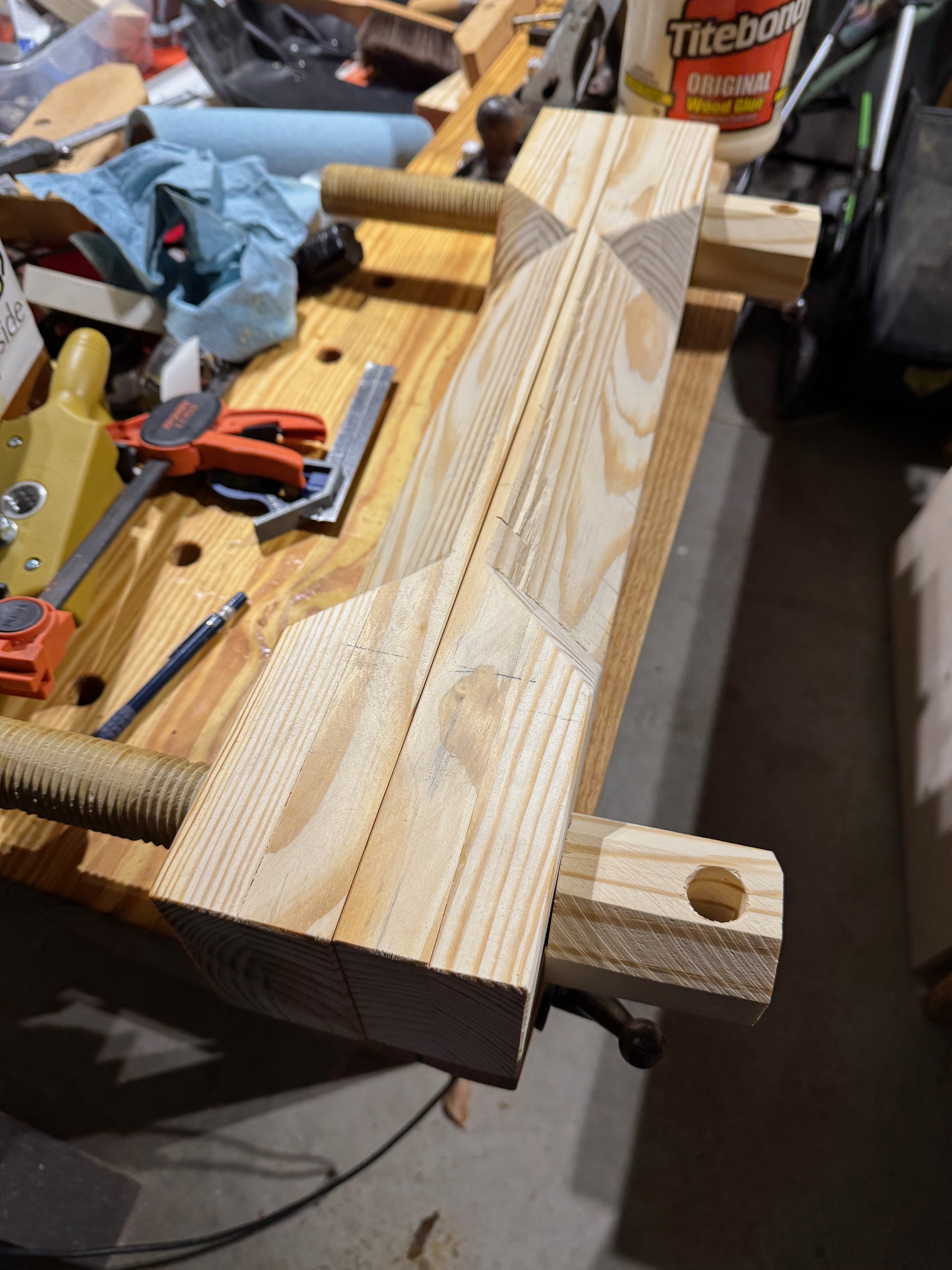
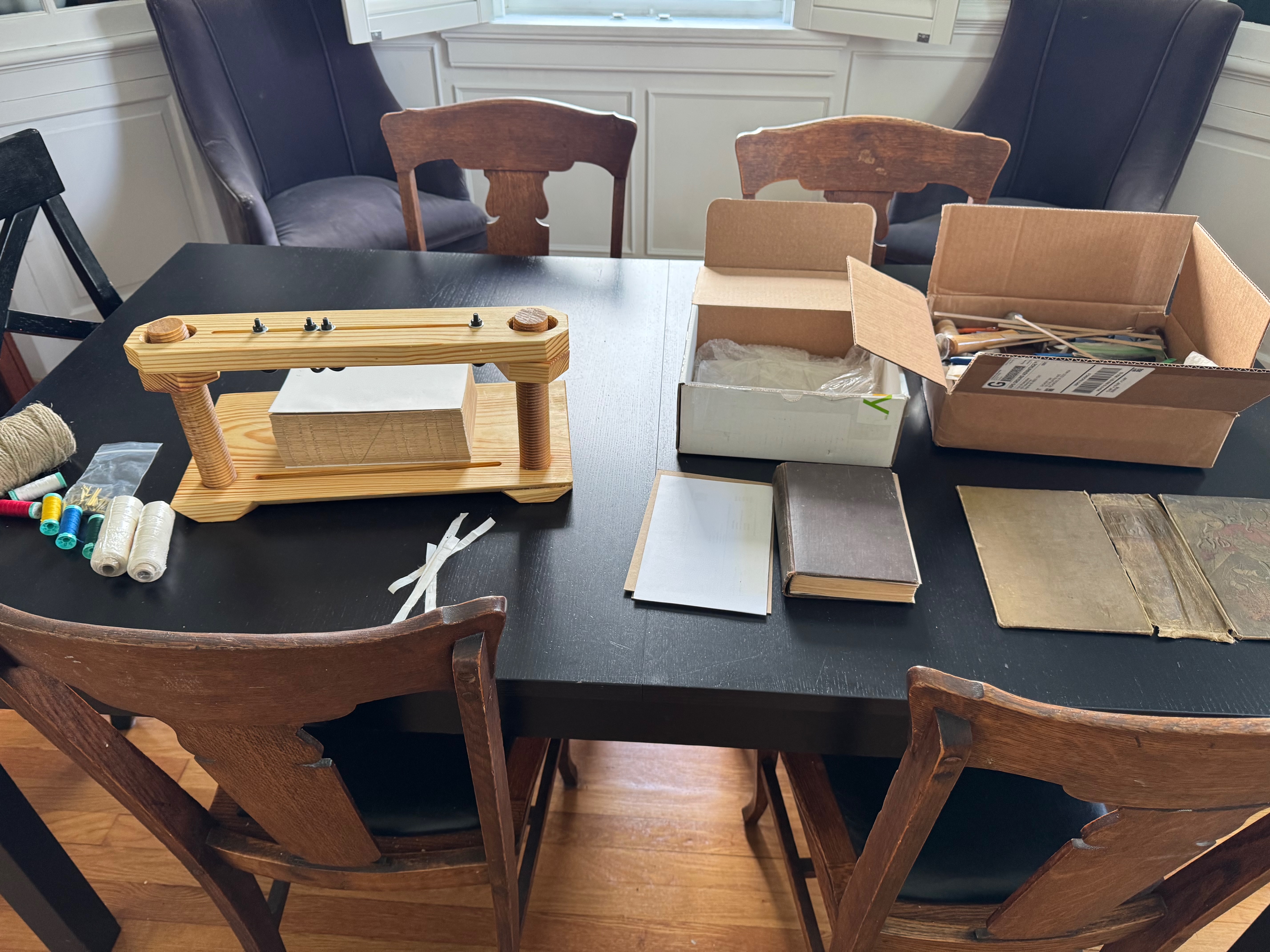
The first side quest! In order to perform many of the actions I'd signed up for, I knew I needed at least a lying press. Basically a modified Moxon Vise, it would need to be beefy enough to handle an 800-page book and strong enough to apply the pressures needed for treating the text block as a solid unit. I was, at this point, tuned into a number of YouTube creators, and Darbin Orvar had a wonderful video detailing the creation of a book vise (lying press) and book plough.
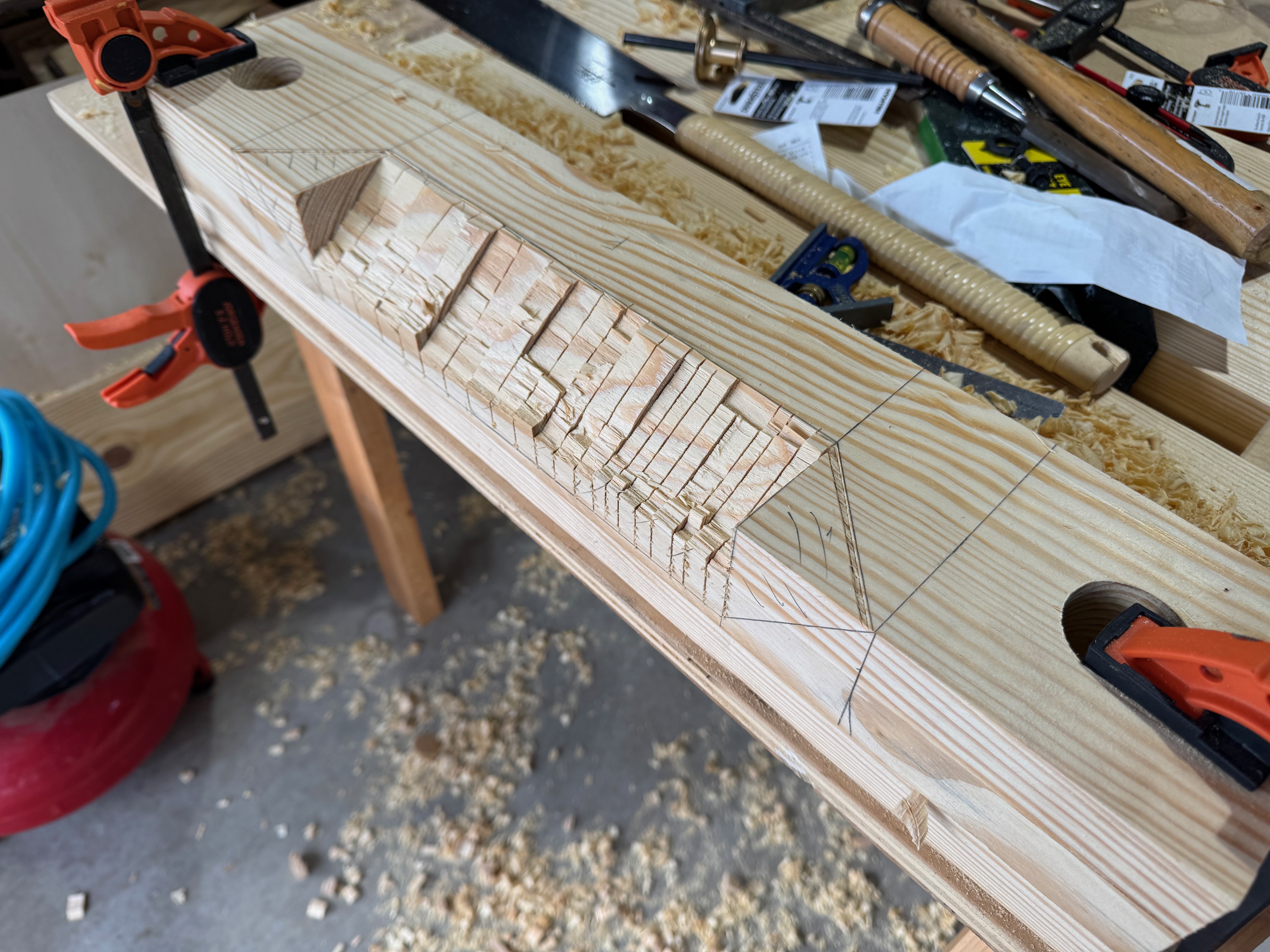
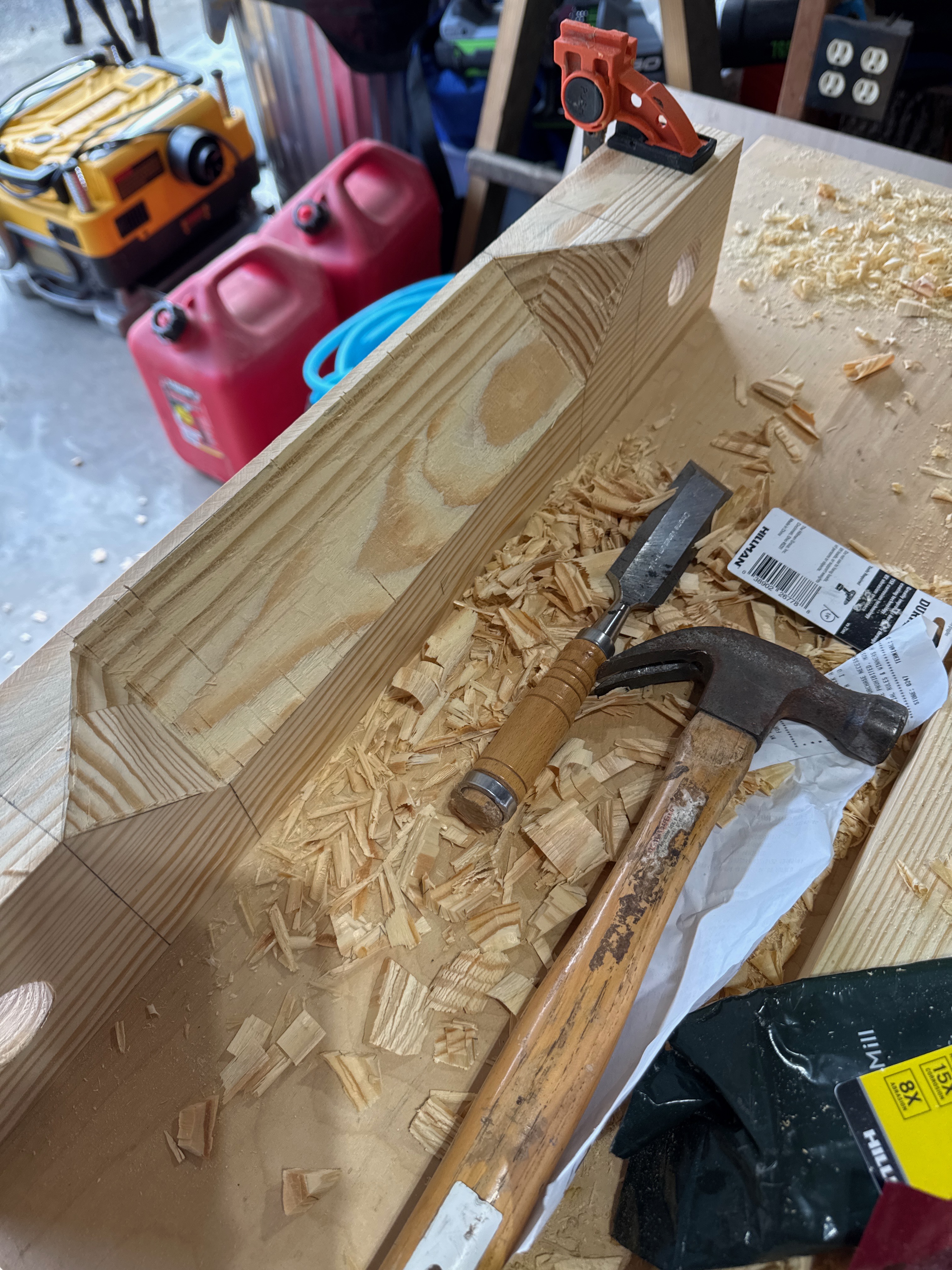
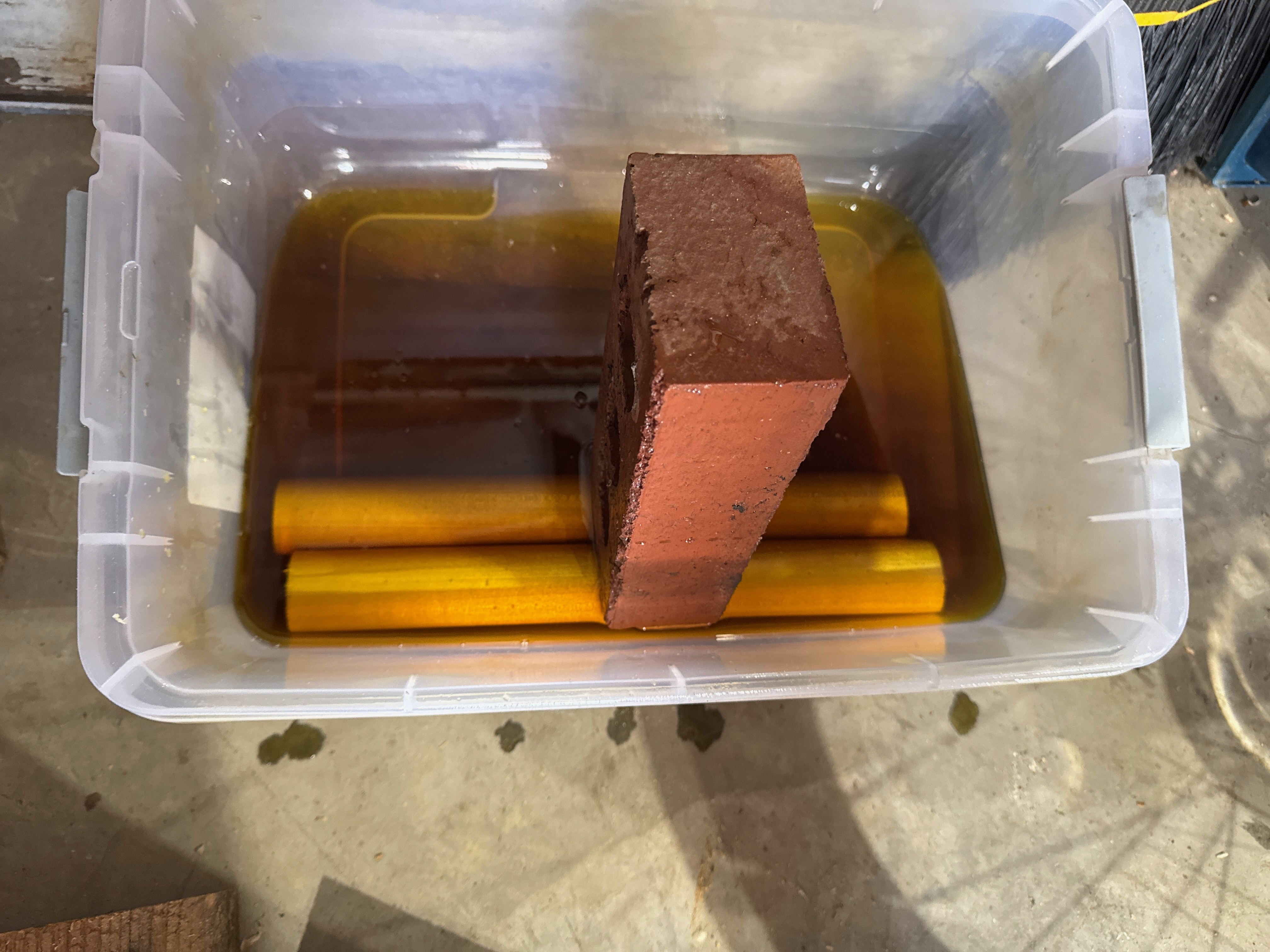
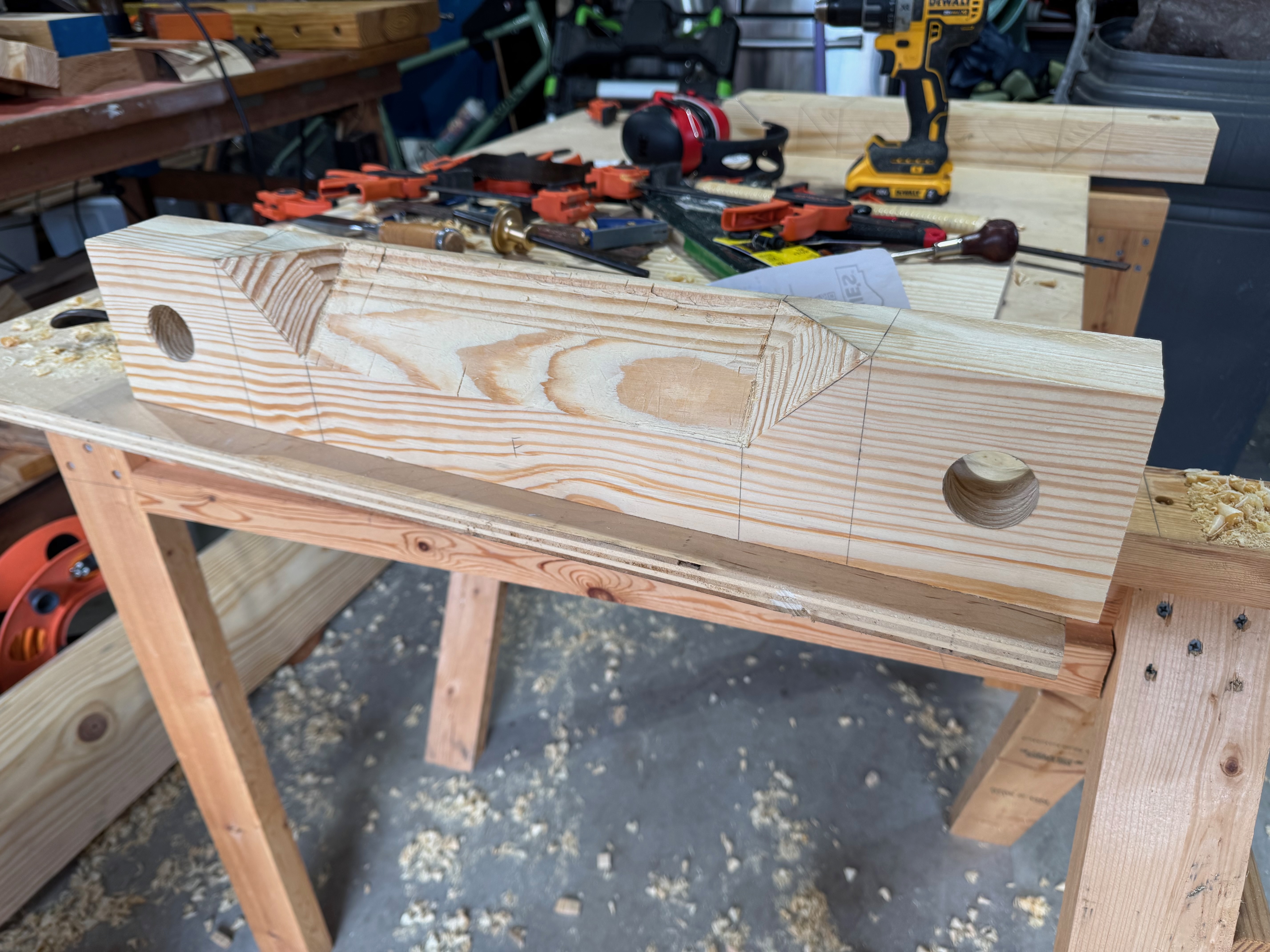
Separating the signatures
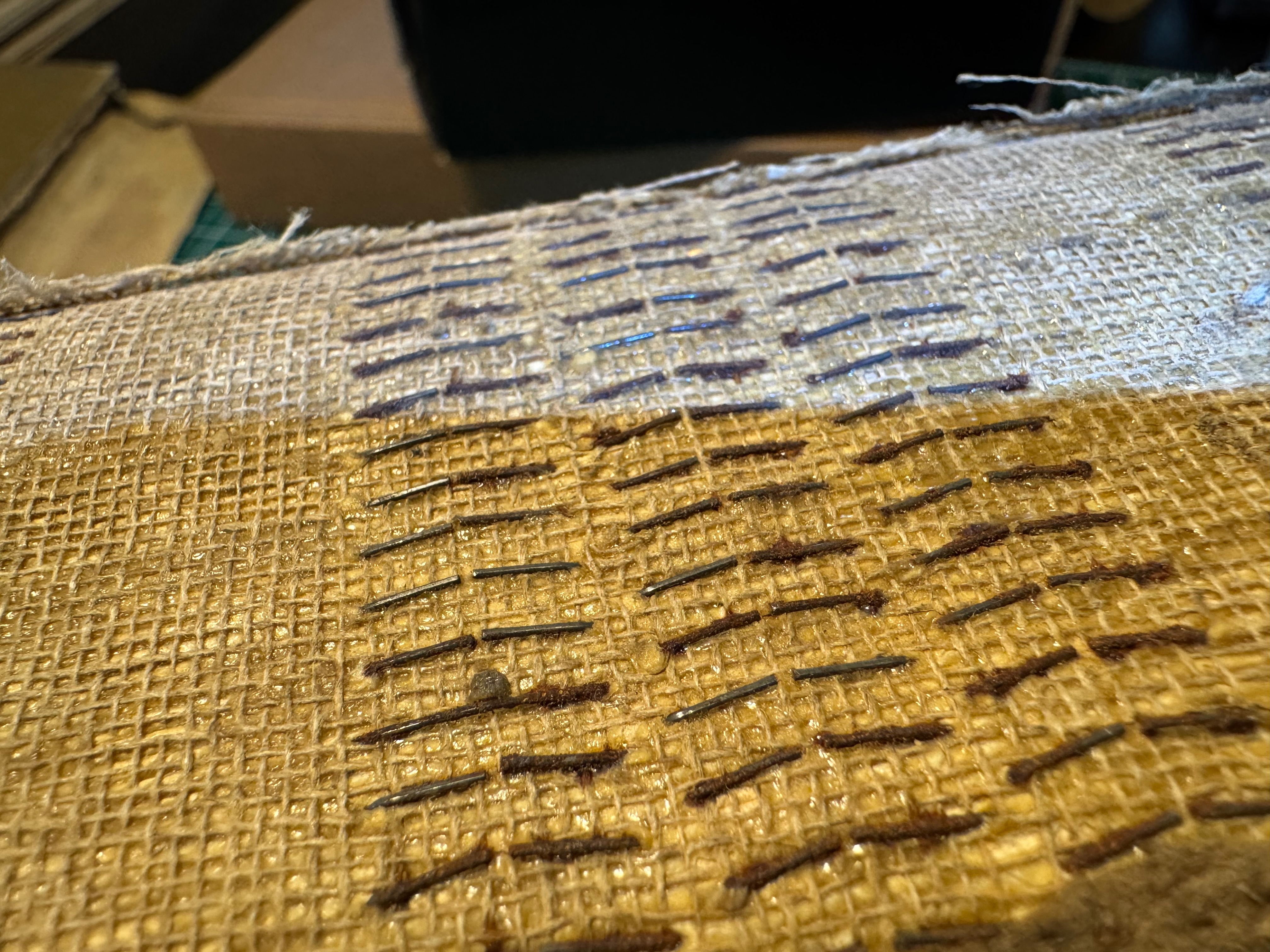
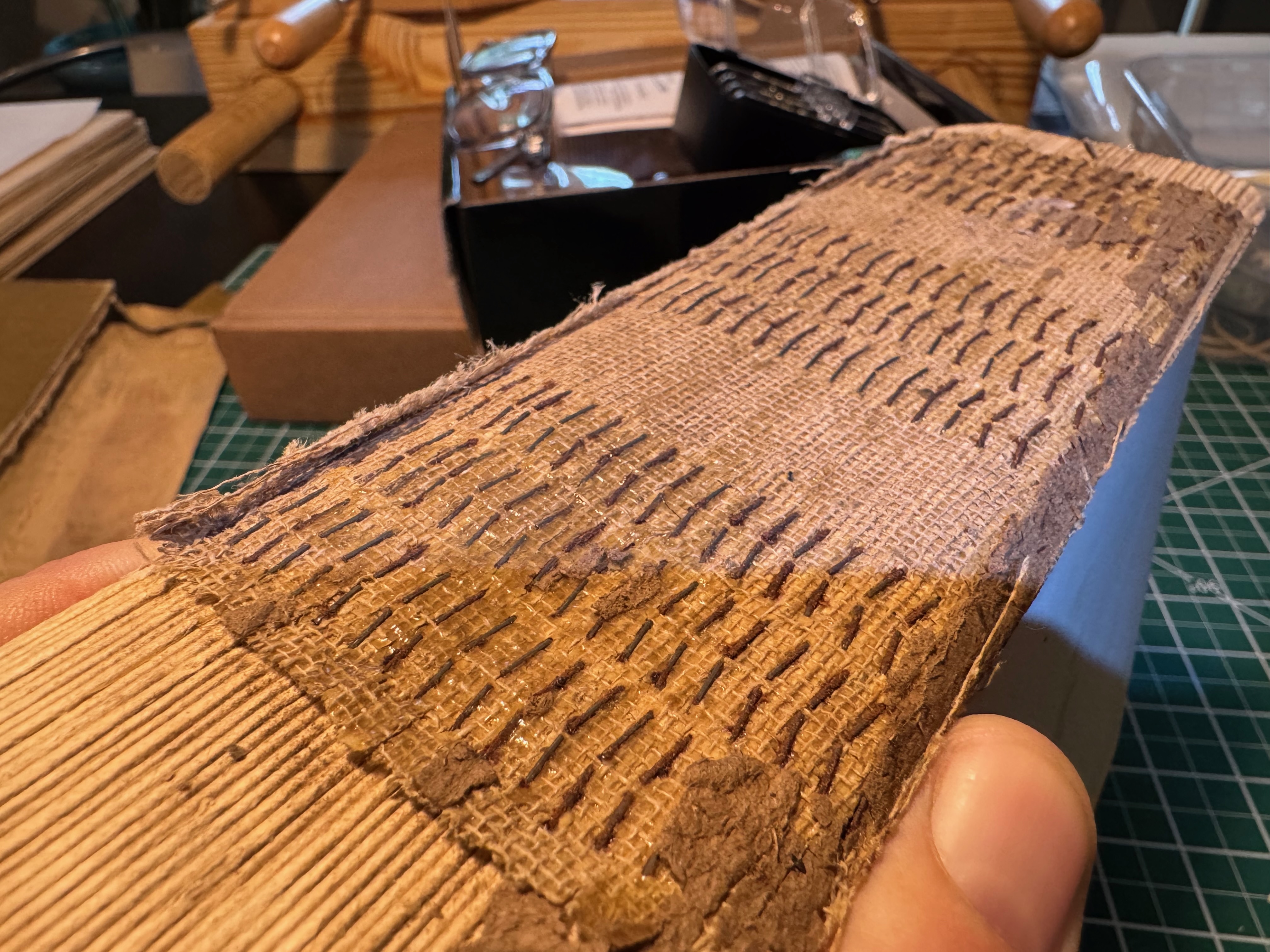
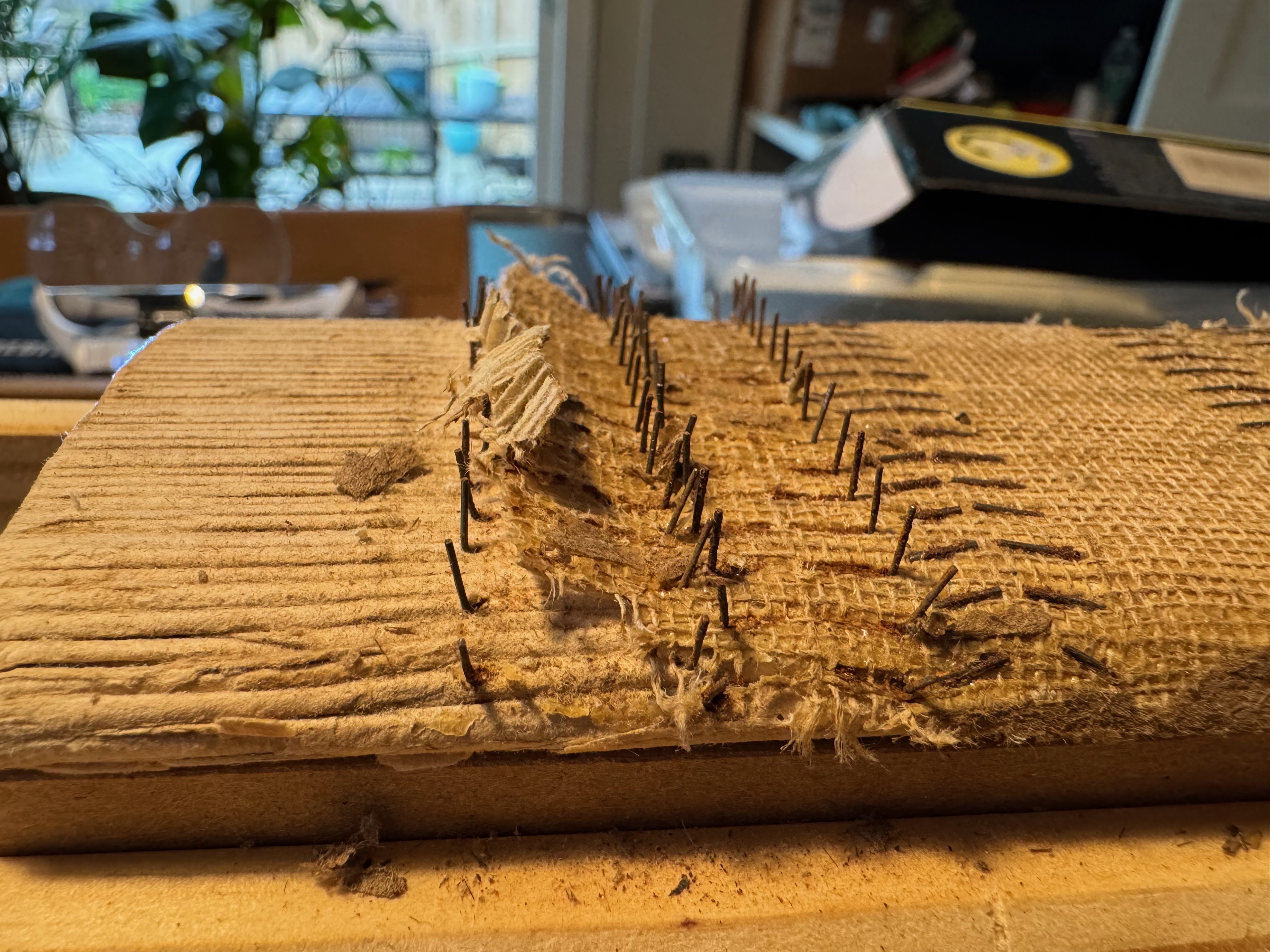
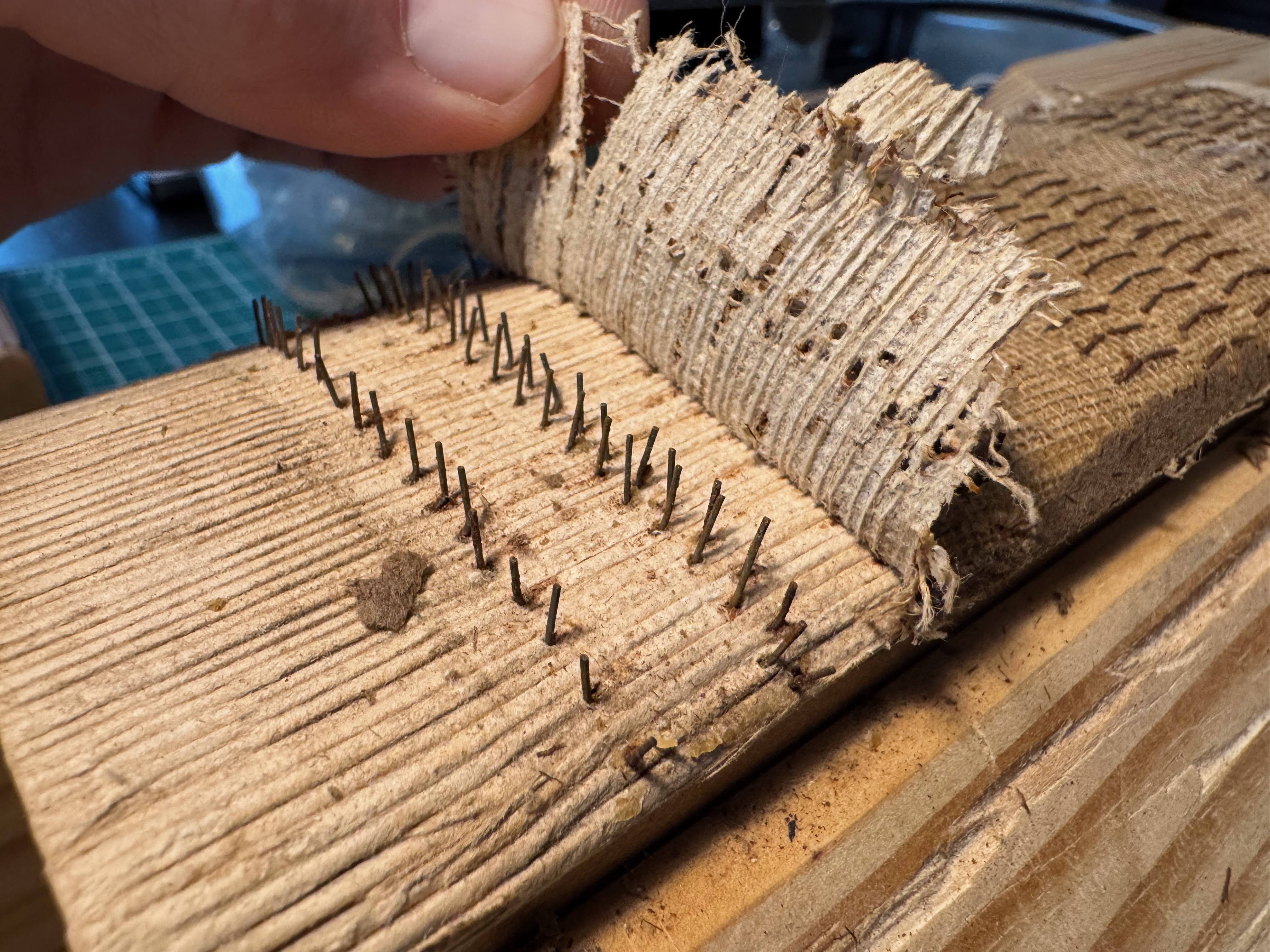
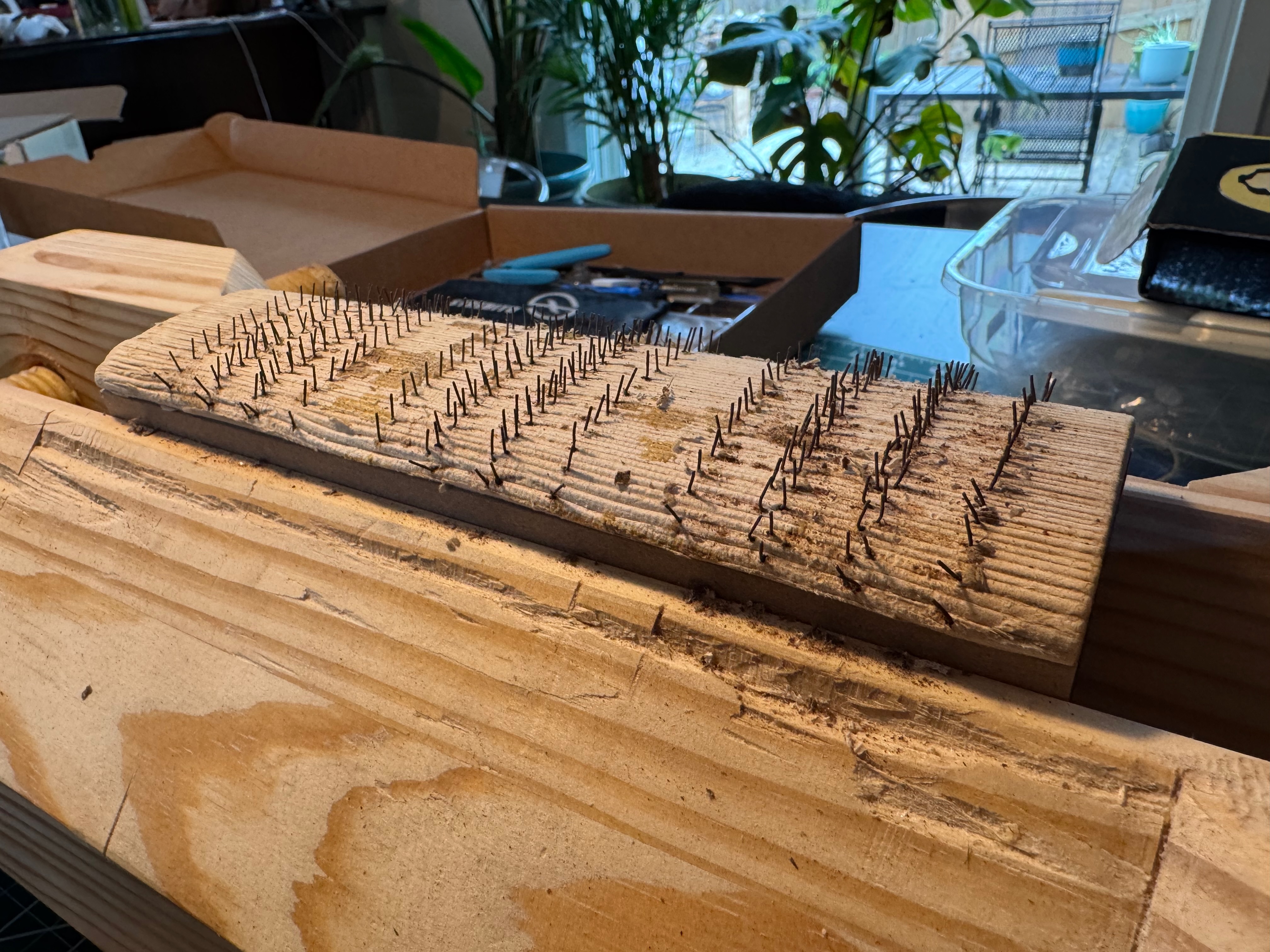
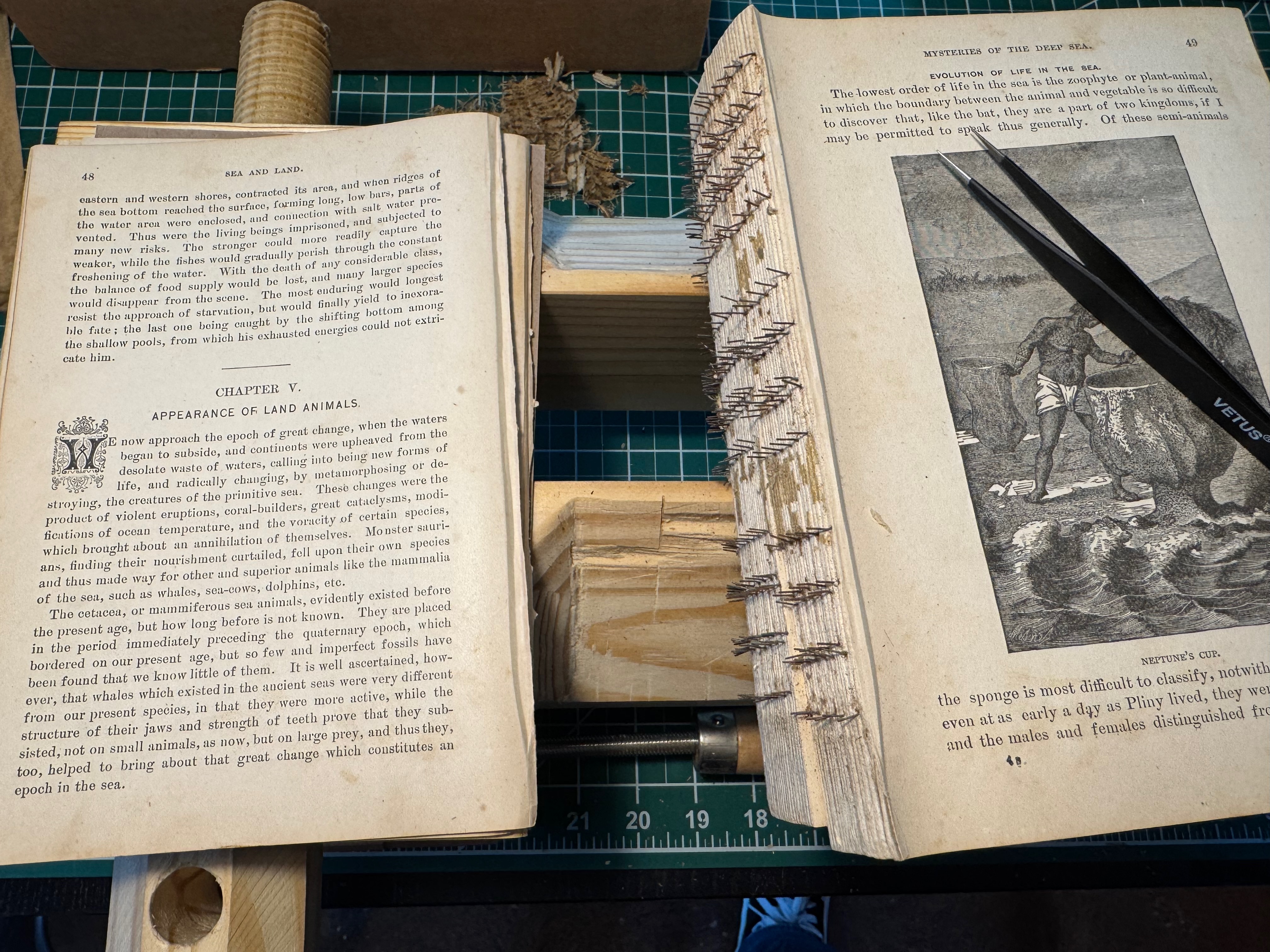
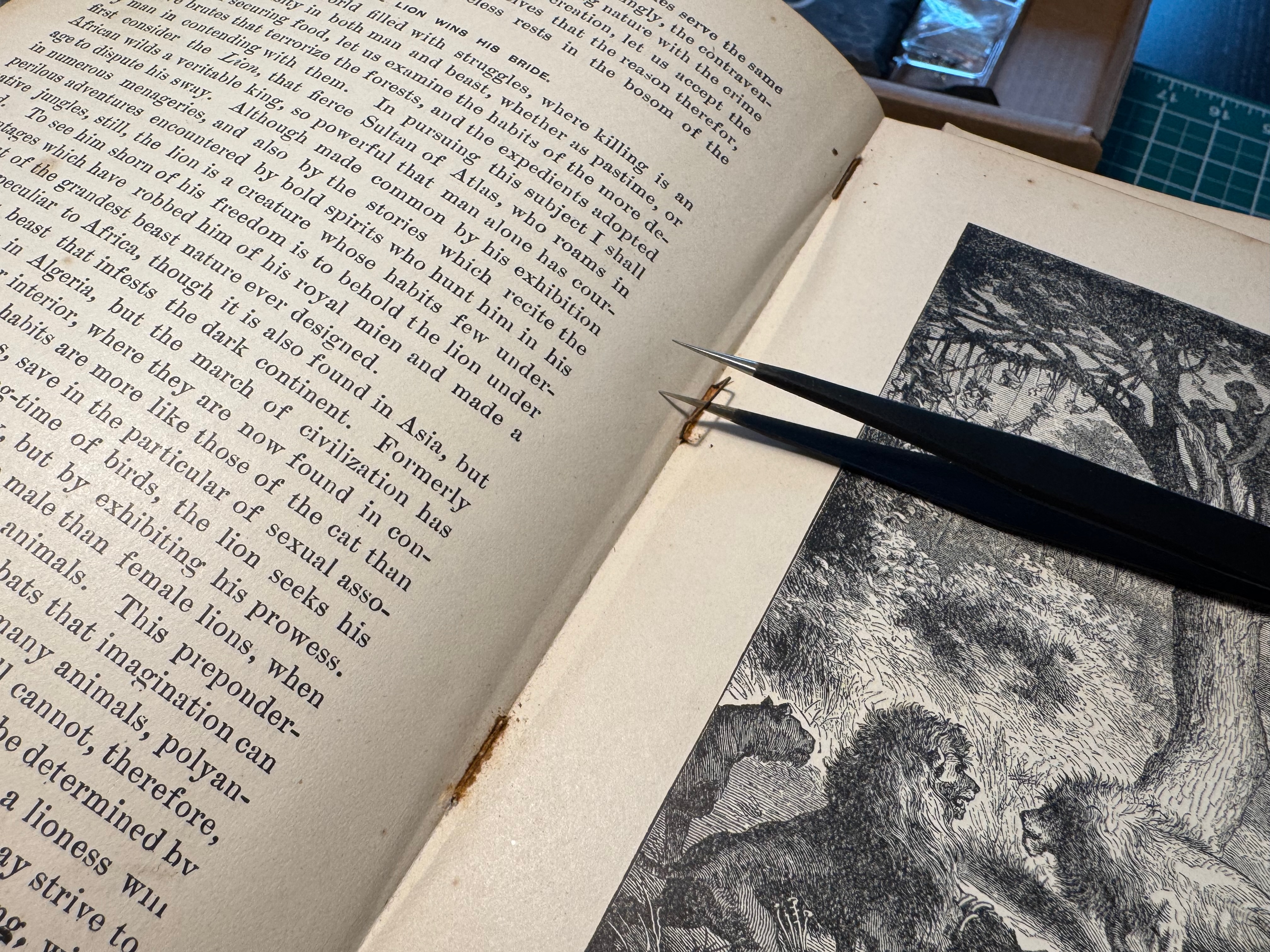
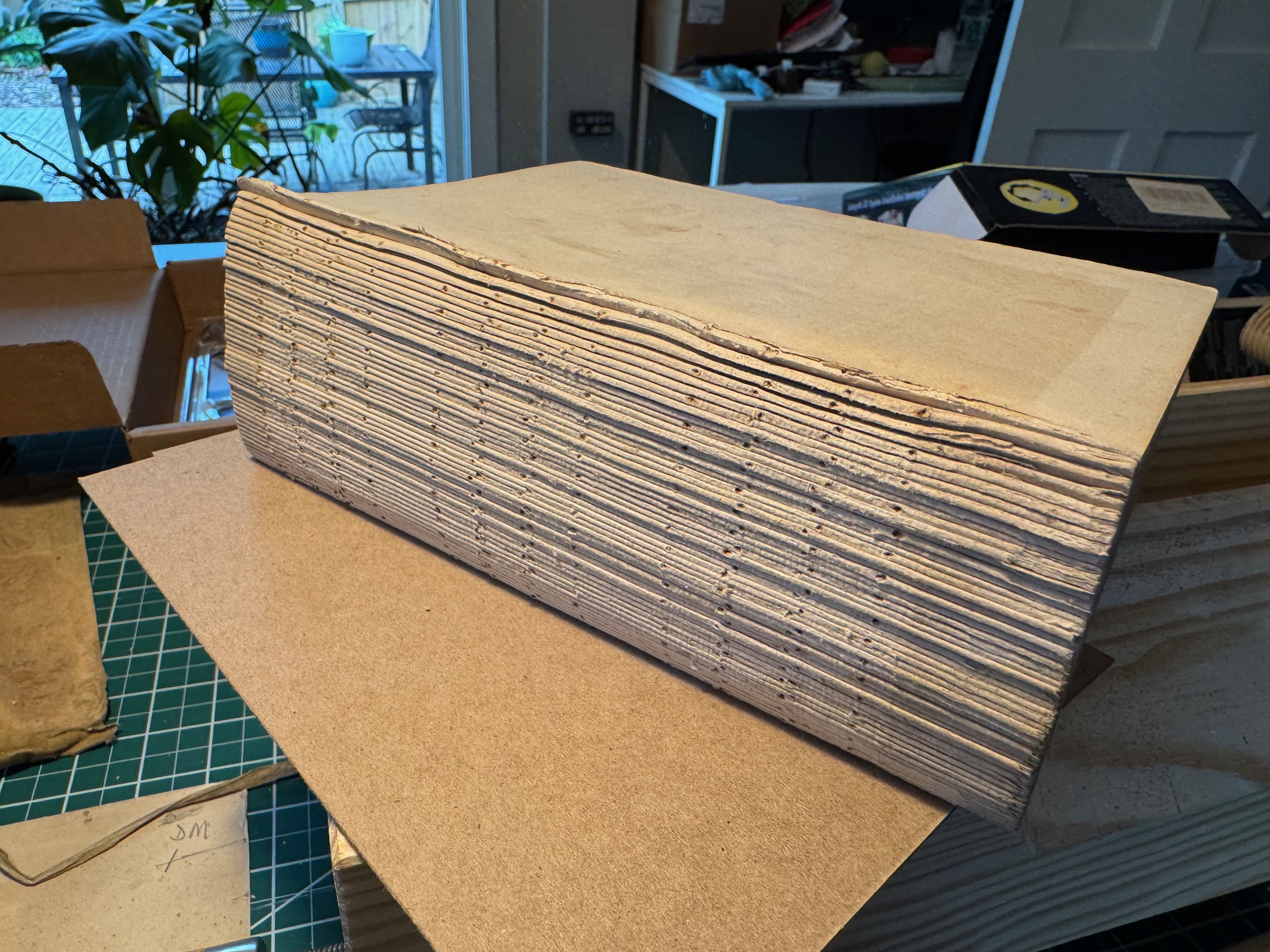
With the press made, it was time to resume deconstructing the text block. I'd spread a mixture of methylcellulose on the spine to loosen the remaining glue and paper sediment, and to my surprise found staples holding the signatures together, rather than thread as I'd expected. While delicate, they all were more or less solid and bent easily with some tweezers and patience. I didn't understand the pattern of the staples, and ultimately it wouldn't matter as I'd decided I was going to sew the text block back together.
Knocking down the signatures
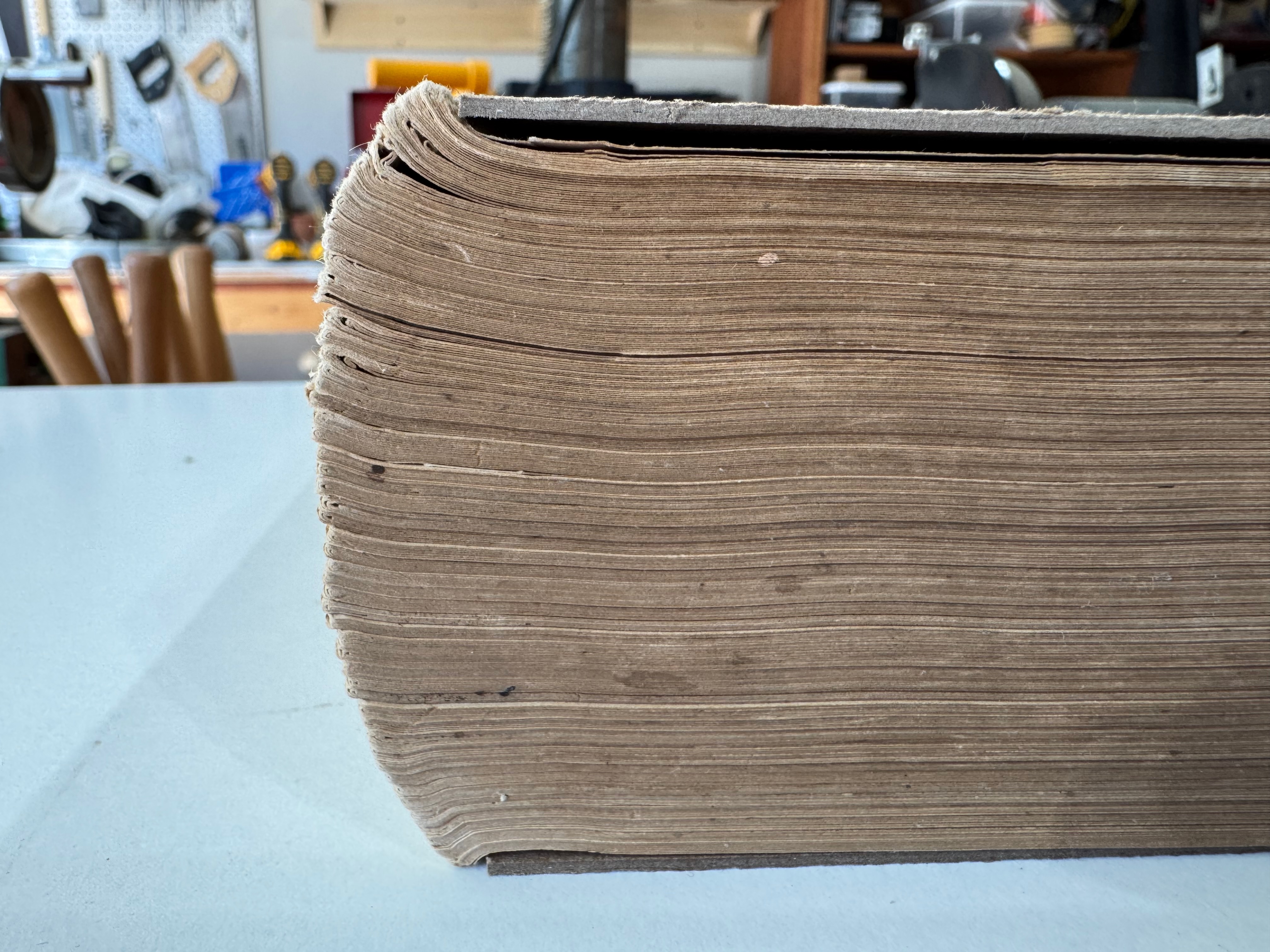
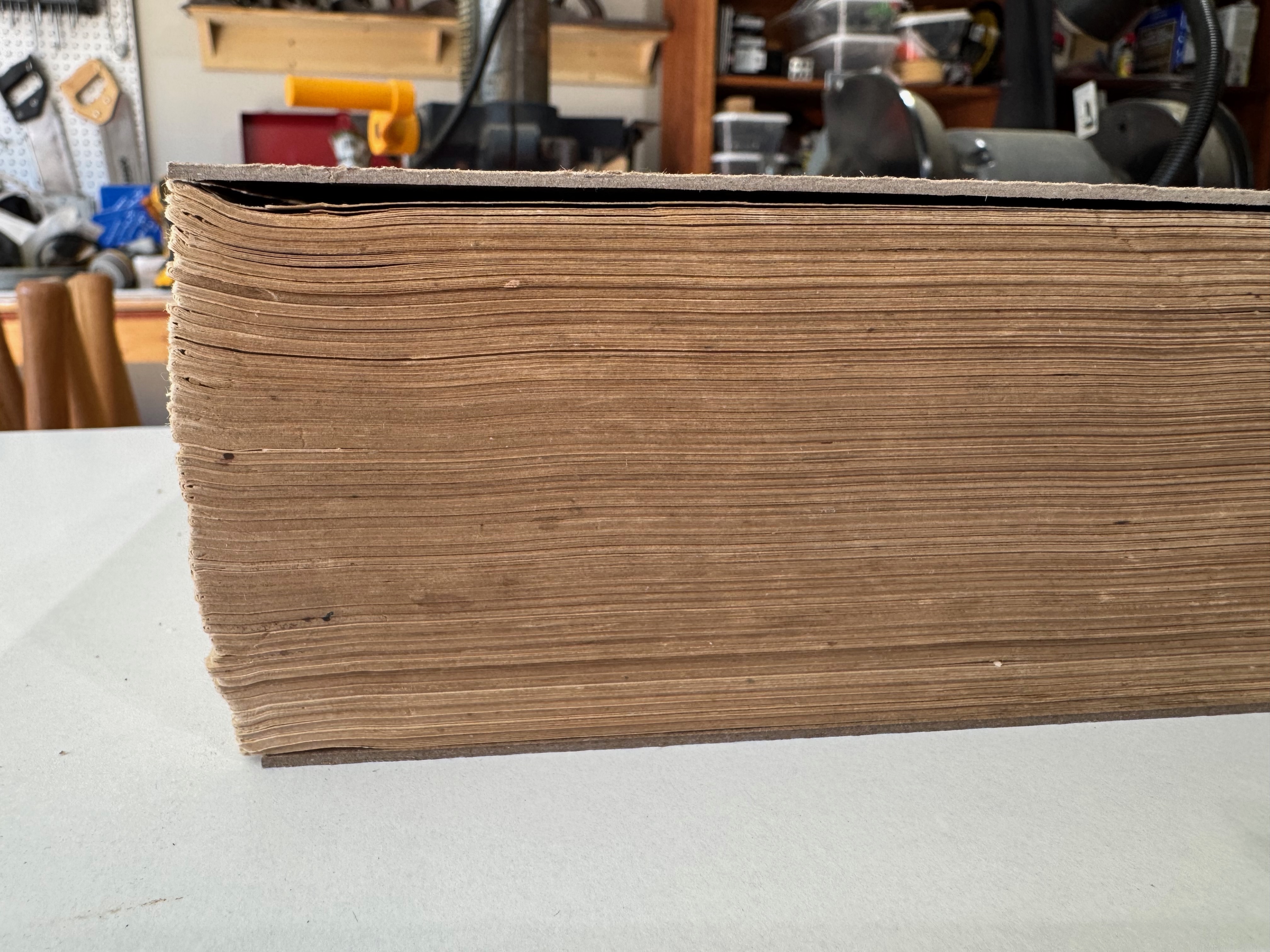
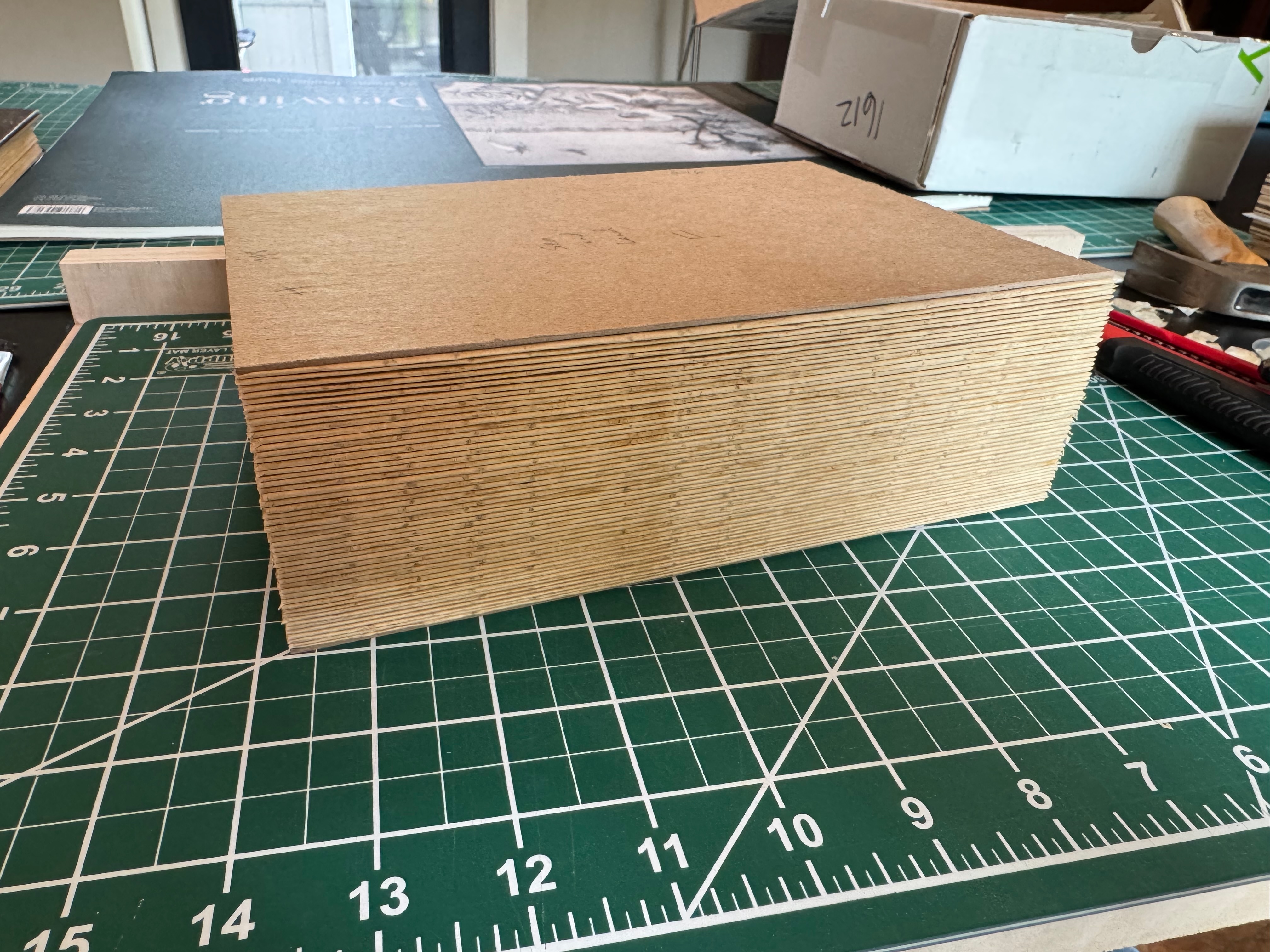
Before I could reassemble them (or even guard the folds), I needed to remove any curve at the spine edge of the signatures. This is a process called "knocking down", and it usually involves a very flat, very sturdy iron. You lay the spine edge on the iron and gently whack the signature with a broad, flat hammer. Just enough to remove the curve and leave the signature more or less flat. I could tell it would be most important with the first and last signatures.
Guarding the signatures
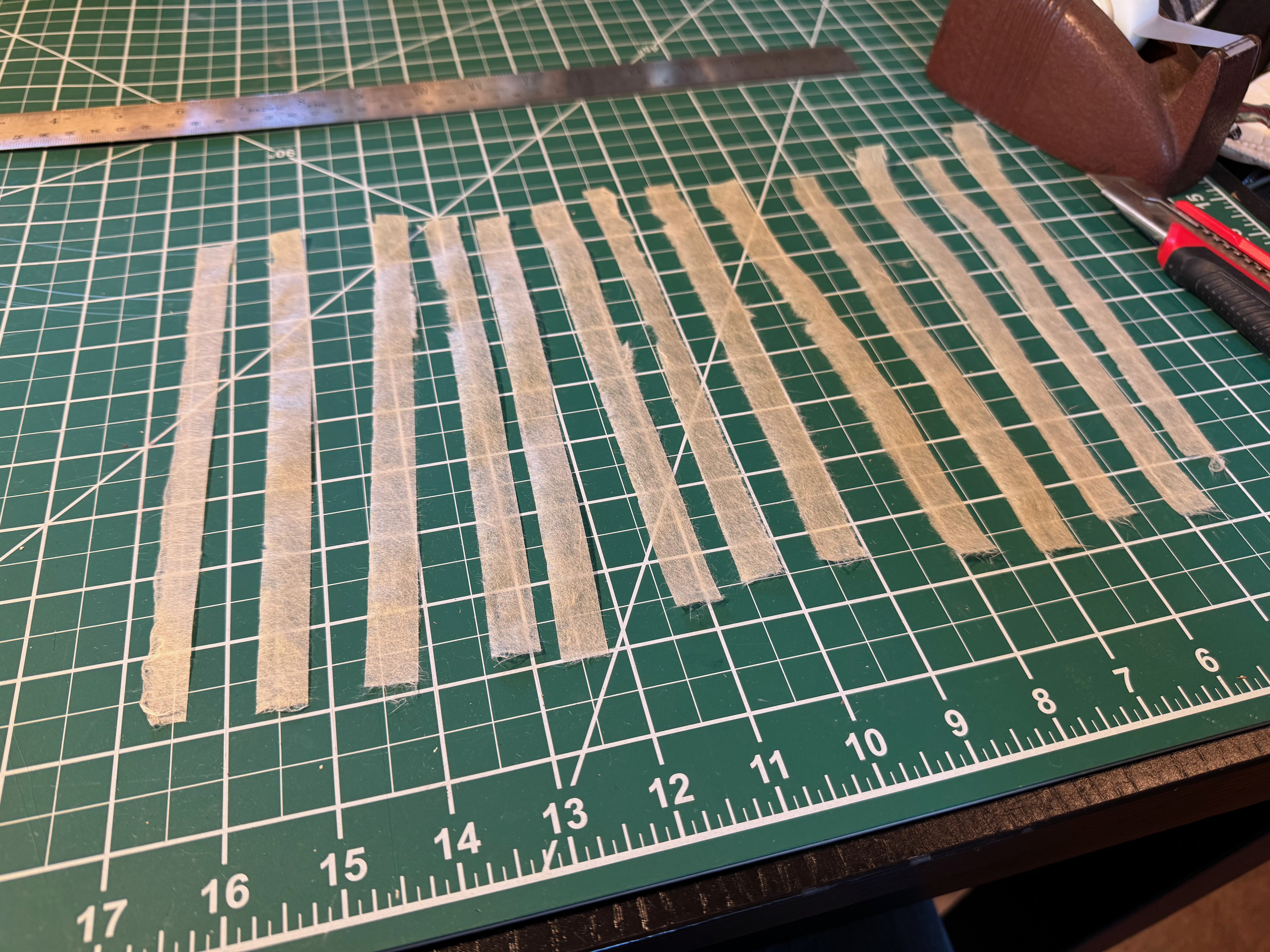
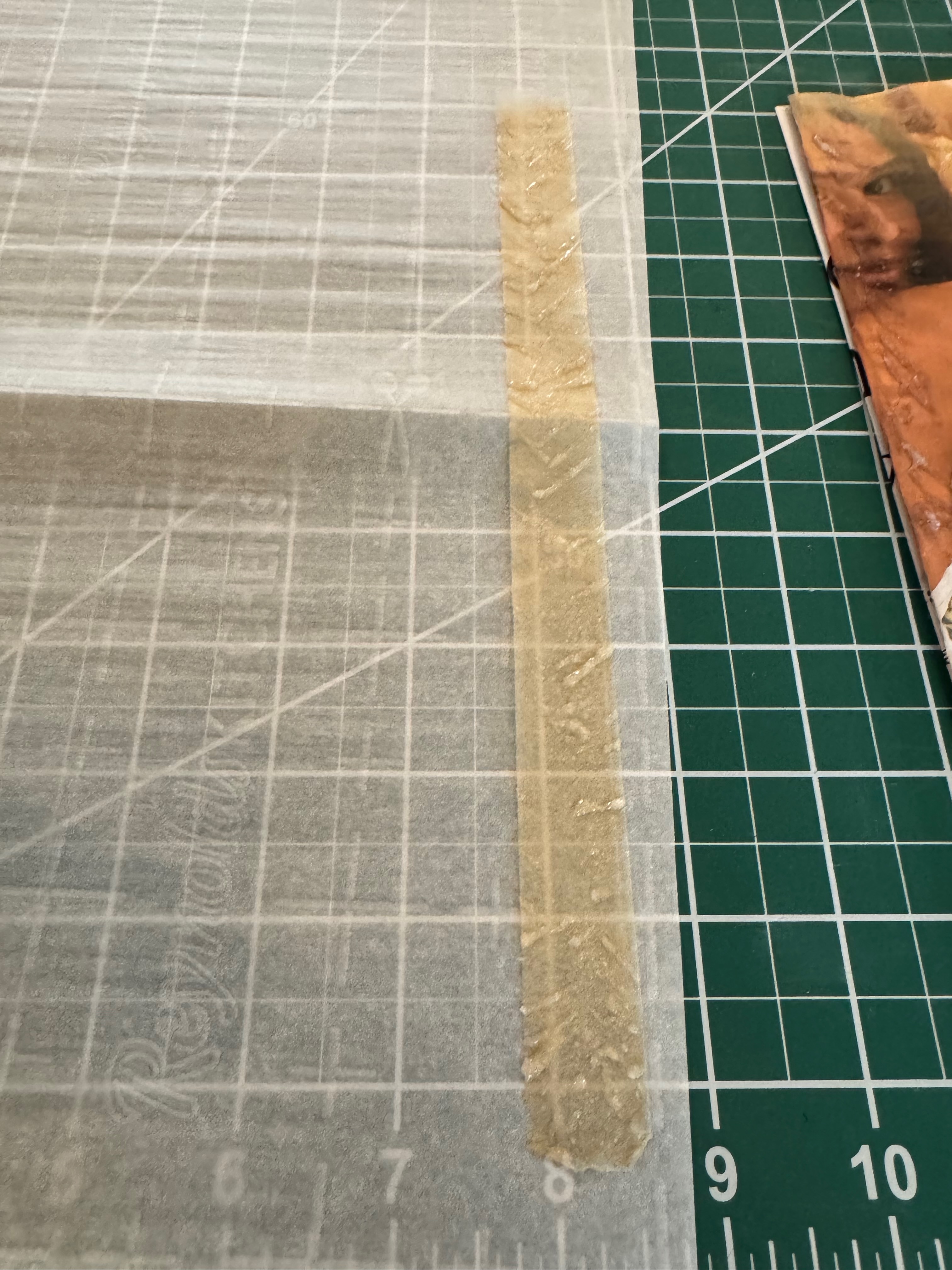
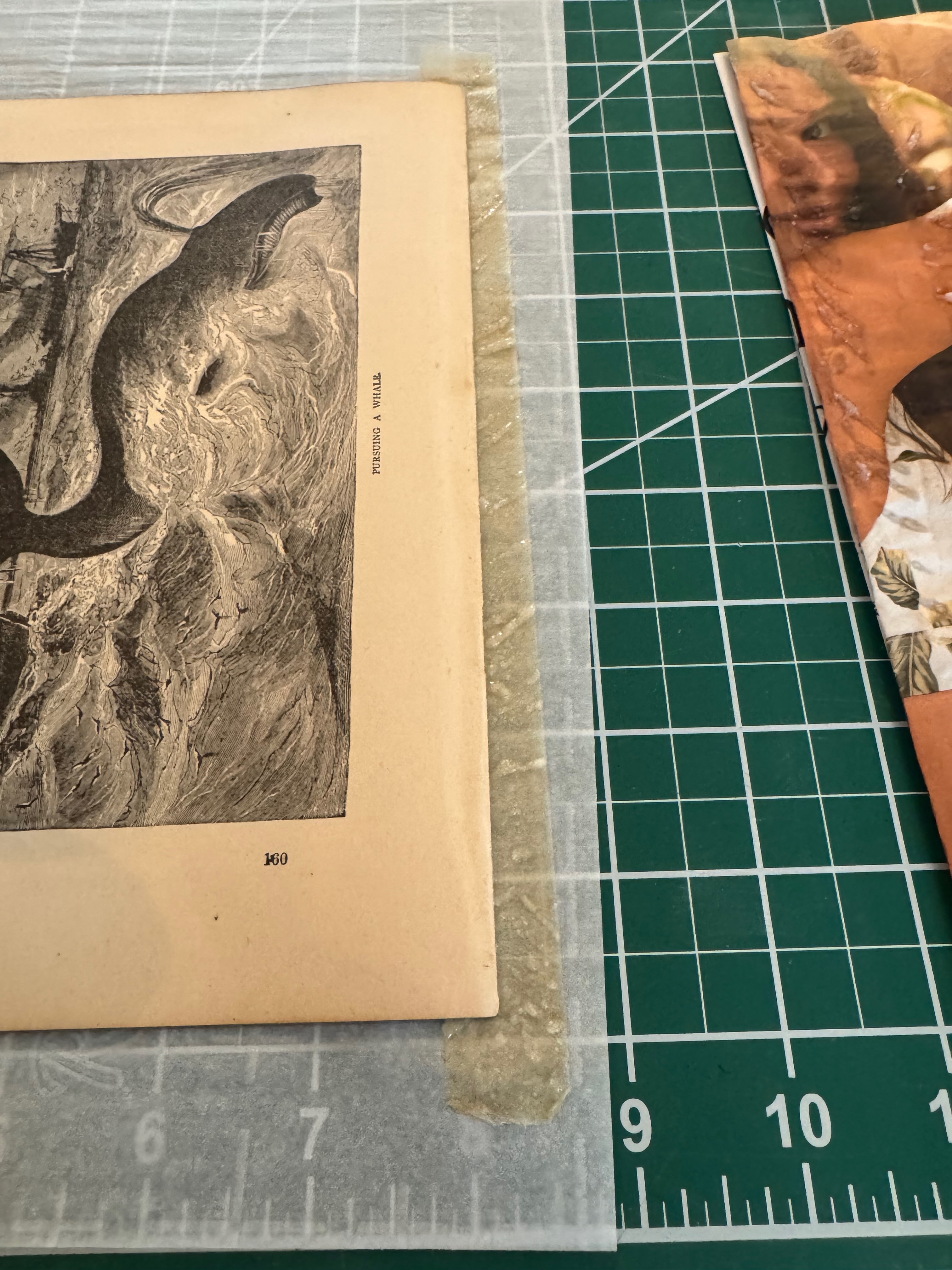
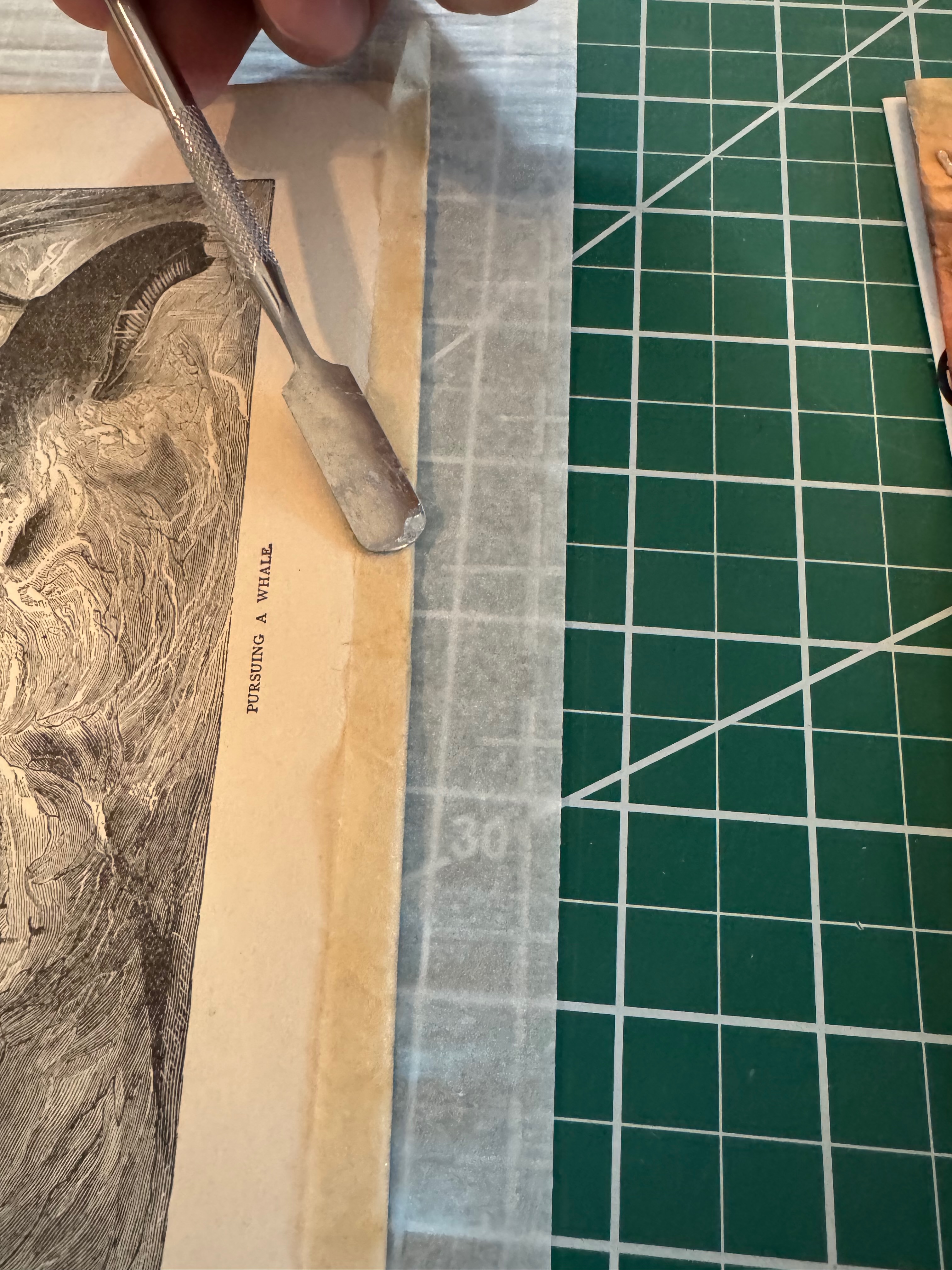
Since these signatures had been stapled and I saw no sign of tape or banding across the spine, I knew I'd be punching new holes in the signatures to accommodate them. That would require reinforcing, or "guarding" each signature with a small strip of thin but sturdy paper, just one per signature would be enough, so long as the inner-most sheet of the signature's fold was secure. These were brushed with a coat of methylcellulose and applied along the spine of each signature, then carefully folded over and set aside to dry.
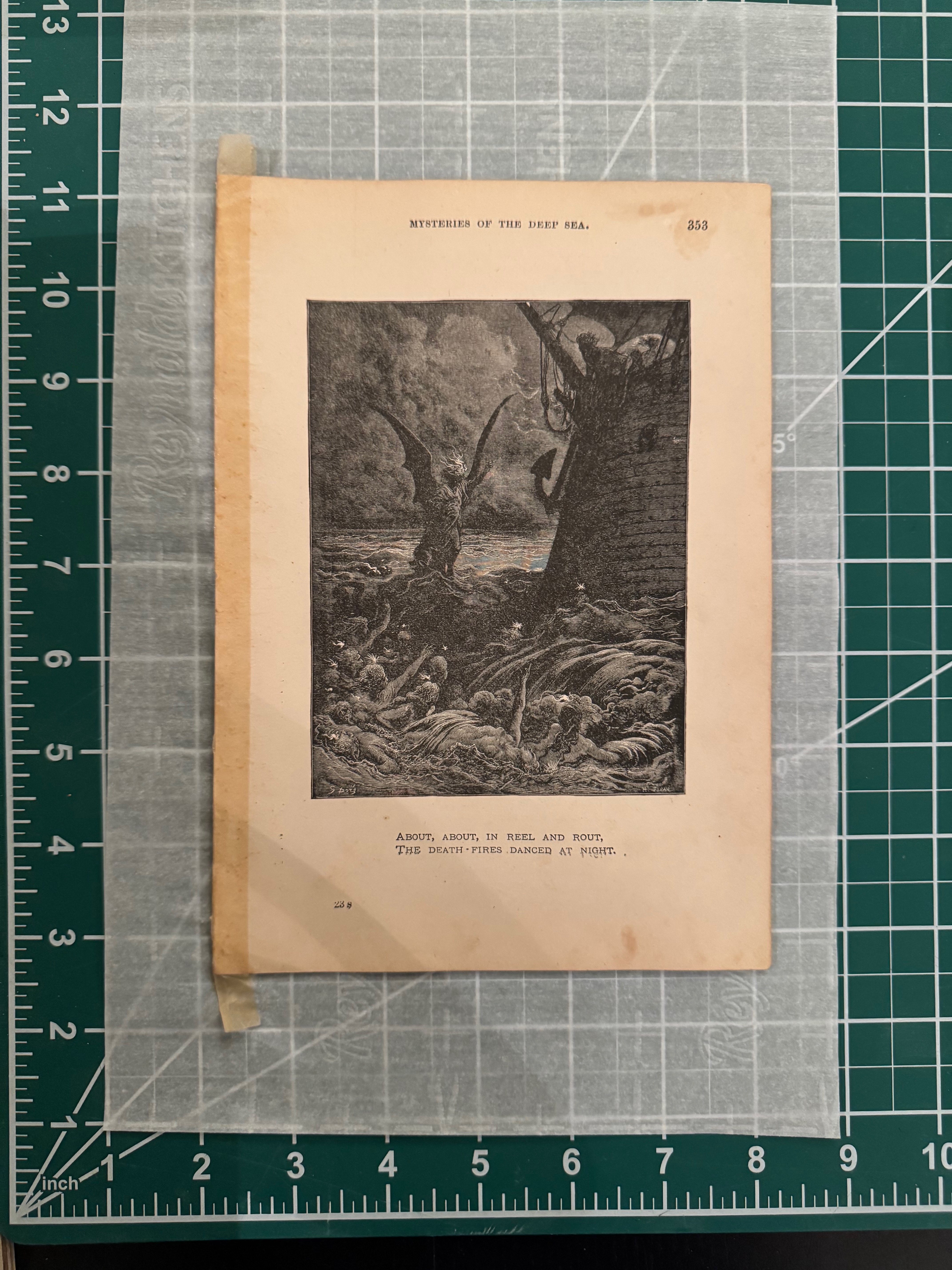
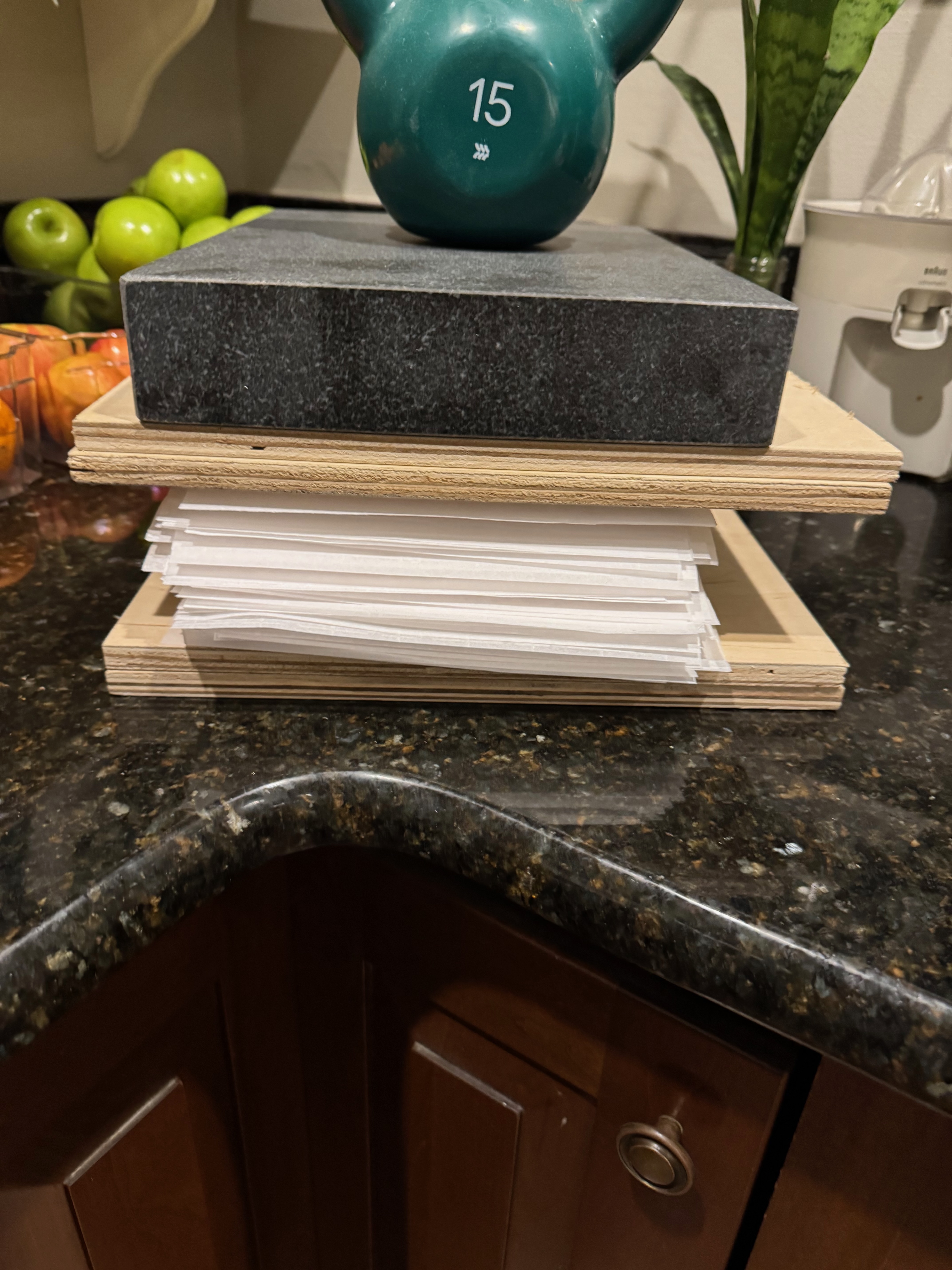
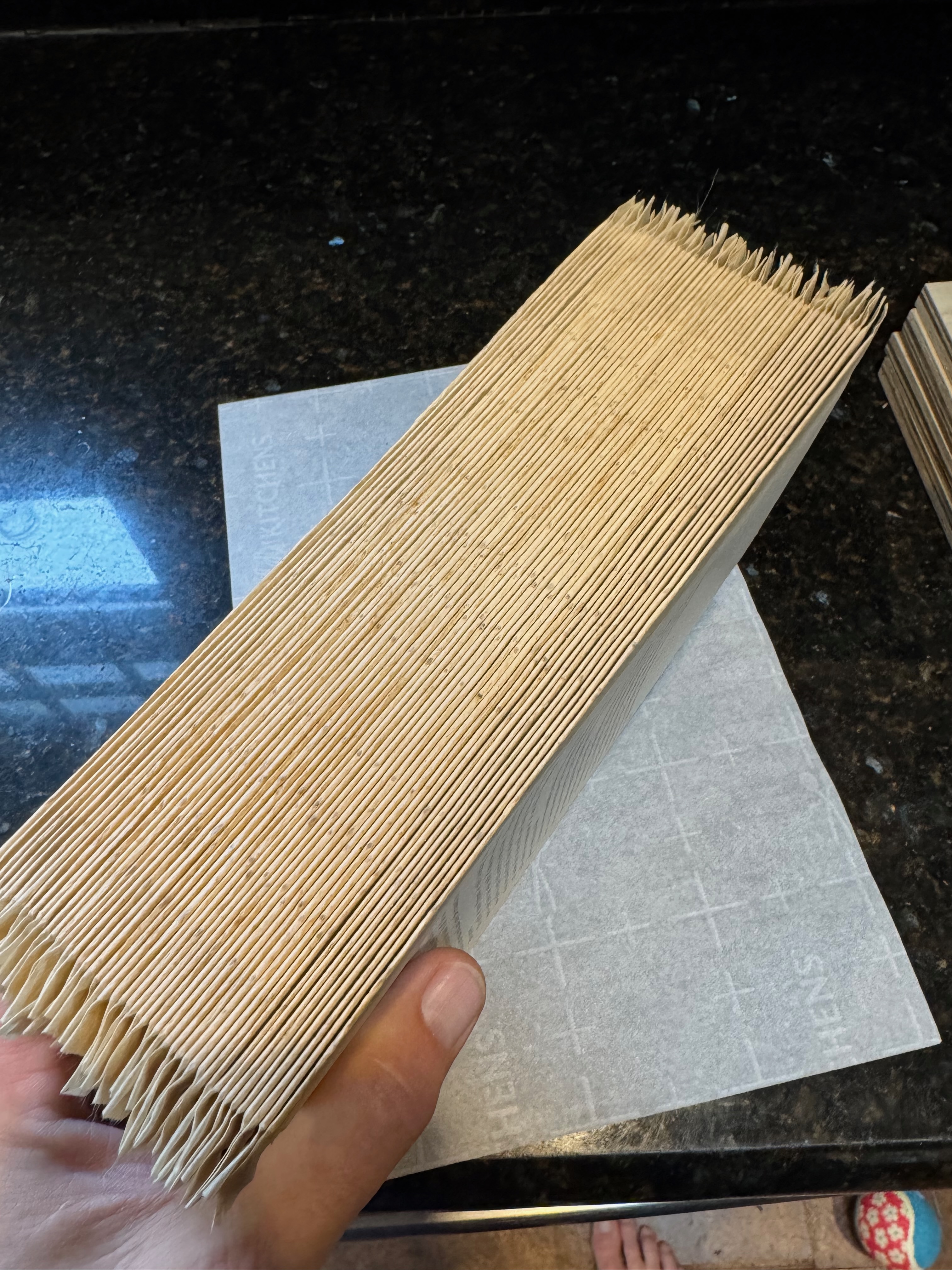
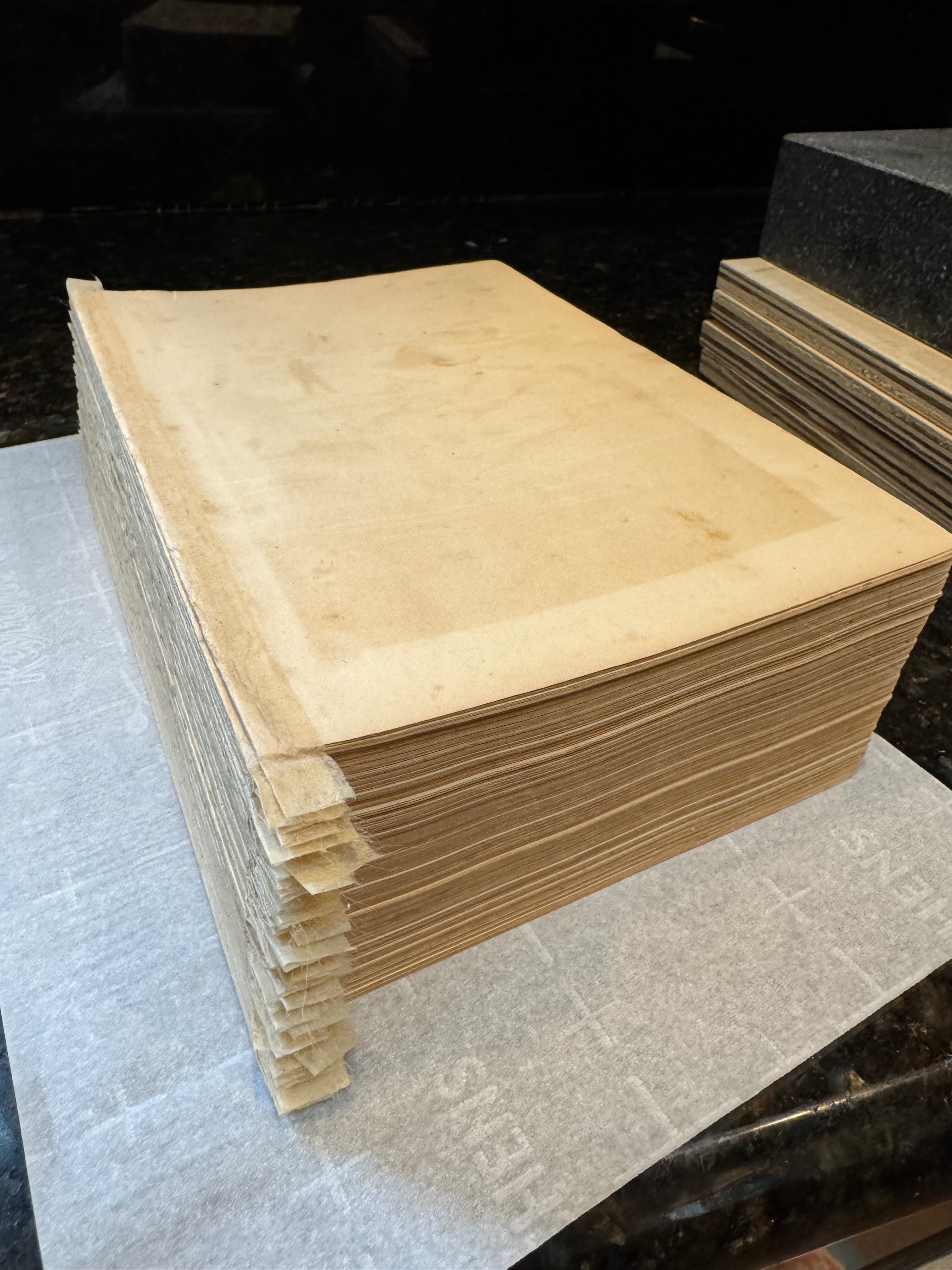
Burnishing the endpapers
To elevate the endpapers a bit, I applied a light coating of beeswax and burnished it into the paper, giving it a glossy sheen, as well as a delightful smell. This would protect the endpaper and give it a little moisture protection. Usually you would use an agate burnisher, but since I didn't have one, I used the smooth face of the hammer I'd used for knocking down the signatures.
Marking the text block
With the signatures all dried and trimmed, I lined them up, double checking the order several times, and drew layout lines where the initial sewing holes would be as well as where the tapes would lie across the spine.
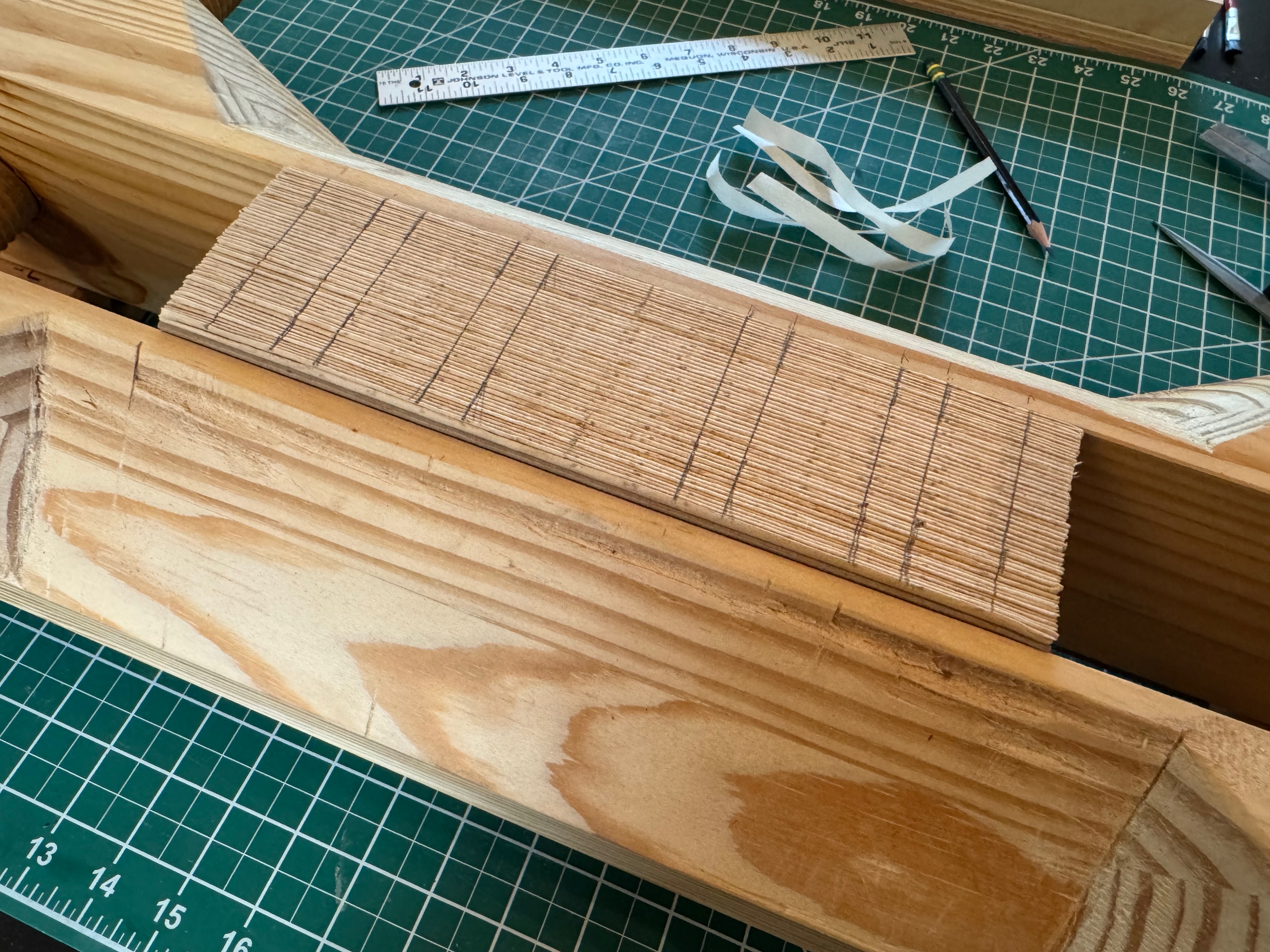
Punching the signatures
Second side quest! To more easily ensure common placement for the signature sewing holes, I built a signature cradle. A v-shaped trough with one reference edge. Place a signature folded open along the bottom, push the head (or tail, but be consistent) against the reference edge, and using a template, punch holes using an awl cleanly through the fold of the signature. The two wings of the cradle have a gap at the bottom a few millimeters wide to allow the awl to pass through the papers completely. When all the signatures were punched, I added a reference line across the spine to ensure correct ordering (I should have done it earlier).
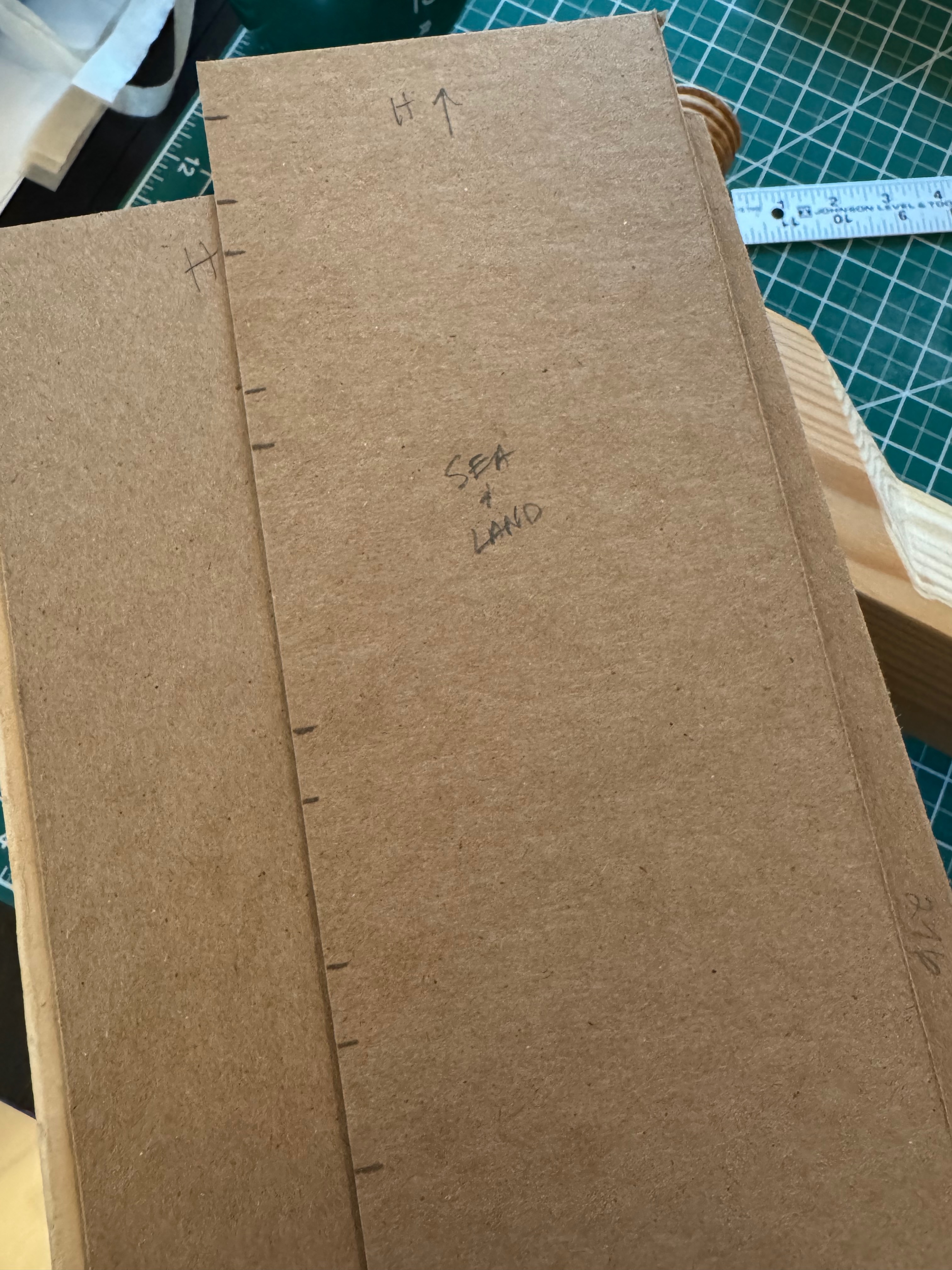
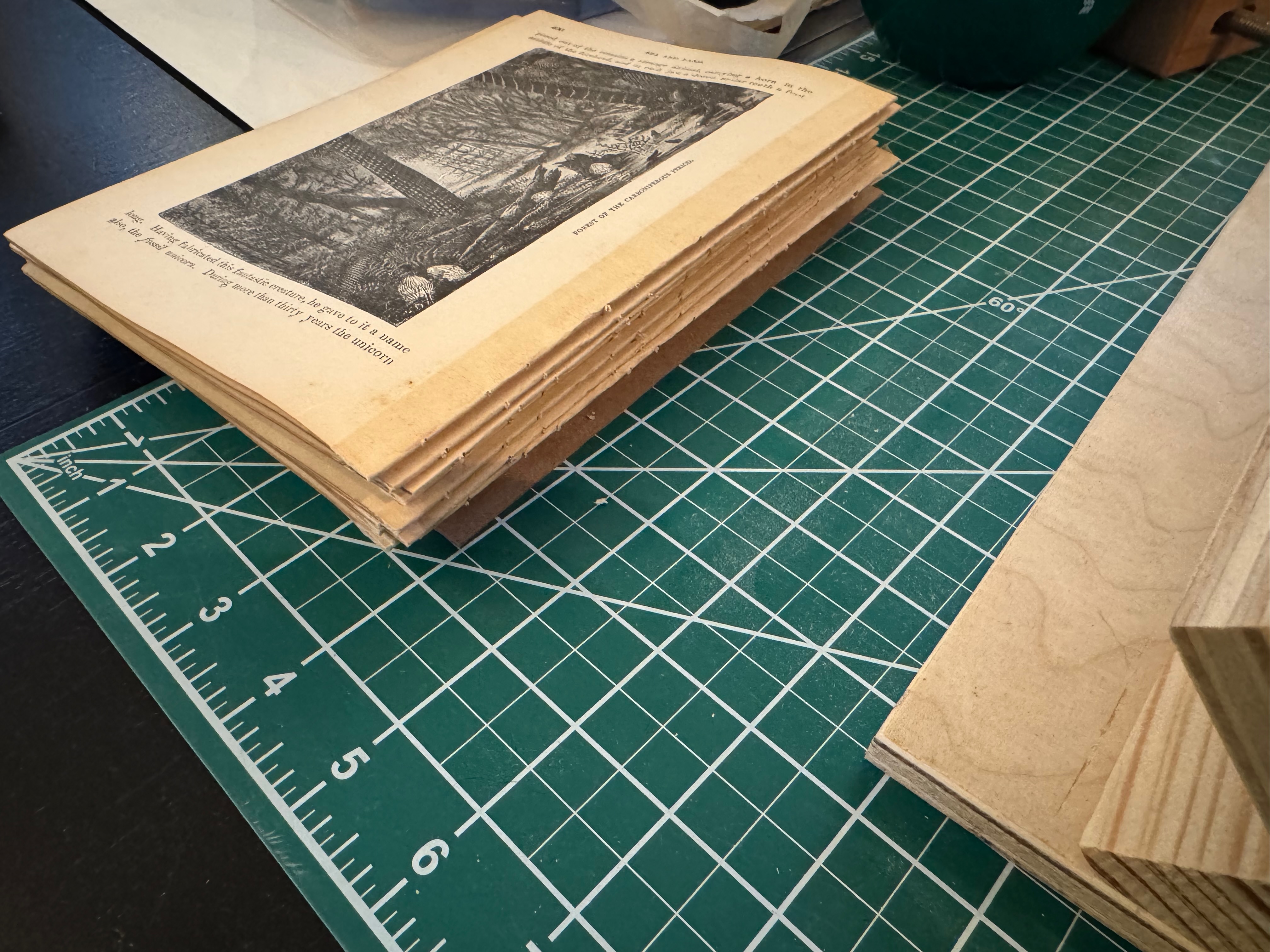
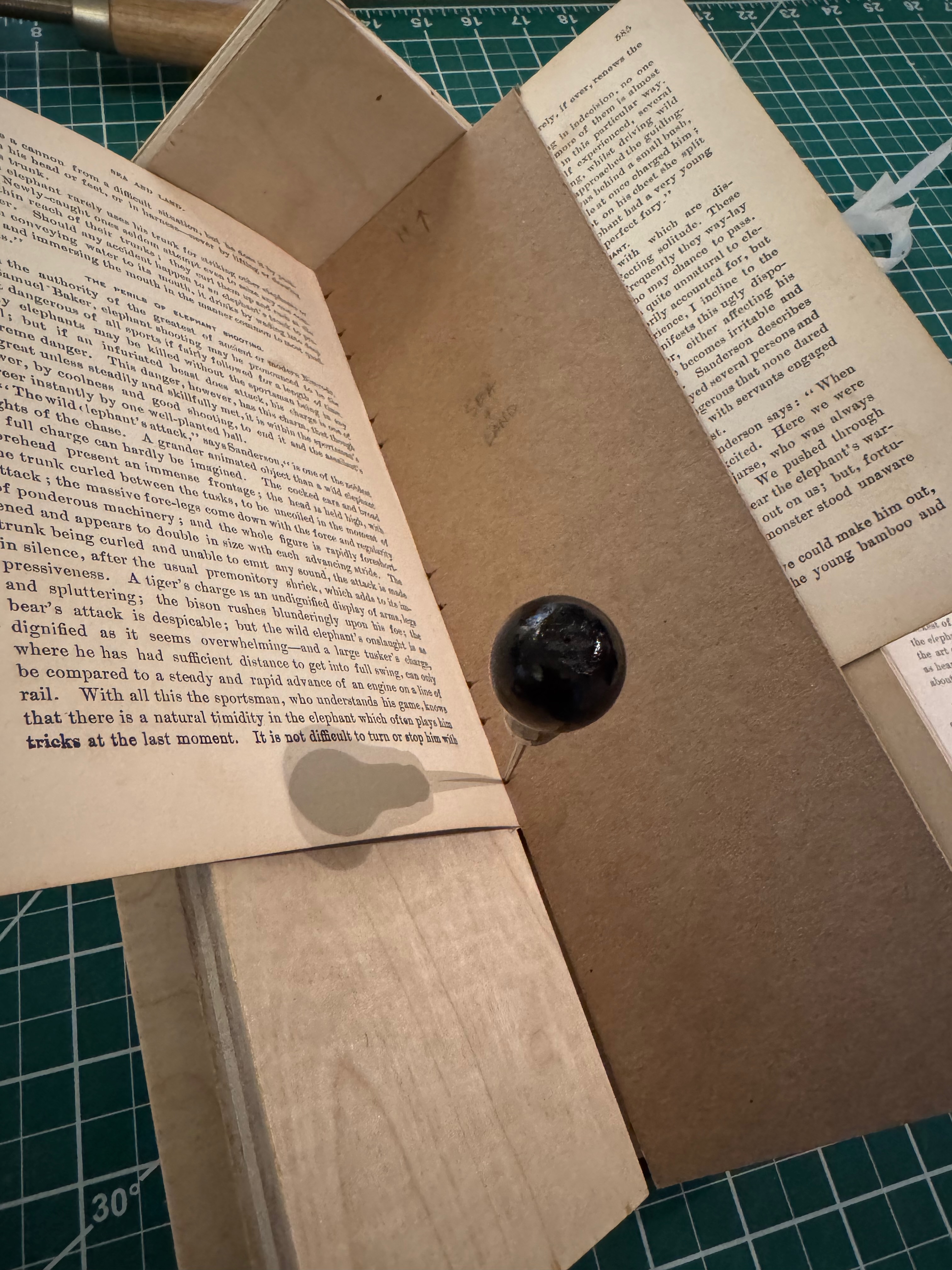
Sewing the text block
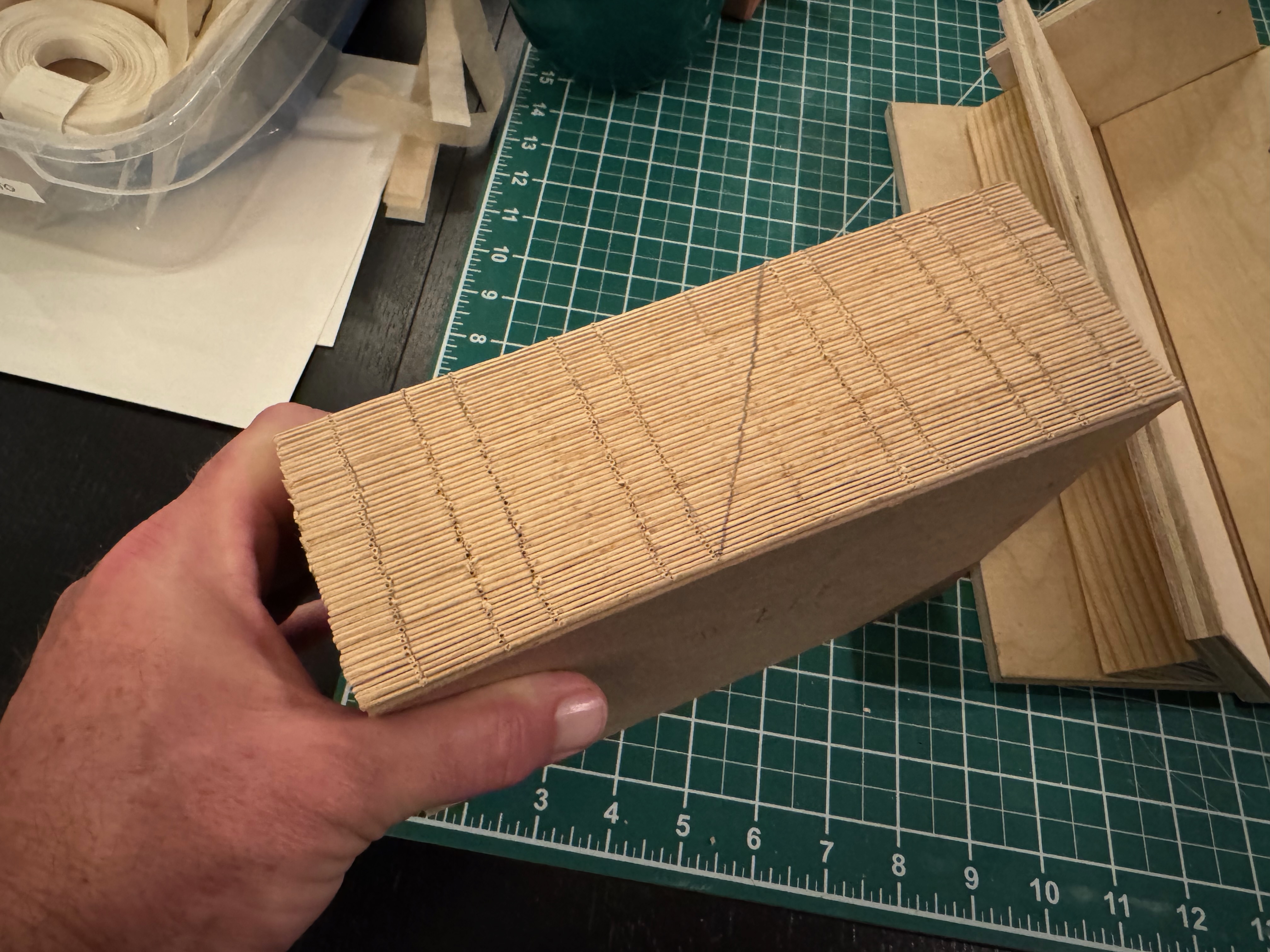
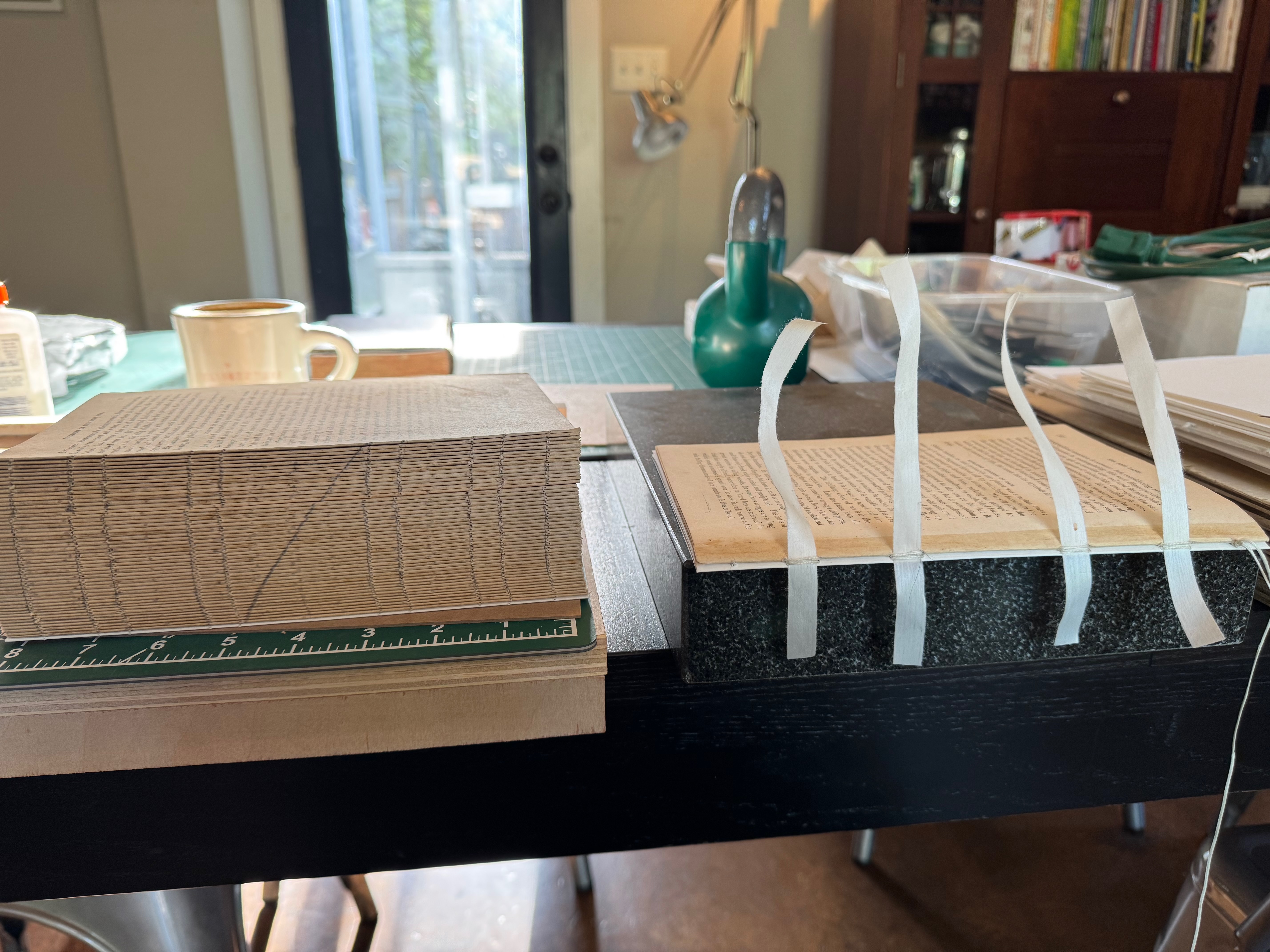
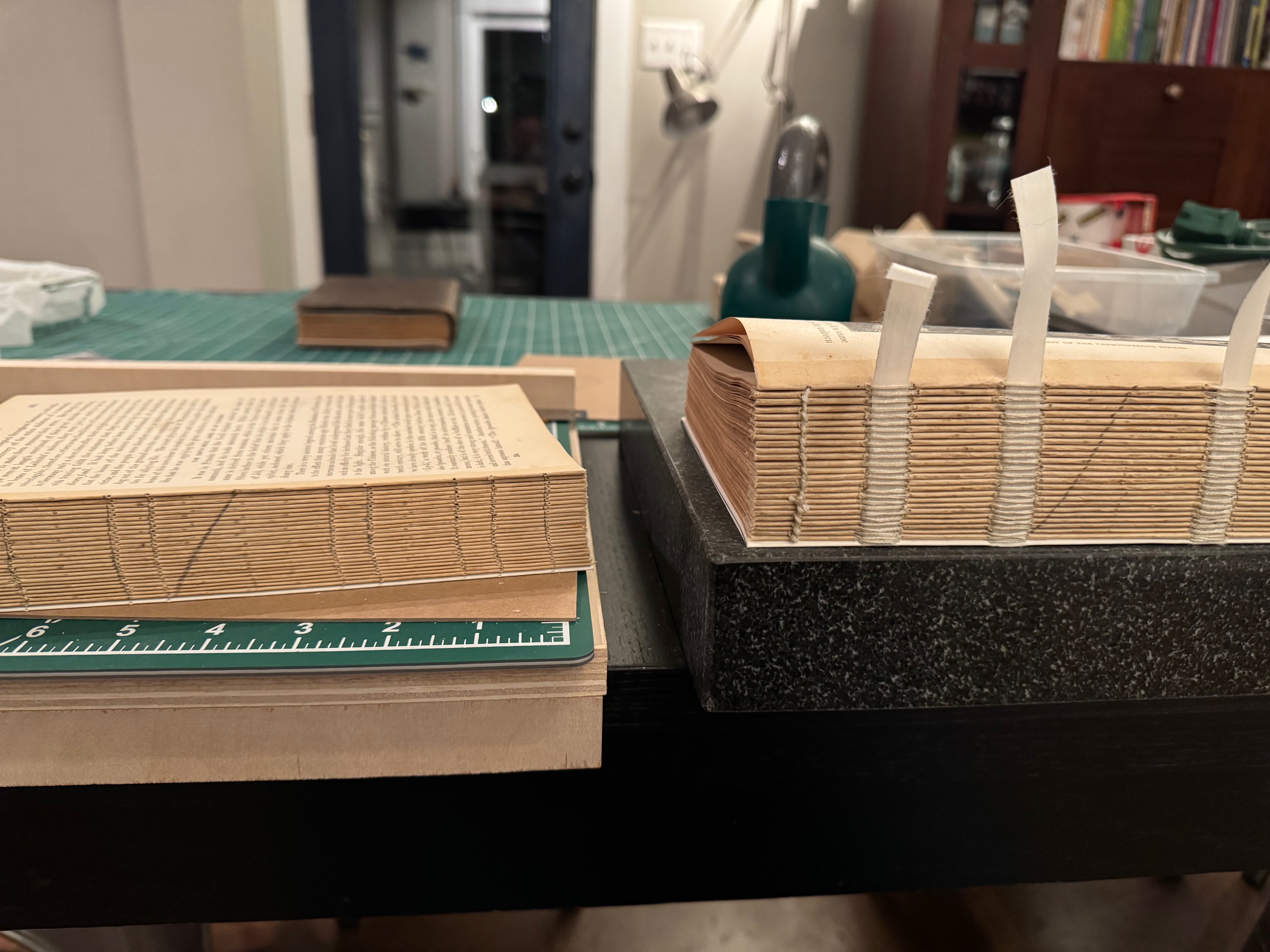
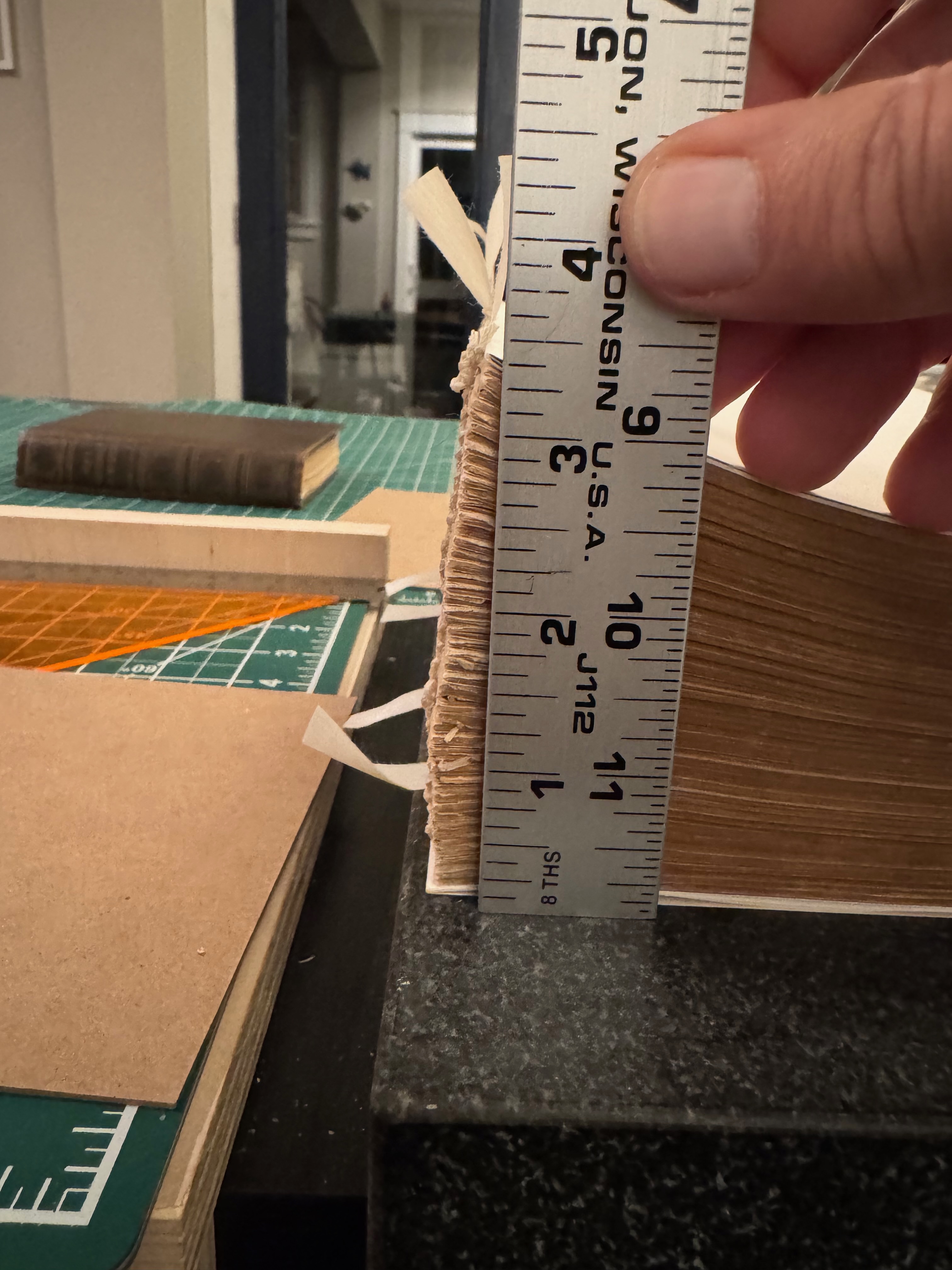
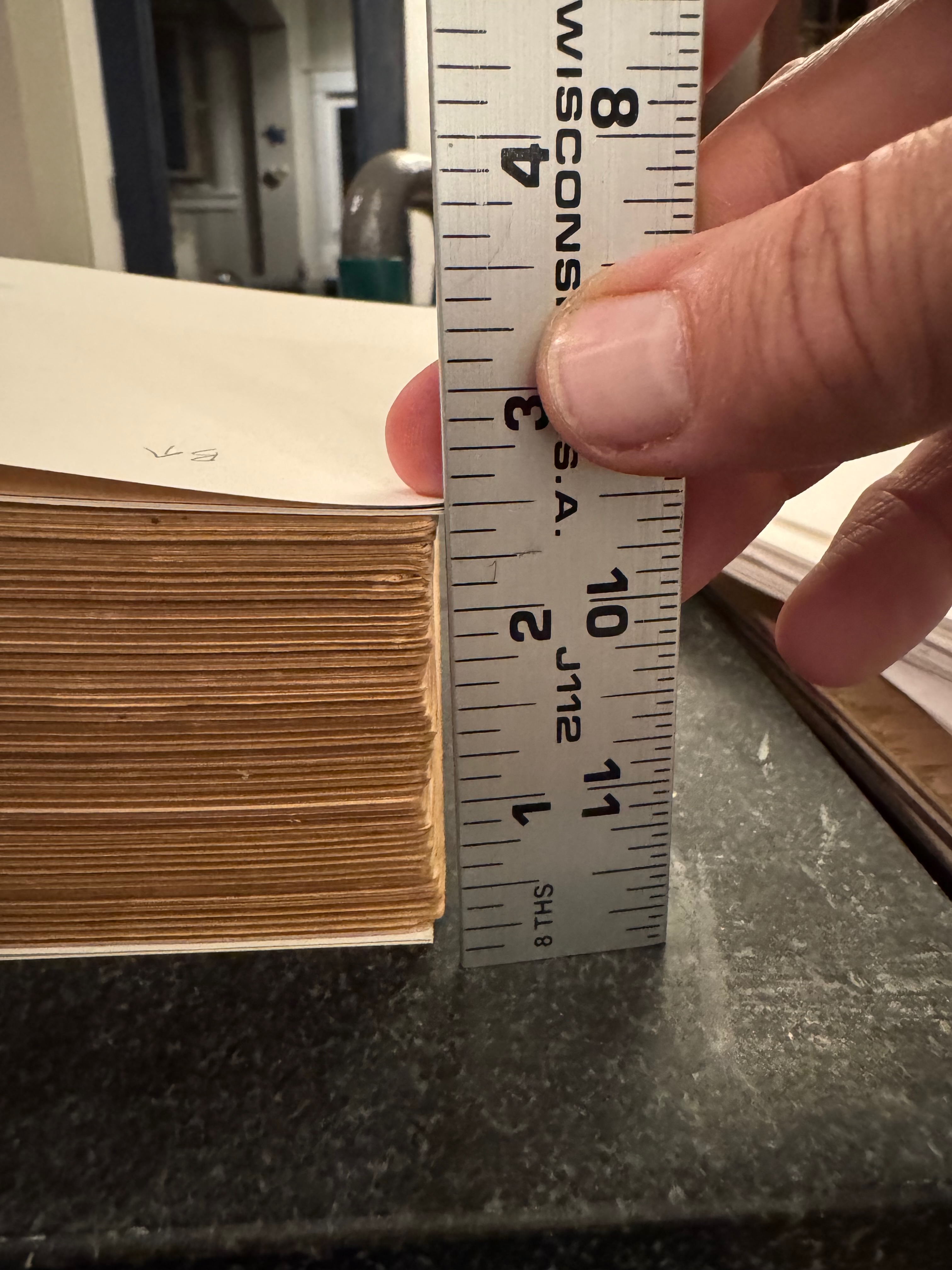
Third side quest! I ended up building, but not using (at least for this project), a sewing frame. I found it easier ultimately to elevate the text block and manually align and adjust the signatures. I chose a relatively thick thread and applied a very thin layer of beeswax to help it smoothly travel through the holes in the signatures. I knew that a properly sewn text block should be able to withstand 20-25% swell on the spine side, but this thread ended up being too thick when applied to each signature, and clocked in at 30% swell. So I put the project aside for a while to consider alternate approaches.
Undoing the text block
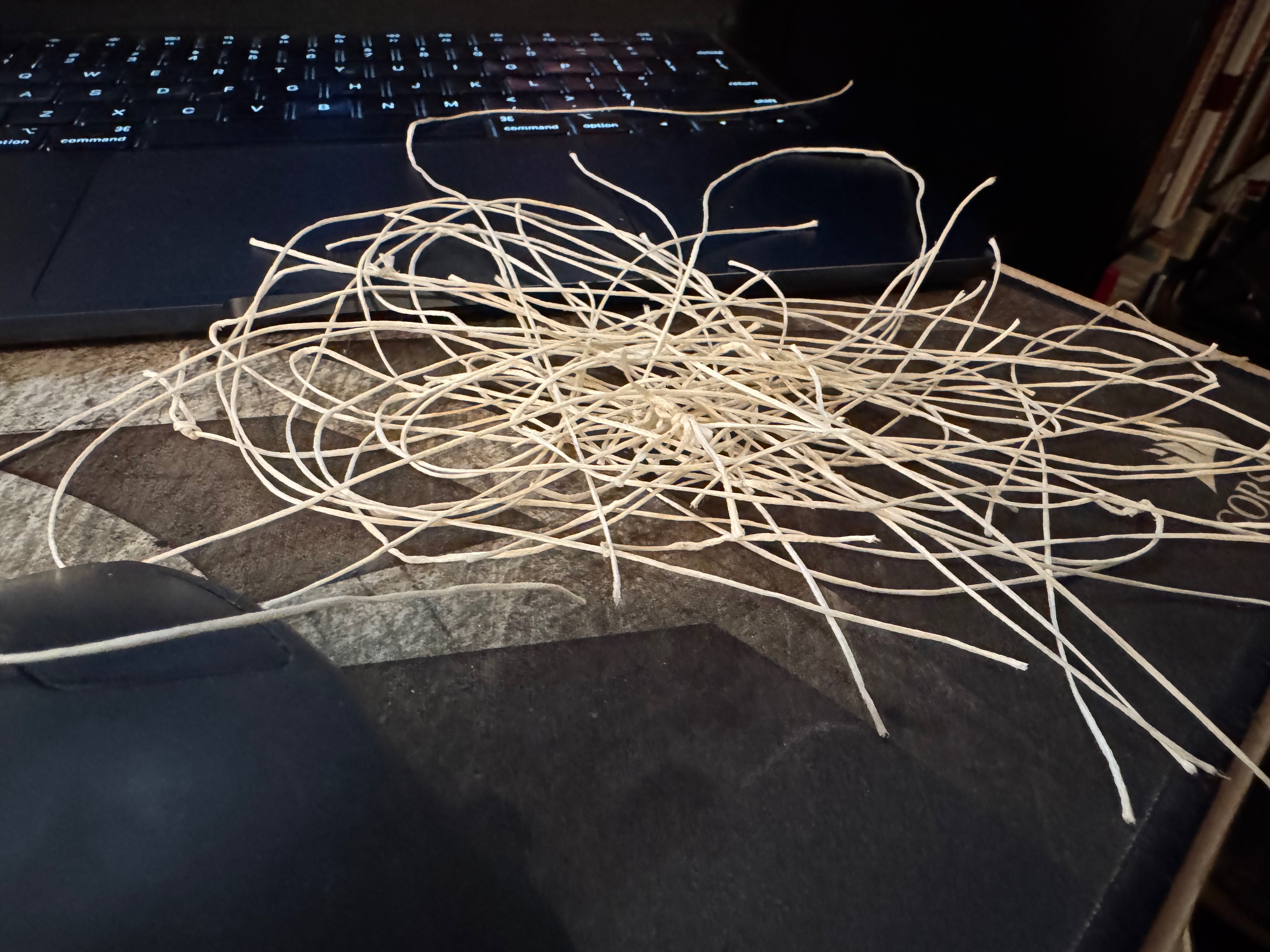
I had to completely undo the entire text block and carefully remove all the stitching to ensure the holes weren't torn or made too loose.
Resewing the text block
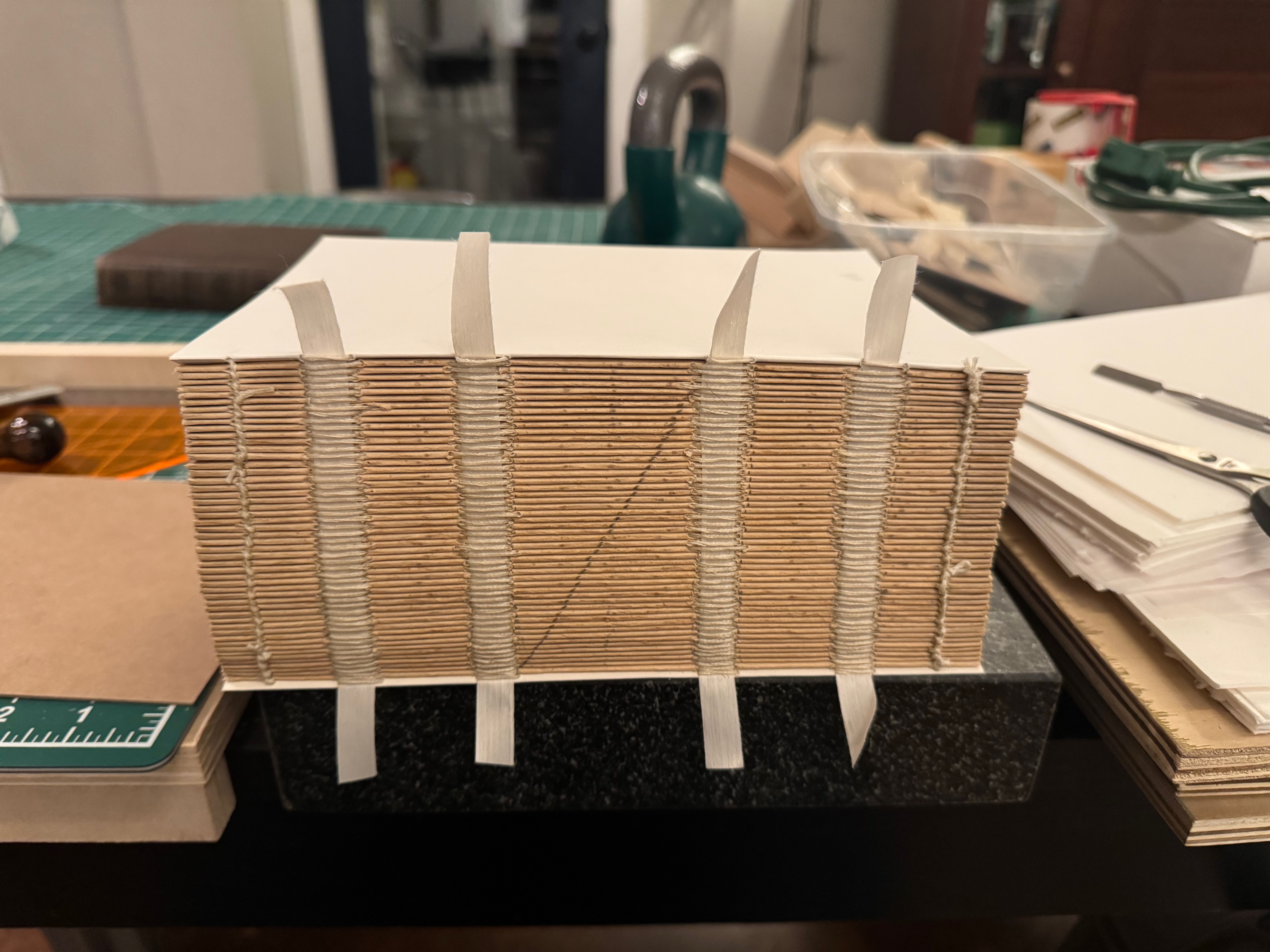
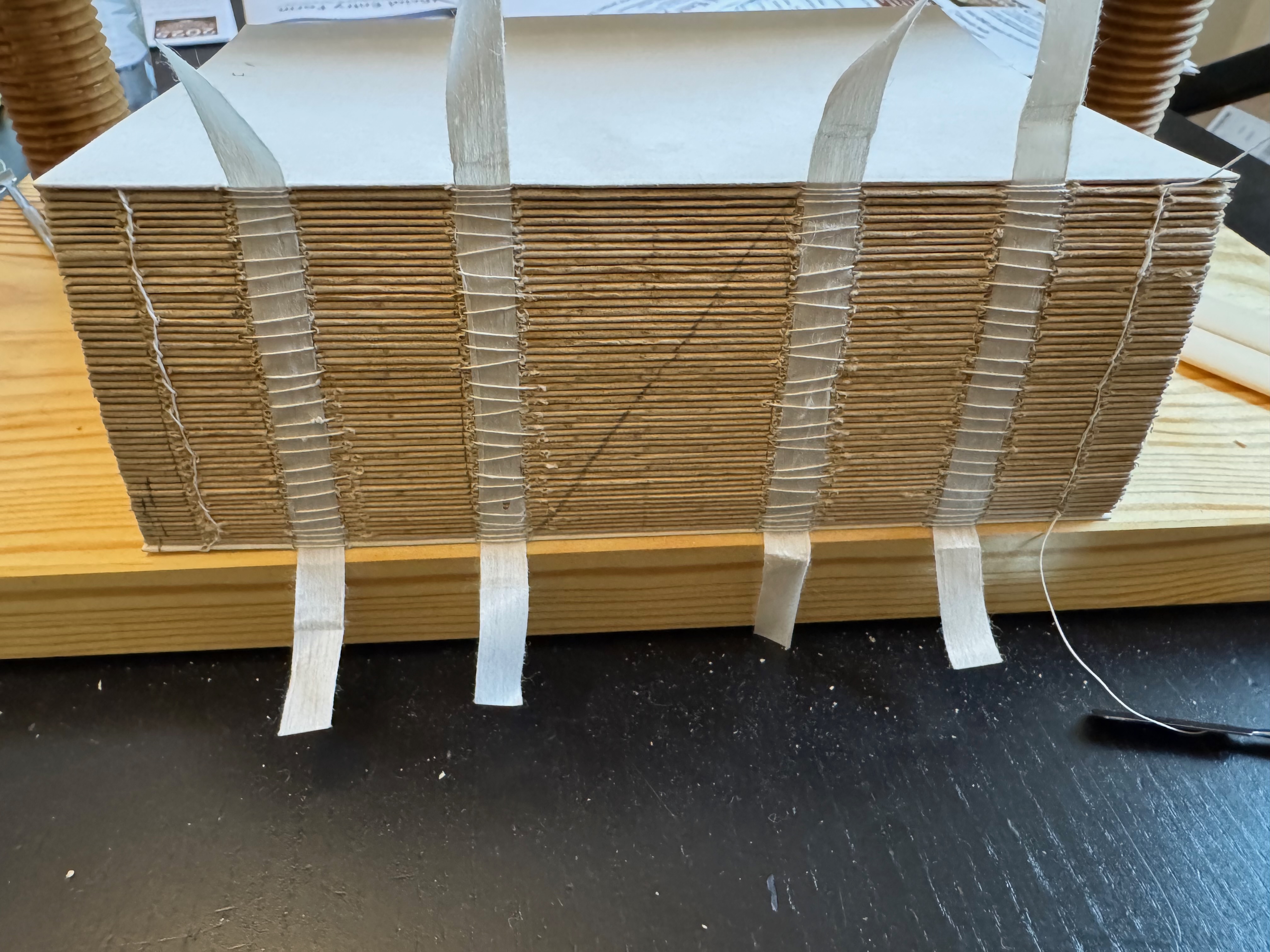
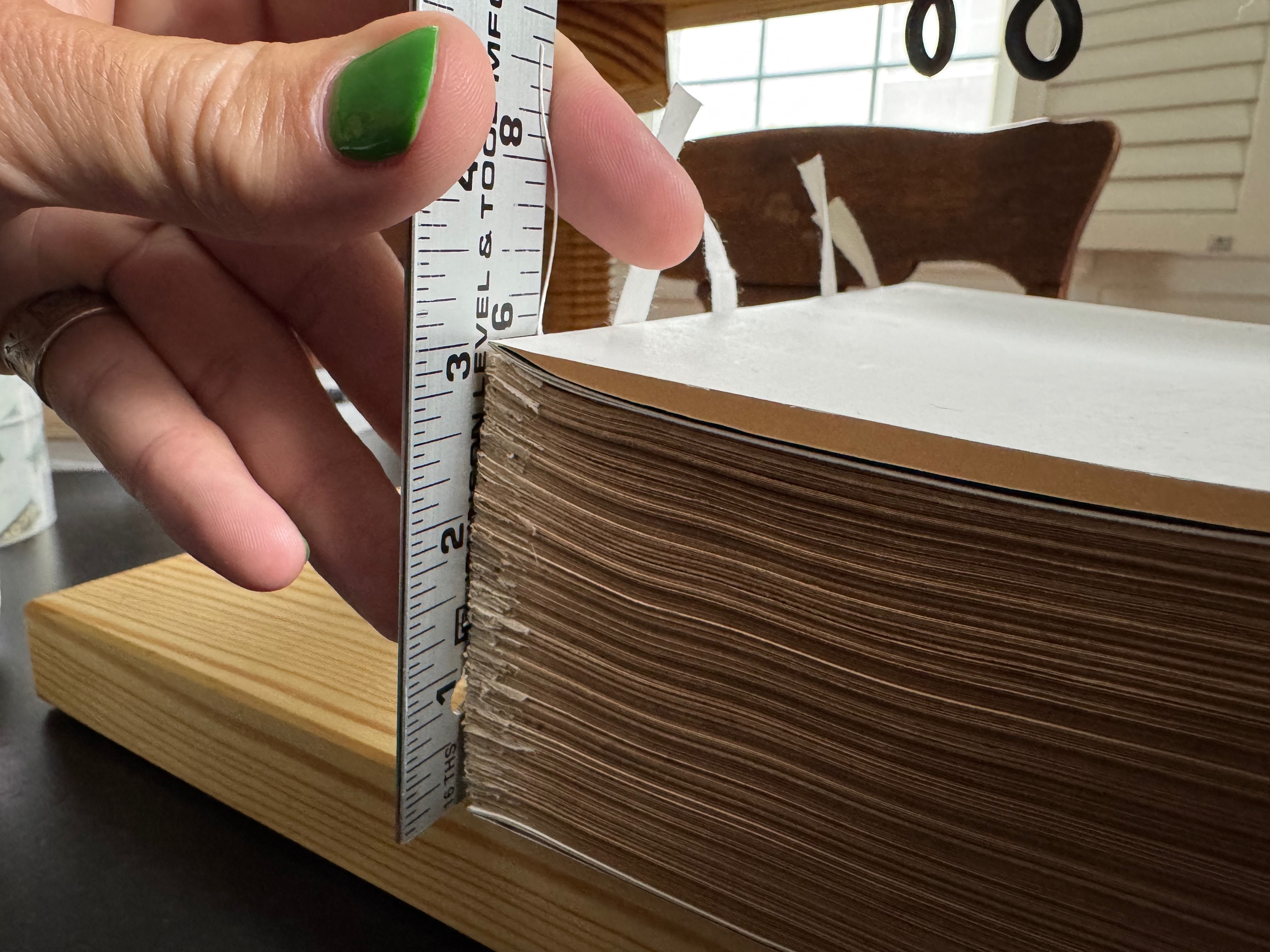
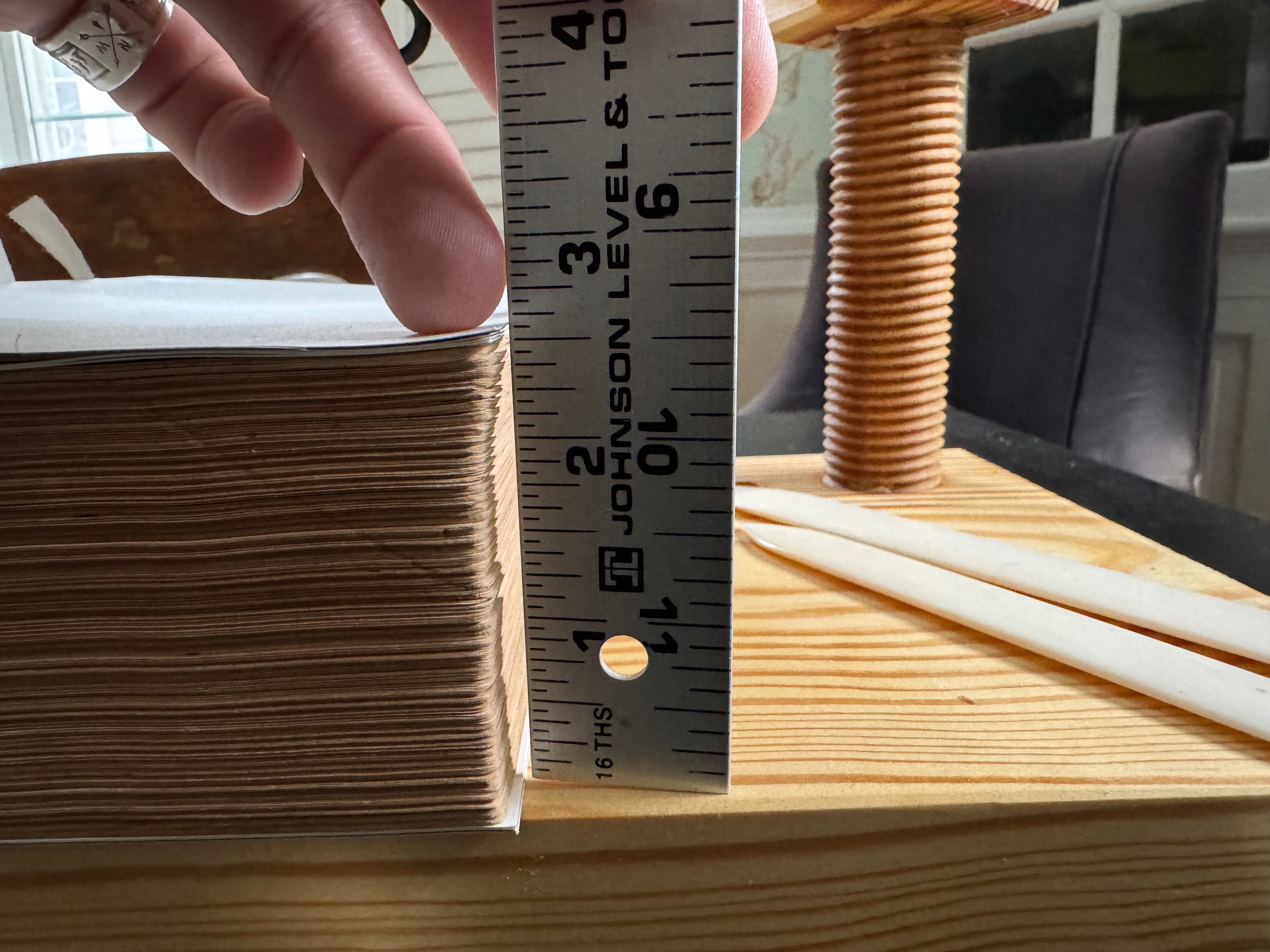
I watched DAS's video on two-on sewing several times to make sure I understood the process. Basically, it's a technique that allows for less swell at the expense of a slightly less secure text block by attaching multiple signatures on each run up or down the spine. In my case, with fifty signatures, I chose an alternating pattern of two-on and three-on binding. I figured once the spine was glued, under mull, and bound, it would still prove to be secure. In the end, it was a success, and brought the swell at the spine down to 18%! Much easier and fully within optimal range.
Gluing the spine
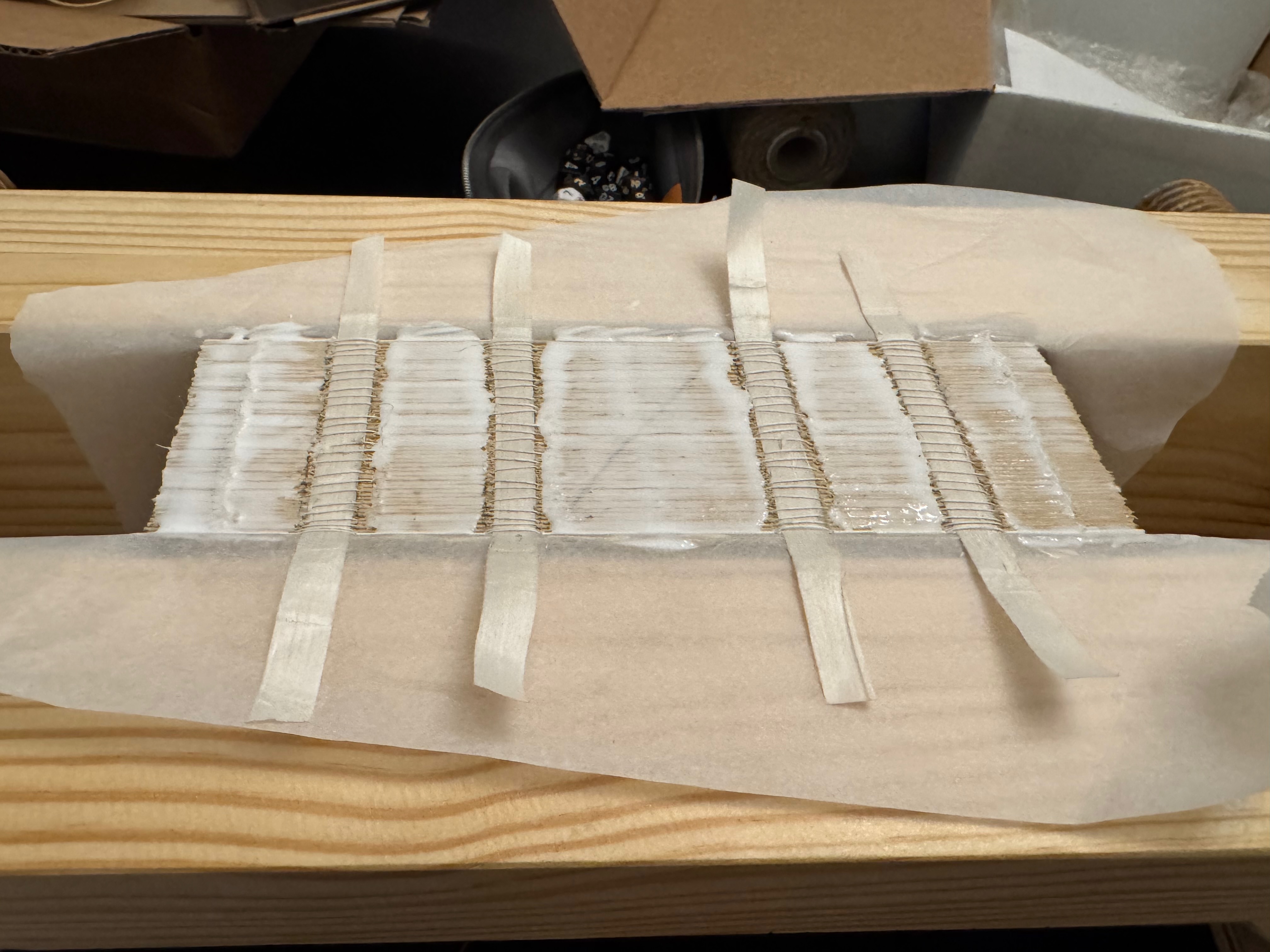
The text block was back together and strong and secure, despite the change in sewing technique, and it was time to strengthen and reinforce it with glue. It was important to avoid the tapes so the back could be properly rounded later.
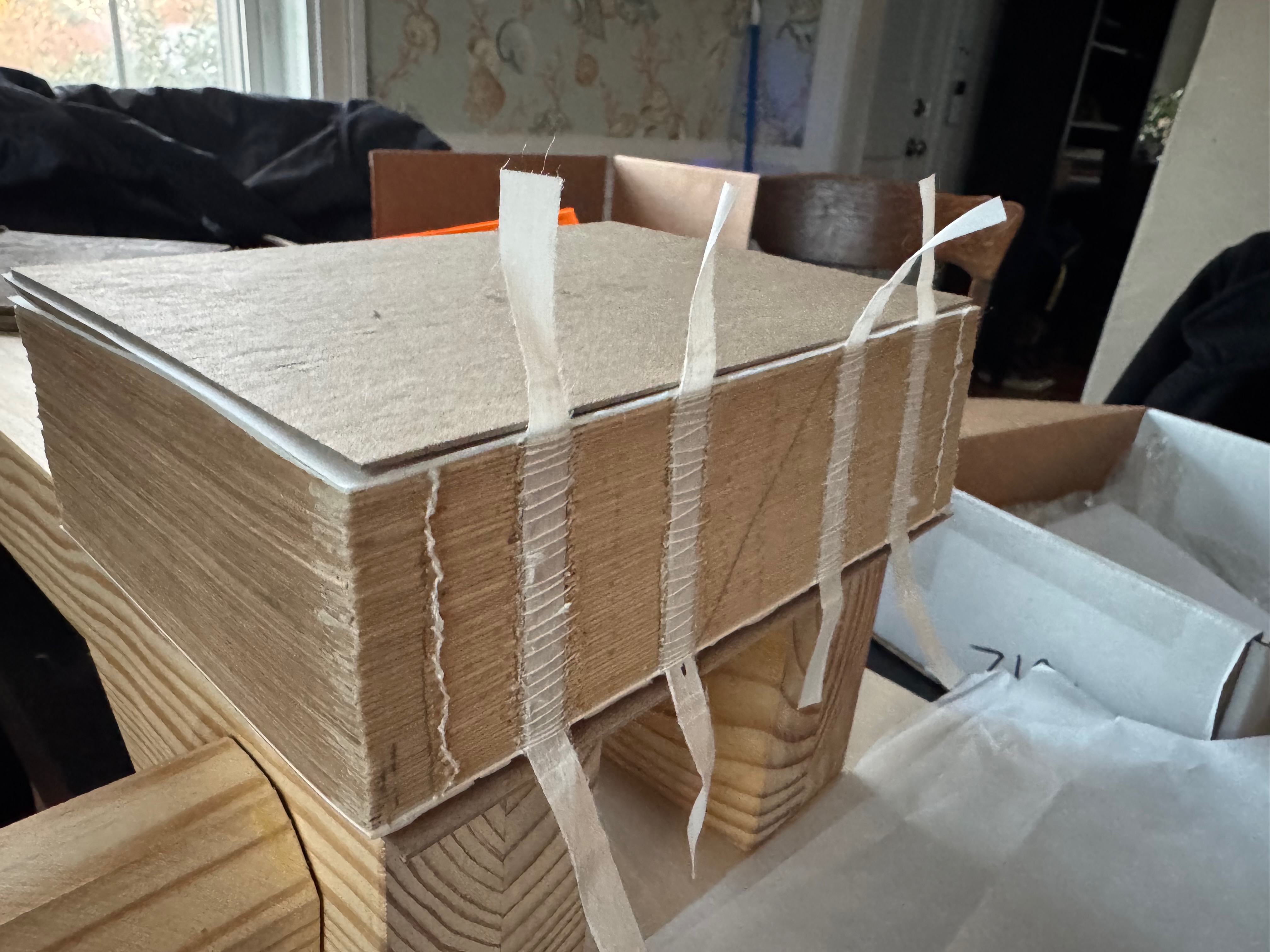
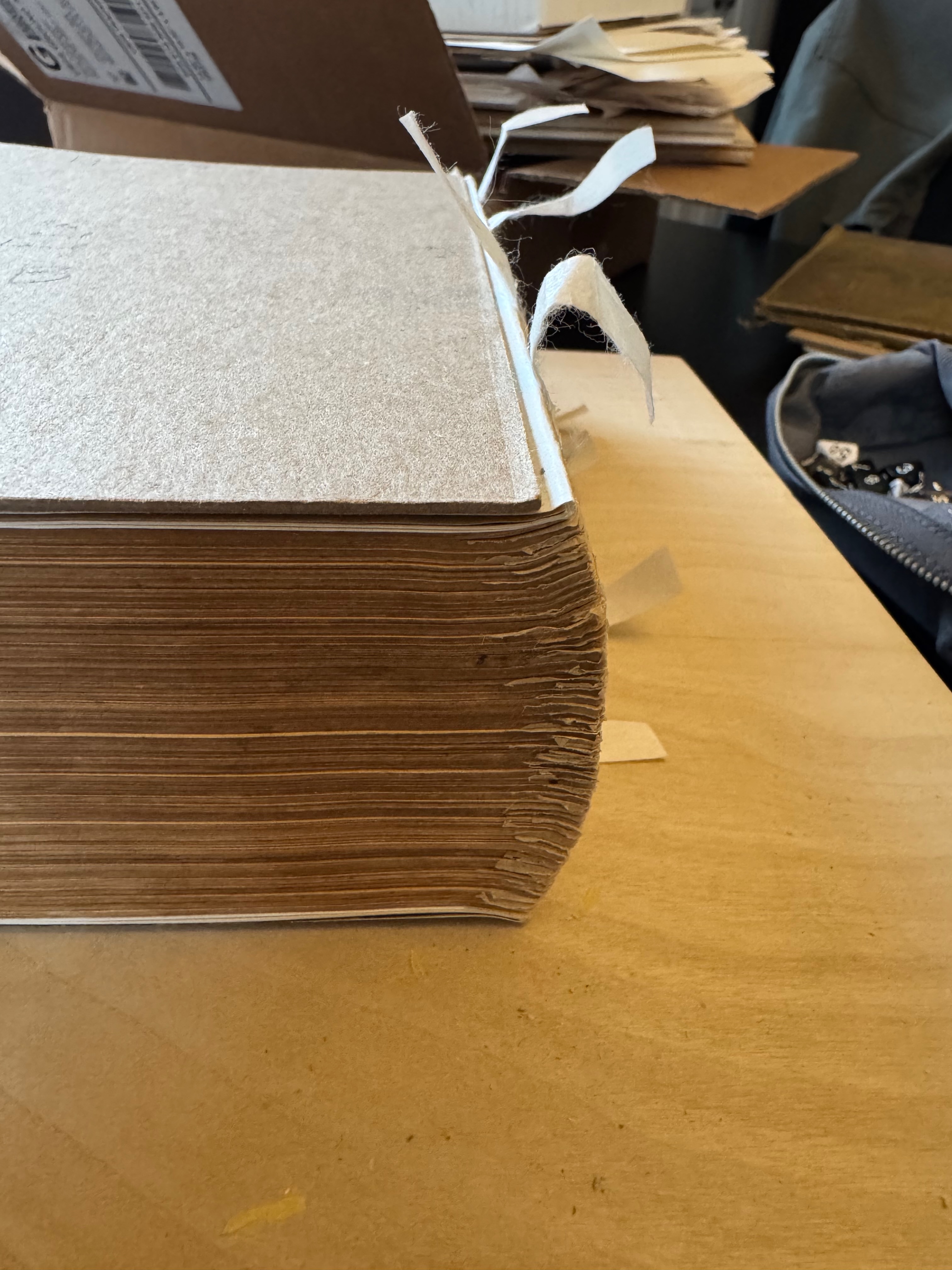
Rounding the text block
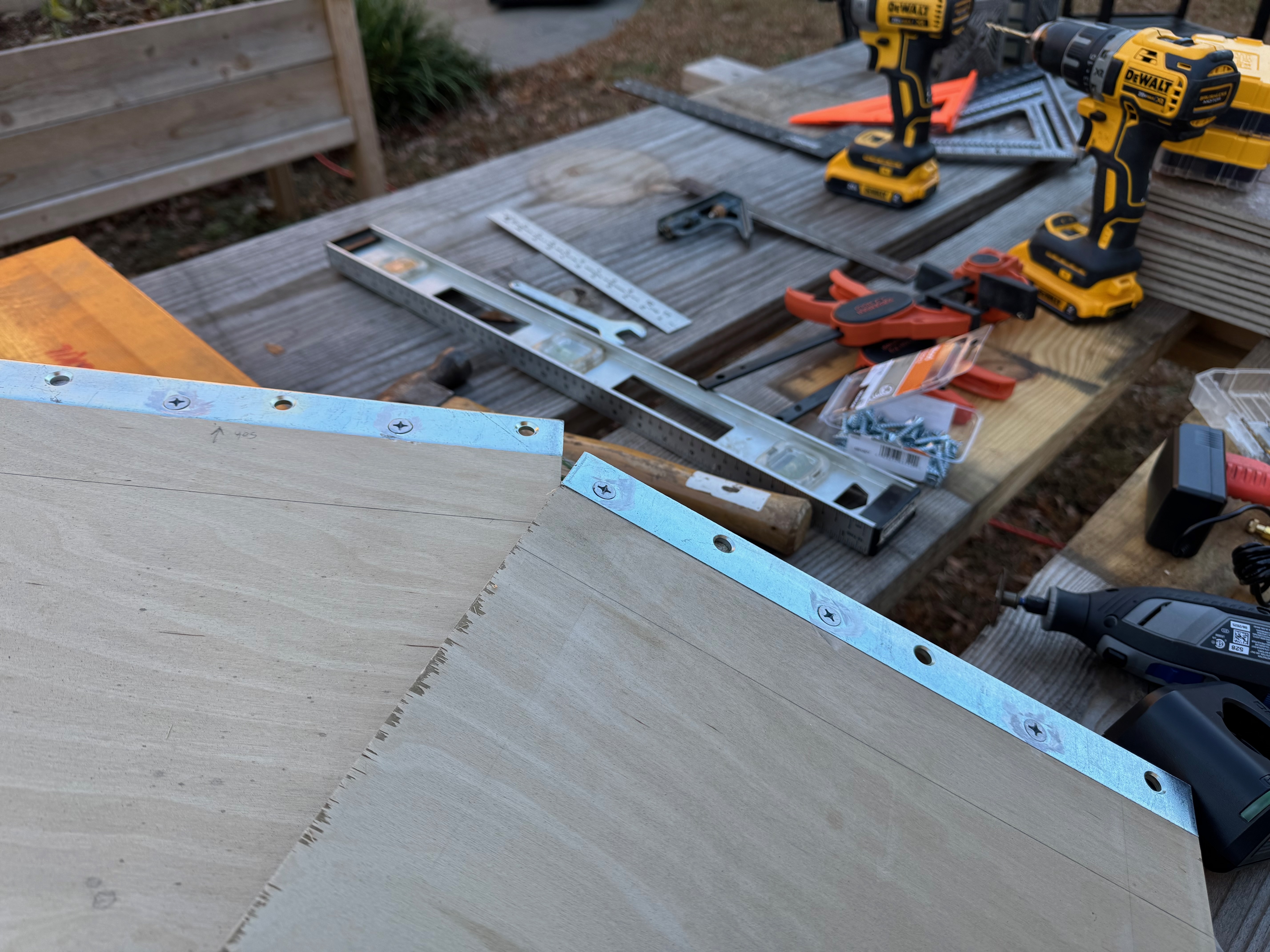
In order to round the text block, you would normally have shouldering irons that would catch the force of the blows applied to the signatures and help fold them over, forming the shoulder. I didn't have shouldering irons, so I made some. Two lengths of steel plate, pre-drilled, were screwed to some rabbets I routered out of a pair of plywood boards. In the end, I went pretty easy on the text block as I was afraid to put too much stress on the spine.
Strengthening the spine, pt 1
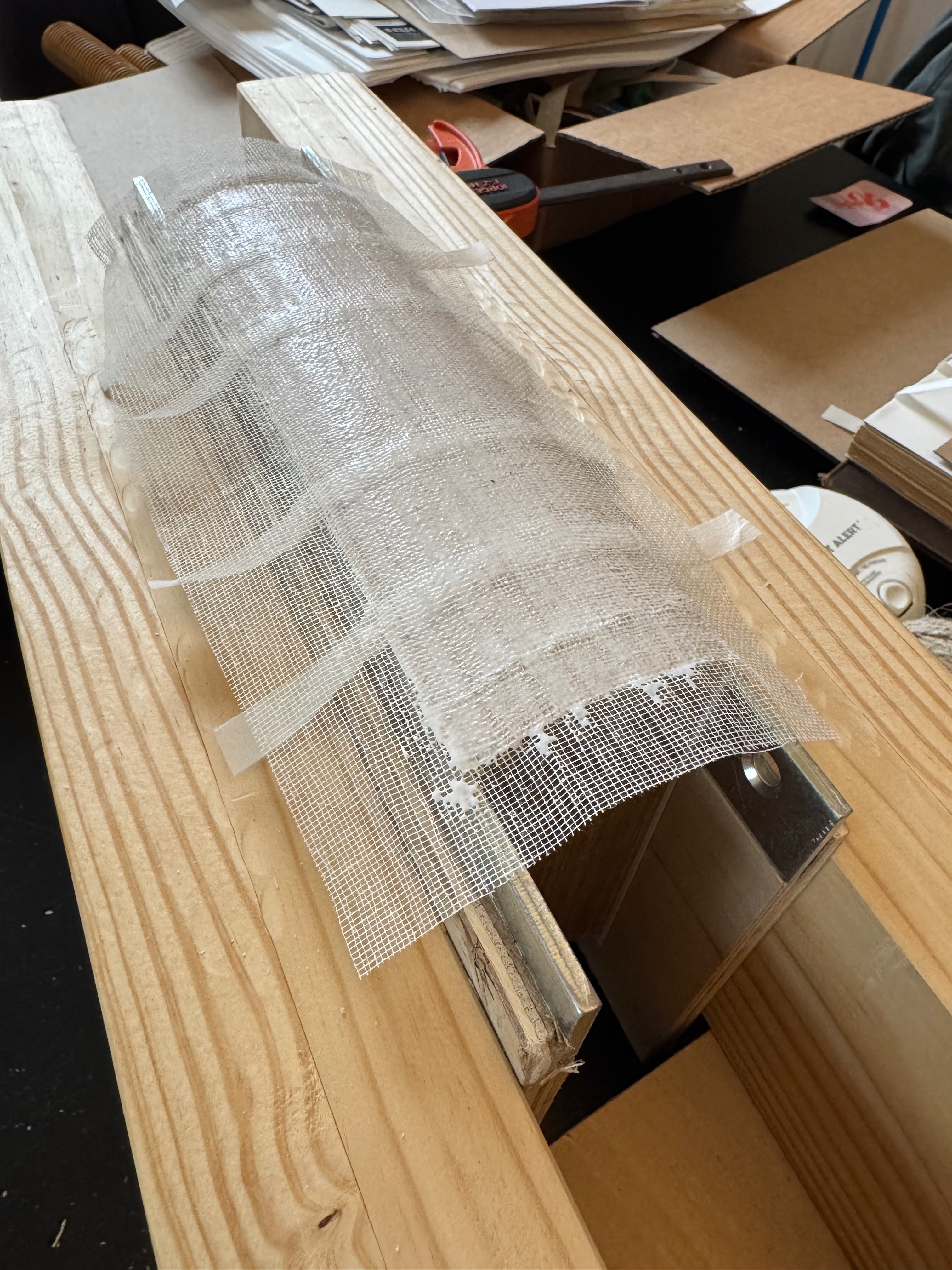
Now it was time for the first round of spine strengthening. A layer of glue, then mull laid down on it, then sandwiched with more glue, impregnated the mull and tapes with glue, forming a solid layer from head to tail.
Sewing the bands
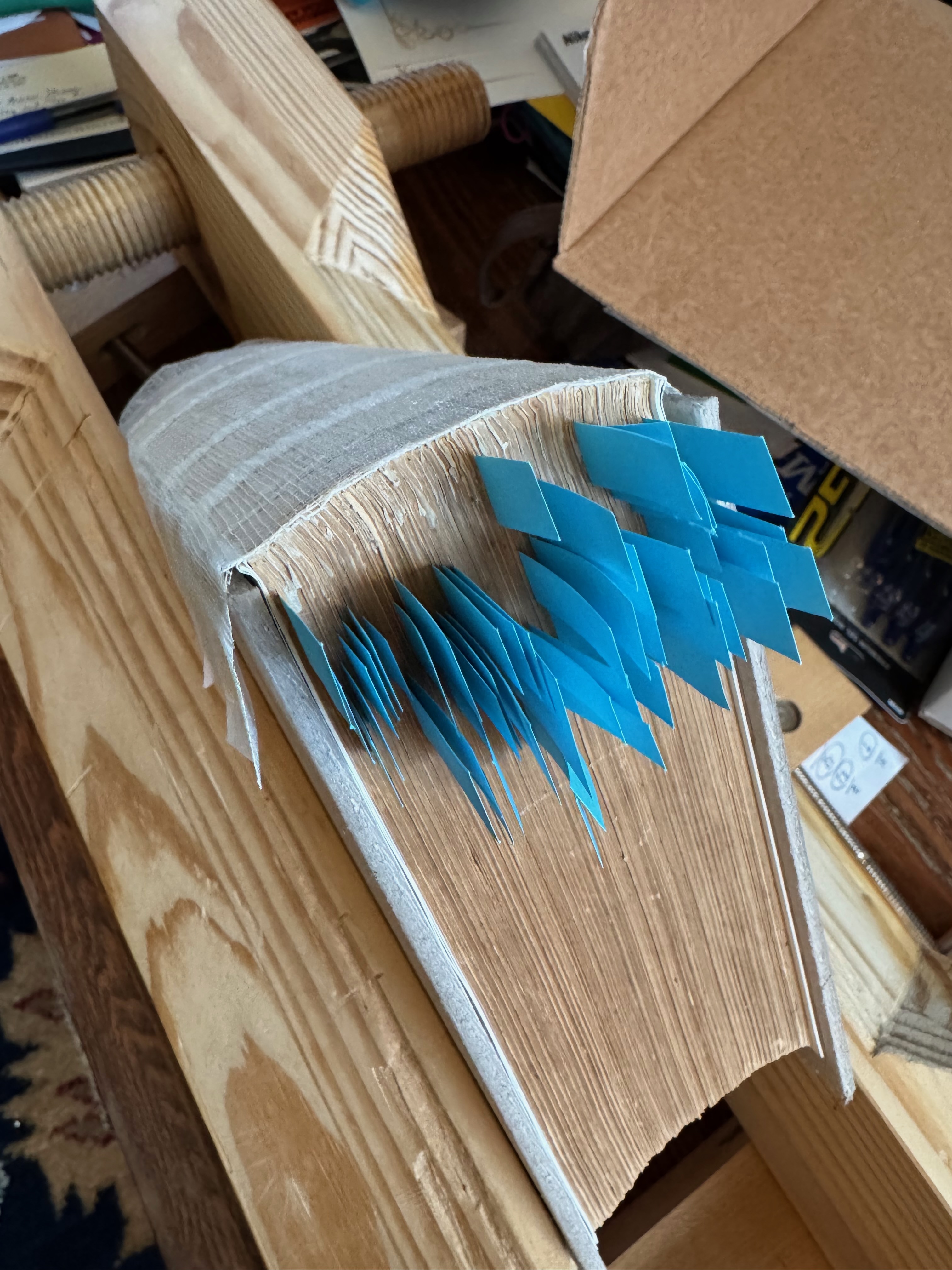
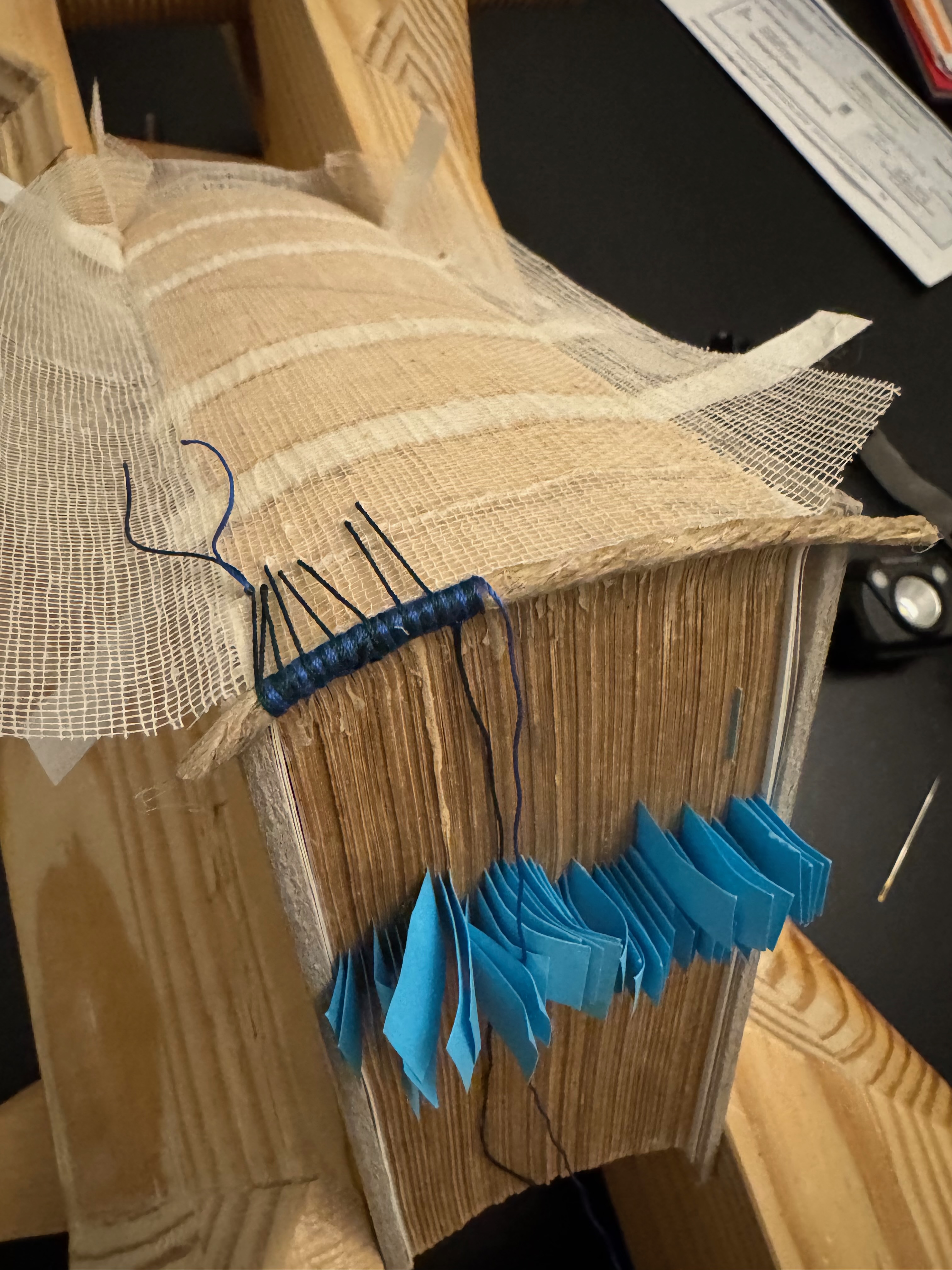
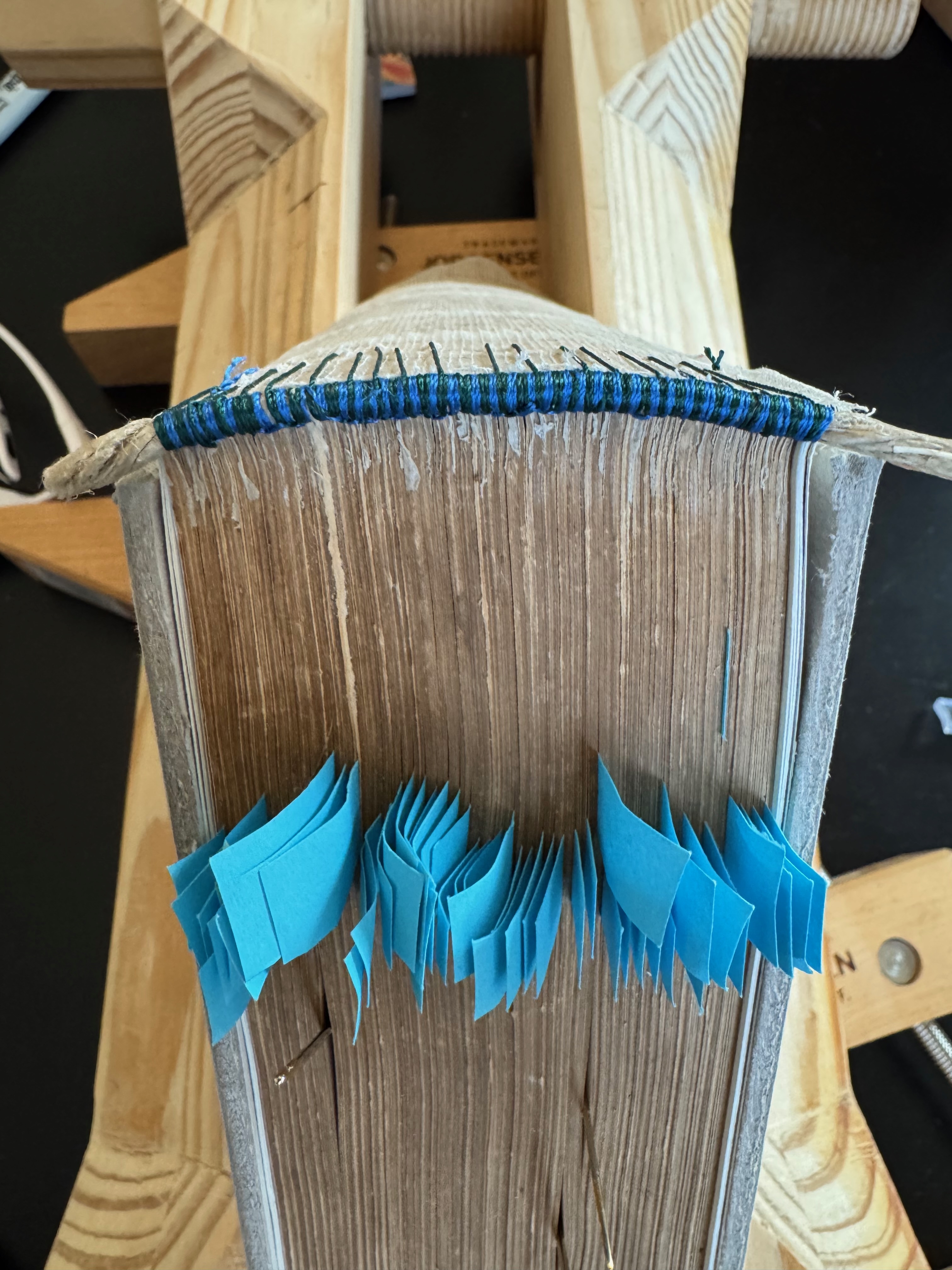
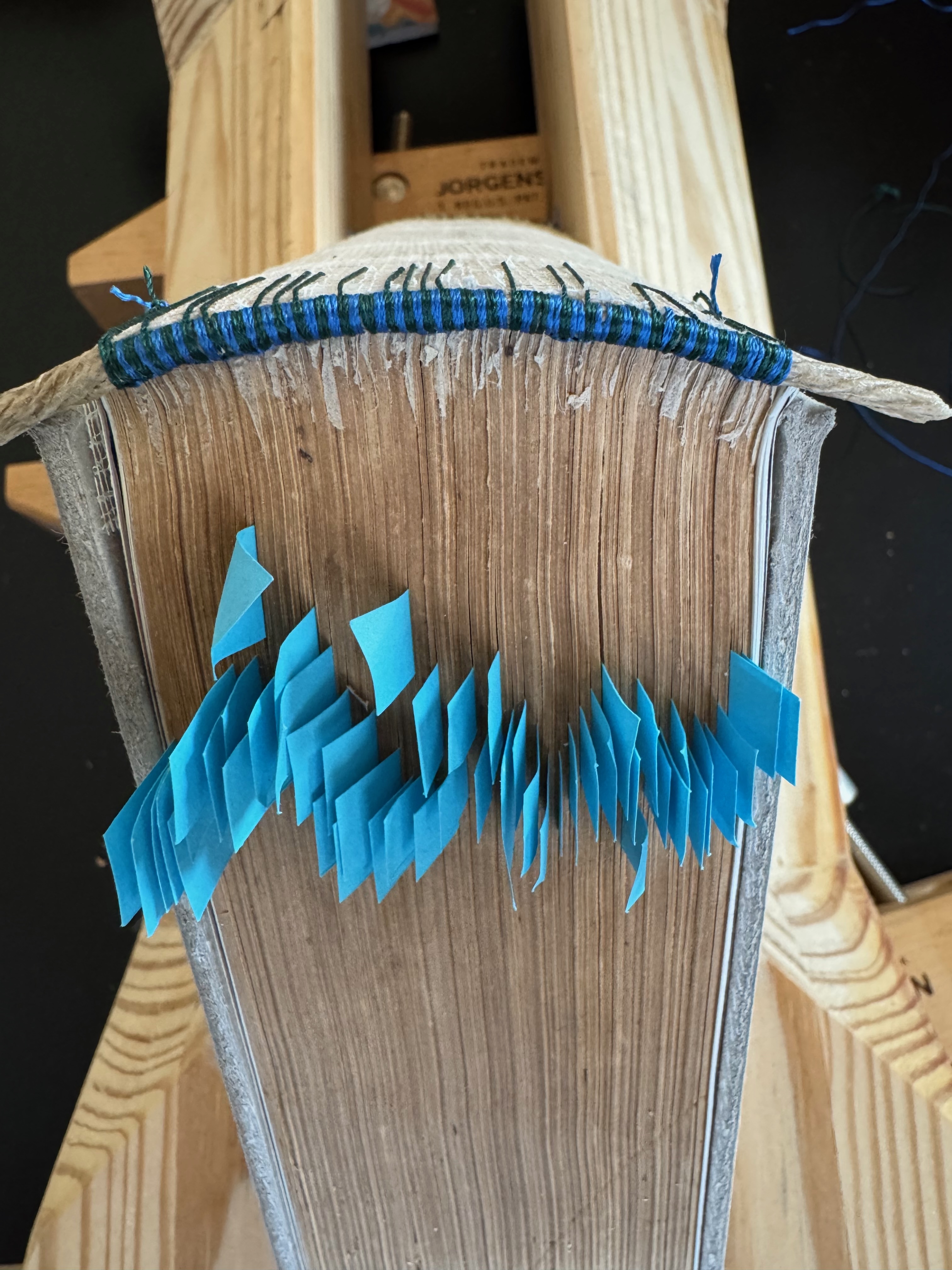
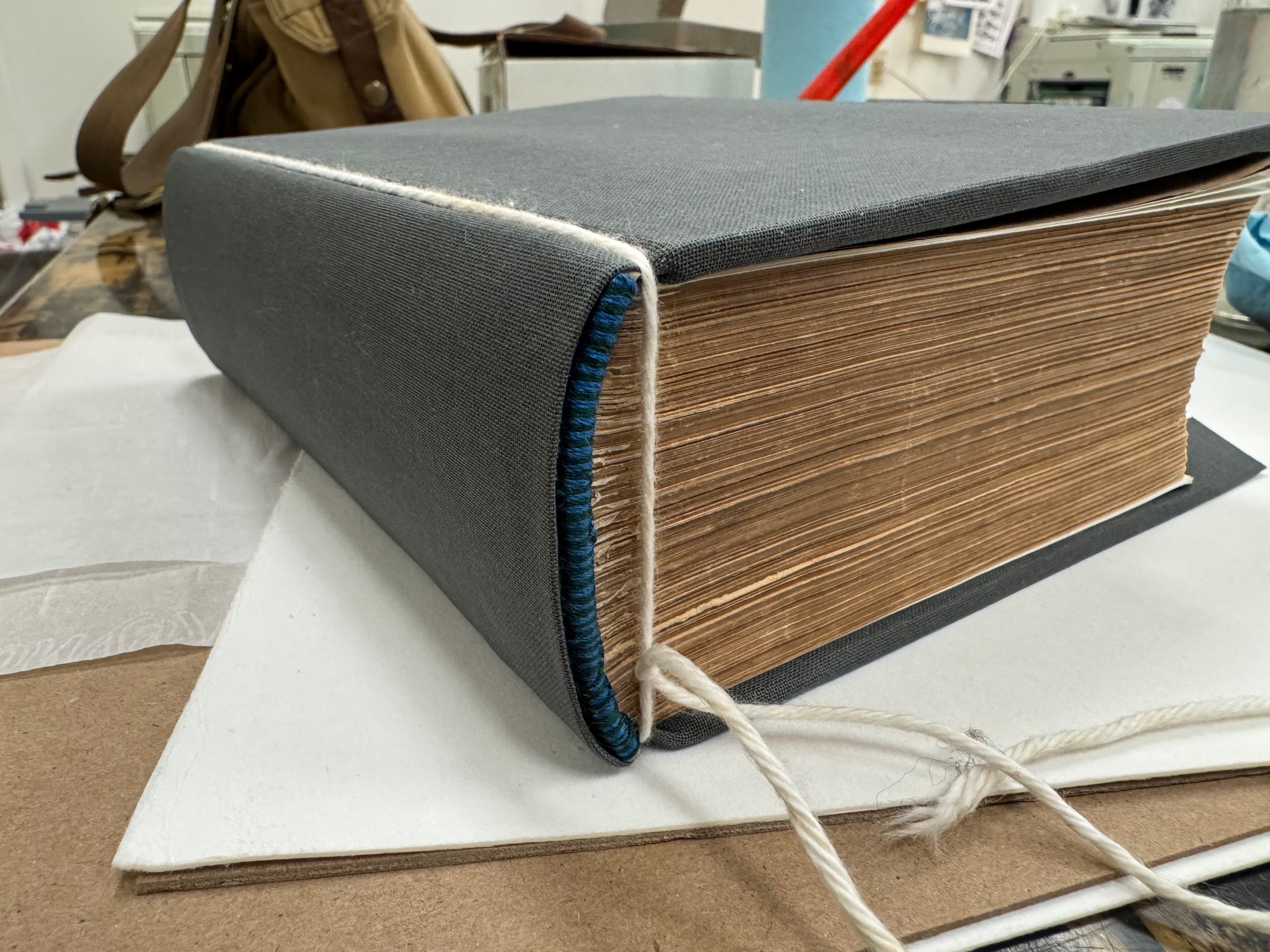
The first time I bound a book, I made decorative head and tail bands, but they weren't very structural. For this book, I felt it needed as much support and reinforcement as I could give it. Plus, sewn head and tail bands would be more period appropriate and be an opportunity to again show off some theming. I chose blue and green threads (sea and land) and firmed up some paper cord with PVA glue to act as the core of the bands. I identified the centers of the signatures, and started the wrapping process. If you've ever made friendship bracelets as a kid, you'd probably recognize the process. Every so often, the whole structure would get sewn into the book via the fold in the signature with the thread coming out the back of the spine. Ideally, it's done underneath the first sewn line of knots across the spine, further strengthening the structure. Like many parts of this project, I would have benefitted from starting with the side least likely to be seen regularly, but I didn't. Head first, literally and figuratively.

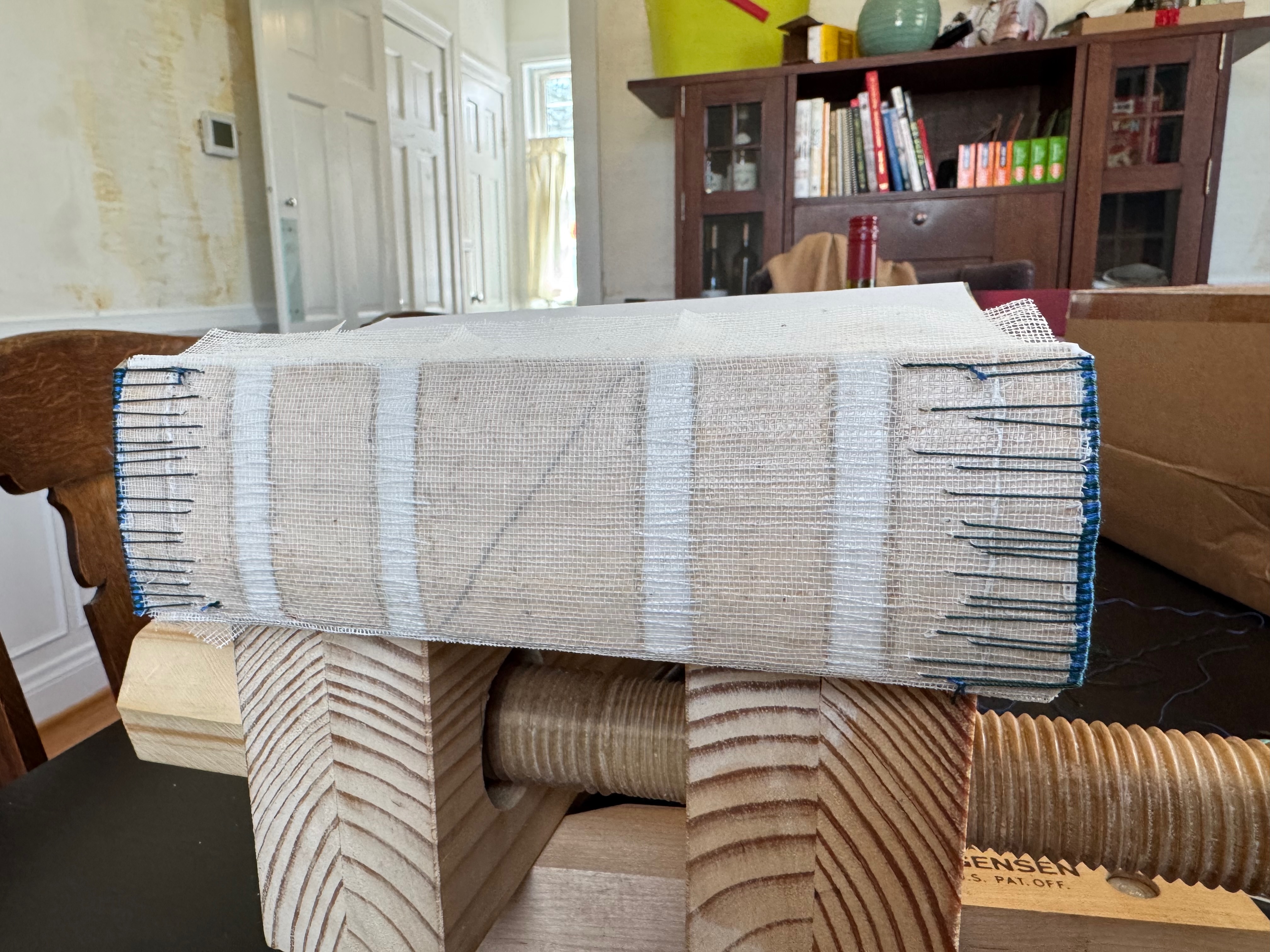
Strengthening the spine, pt 2
Next came a spine stiffener, and piece of cardstock glued and smoothed down, followed by the hollow, a structural piece that would allow the spine's cloth to fold open without creasing on itself.
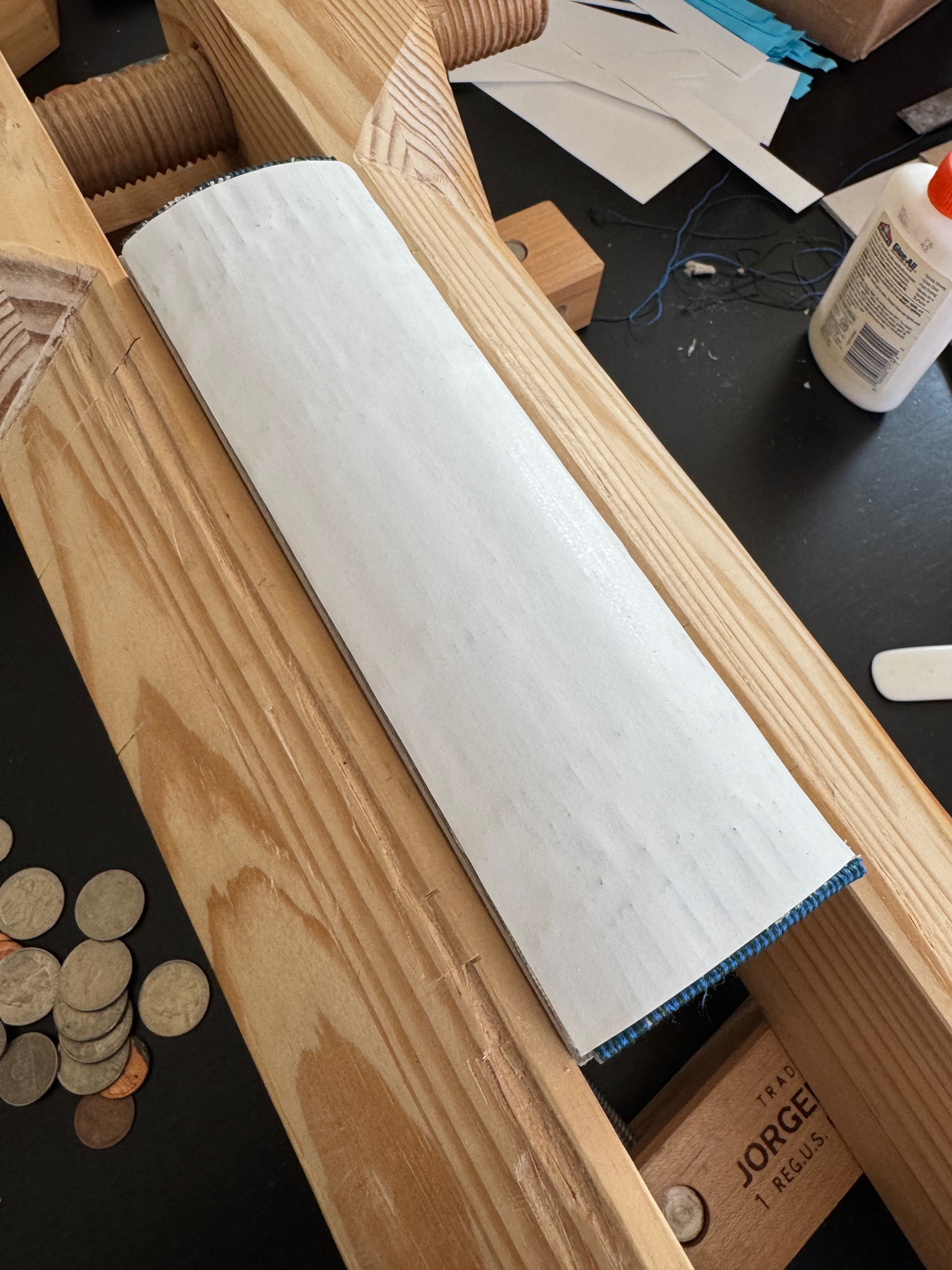
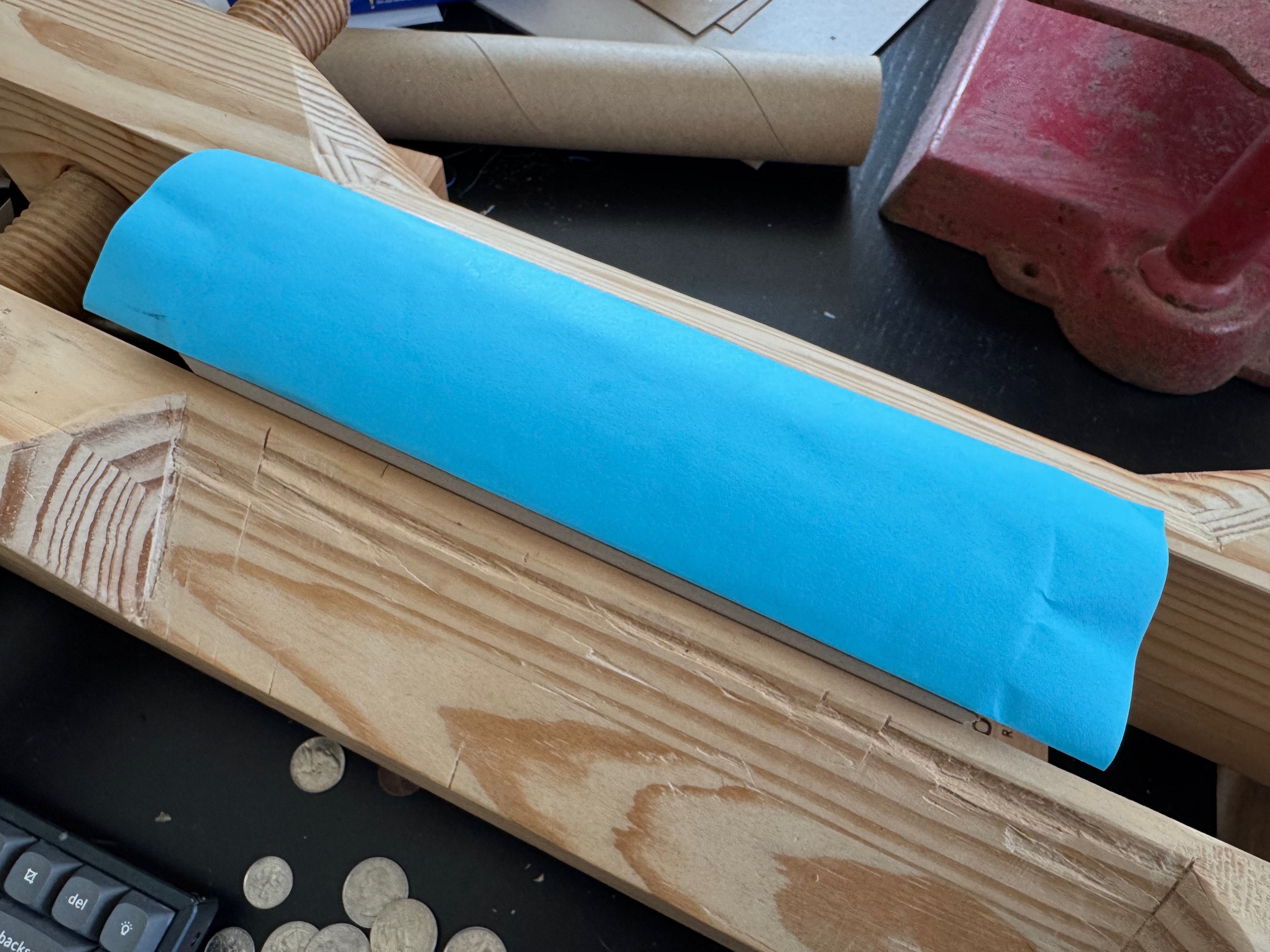
Making the tabs
The two waste sheets on the front and back of the book were now folded down in thirds, and sandwiched with glue, binding the remaining mull and tape within it. About this time, I also managed to pick up an antique nipping press locally. Having steady pressure, equally applied would be pretty crucial throughout the remainder of the process.
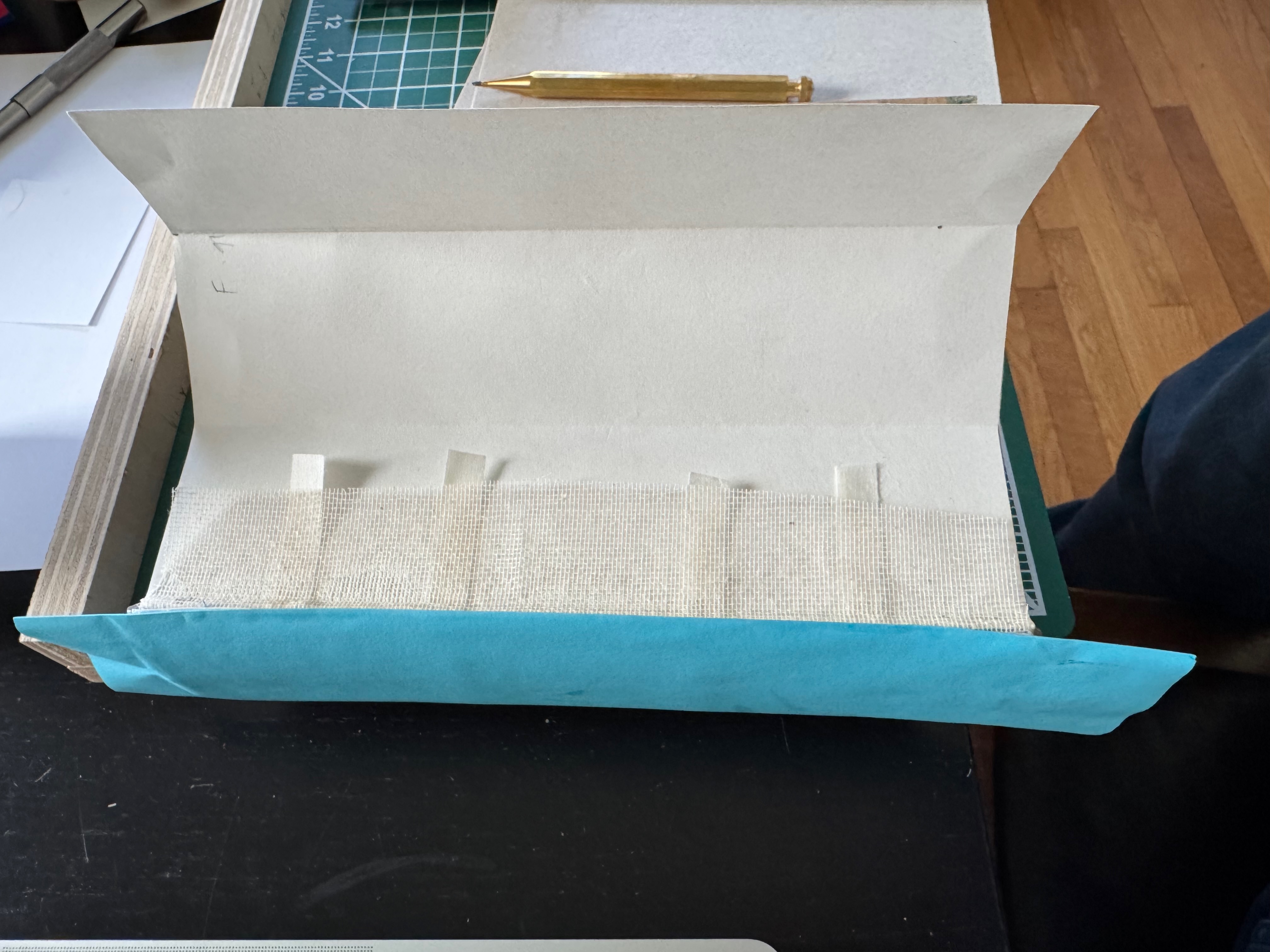
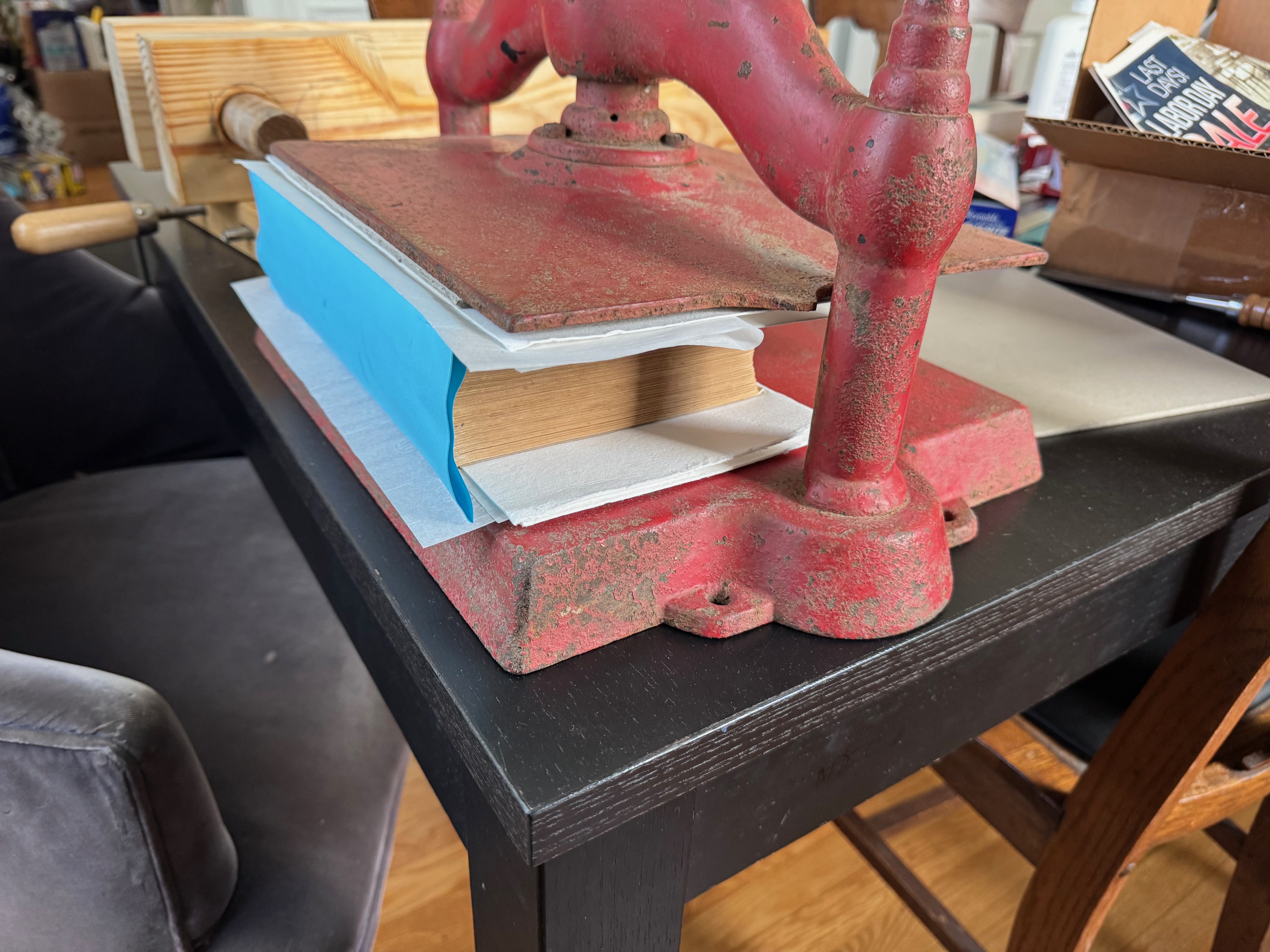
Assembling the boards
I had determined that the cover boards would be 4mm thick, but made by laminating two 2mm boards, leaving the last third unglued along the edge of the spine. That gap would eventually take the tabs I'd just made and fully secure the covers to the spine. At this point, it's a book!
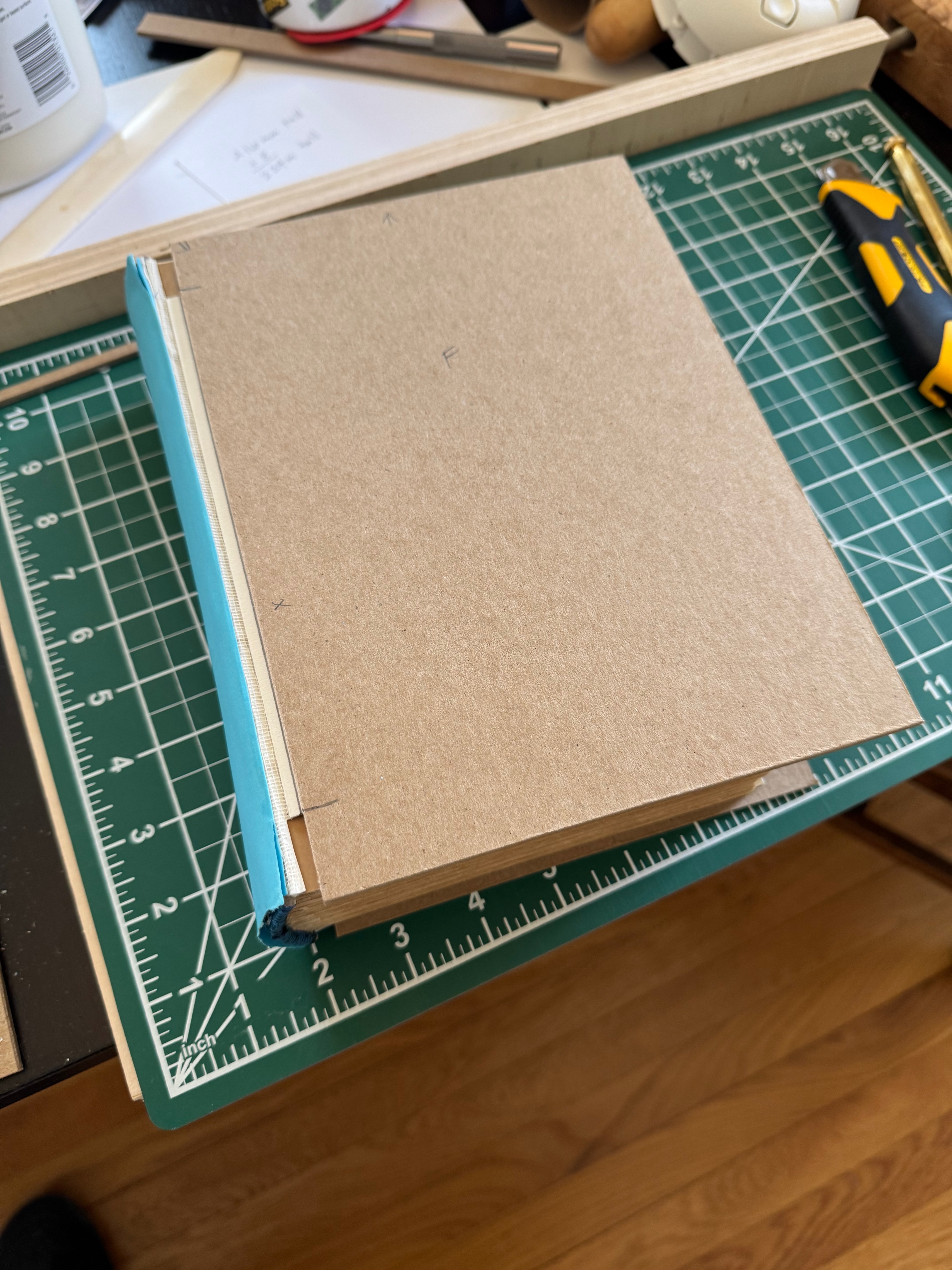
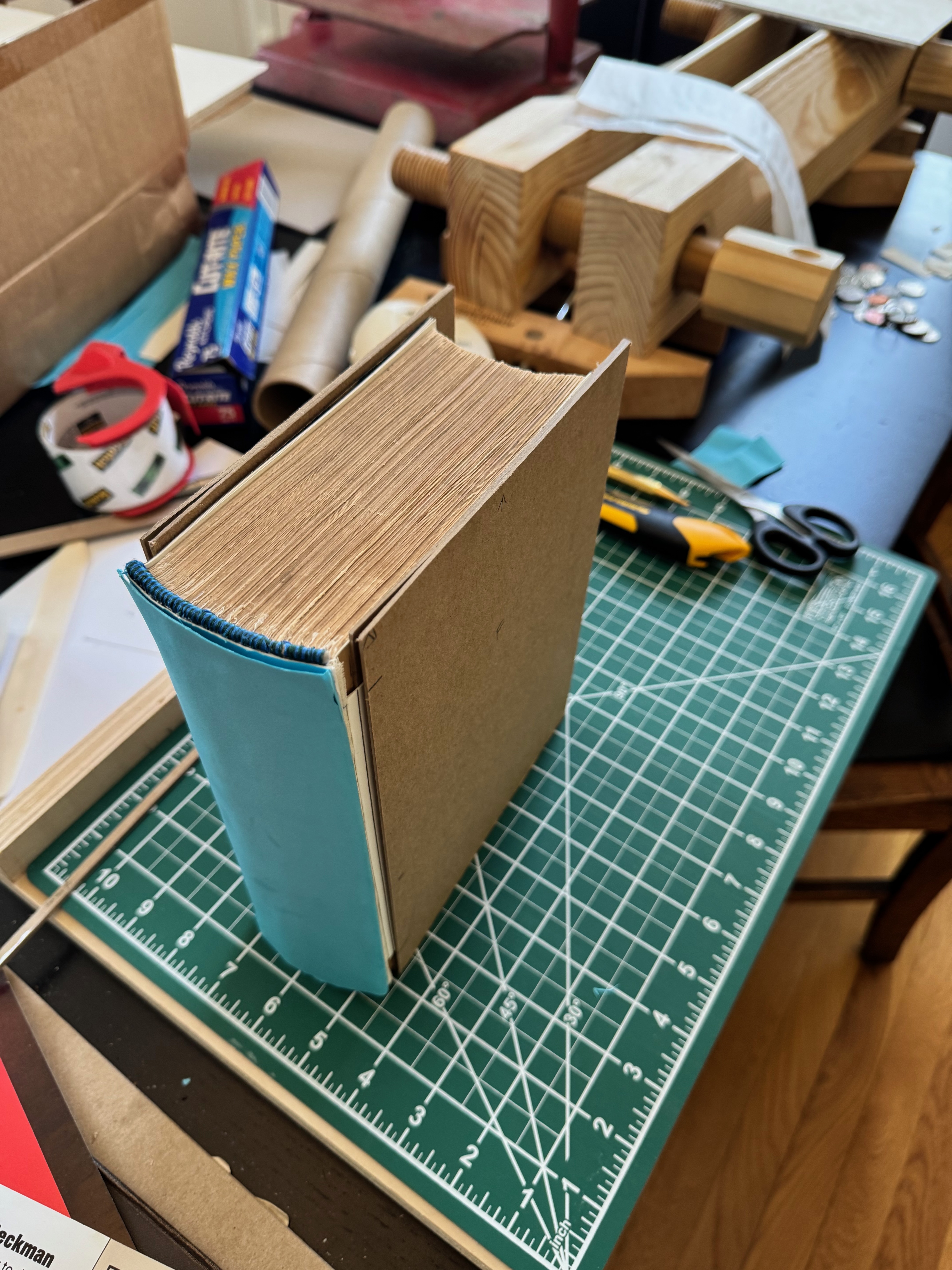
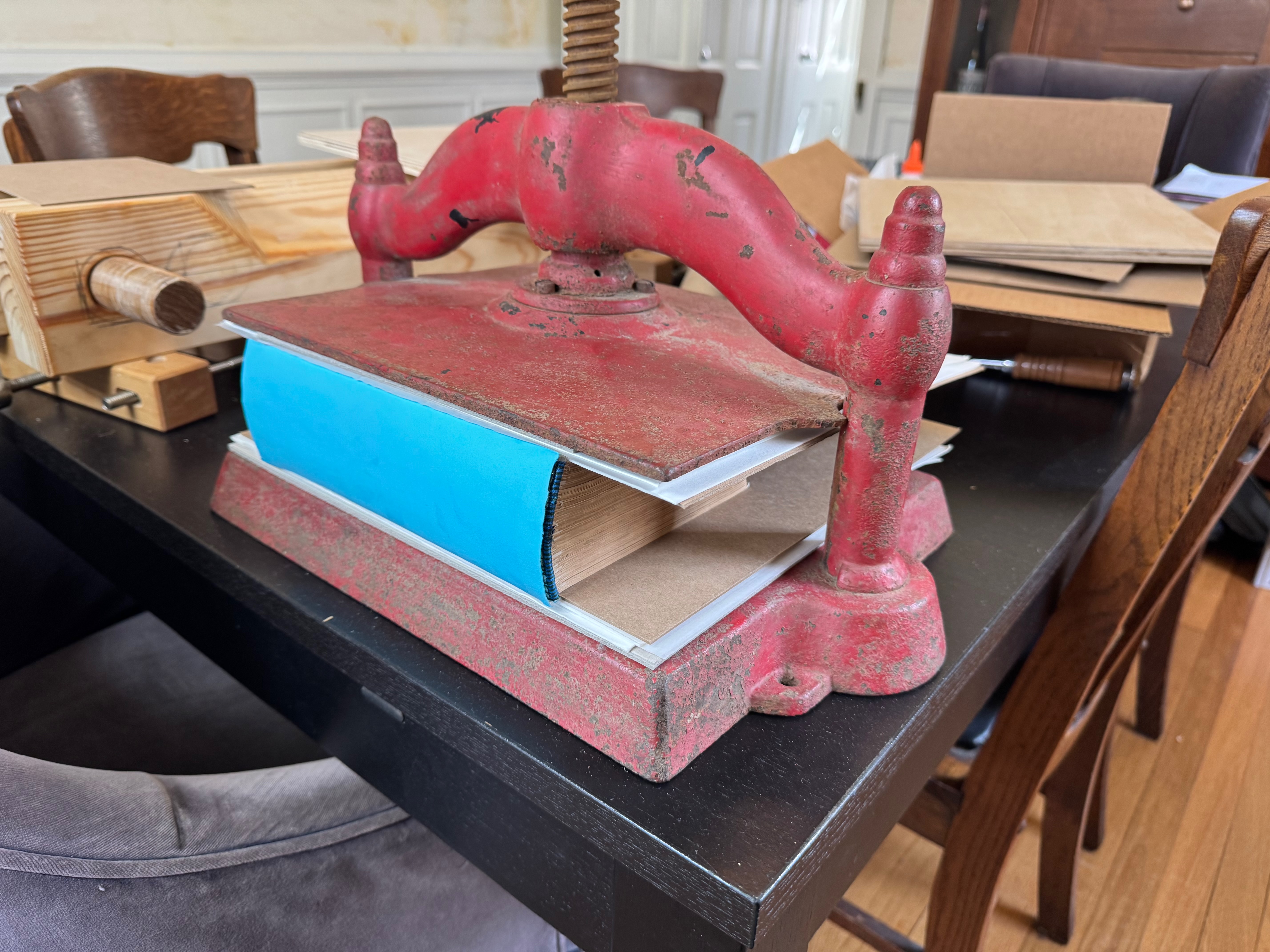
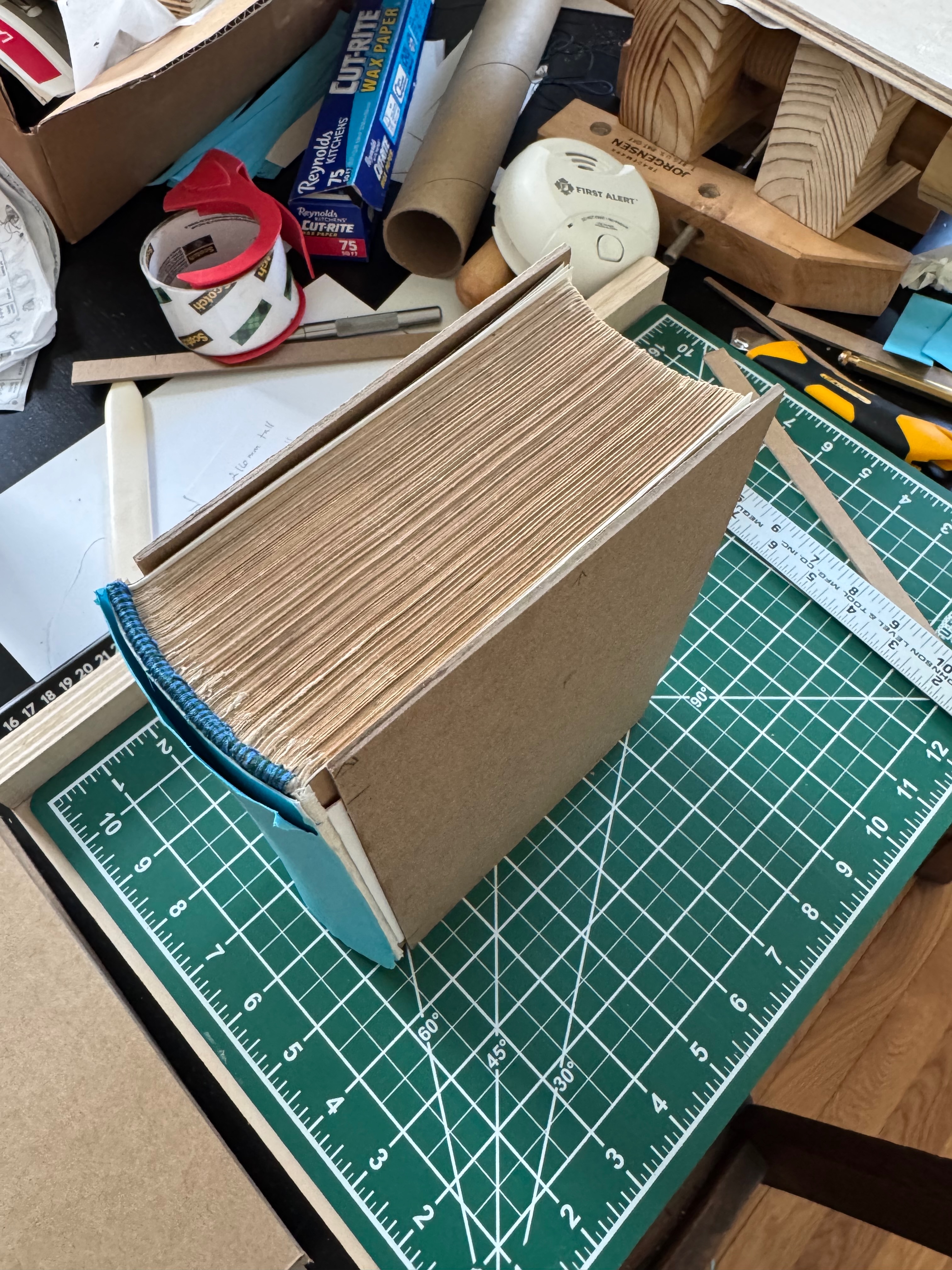
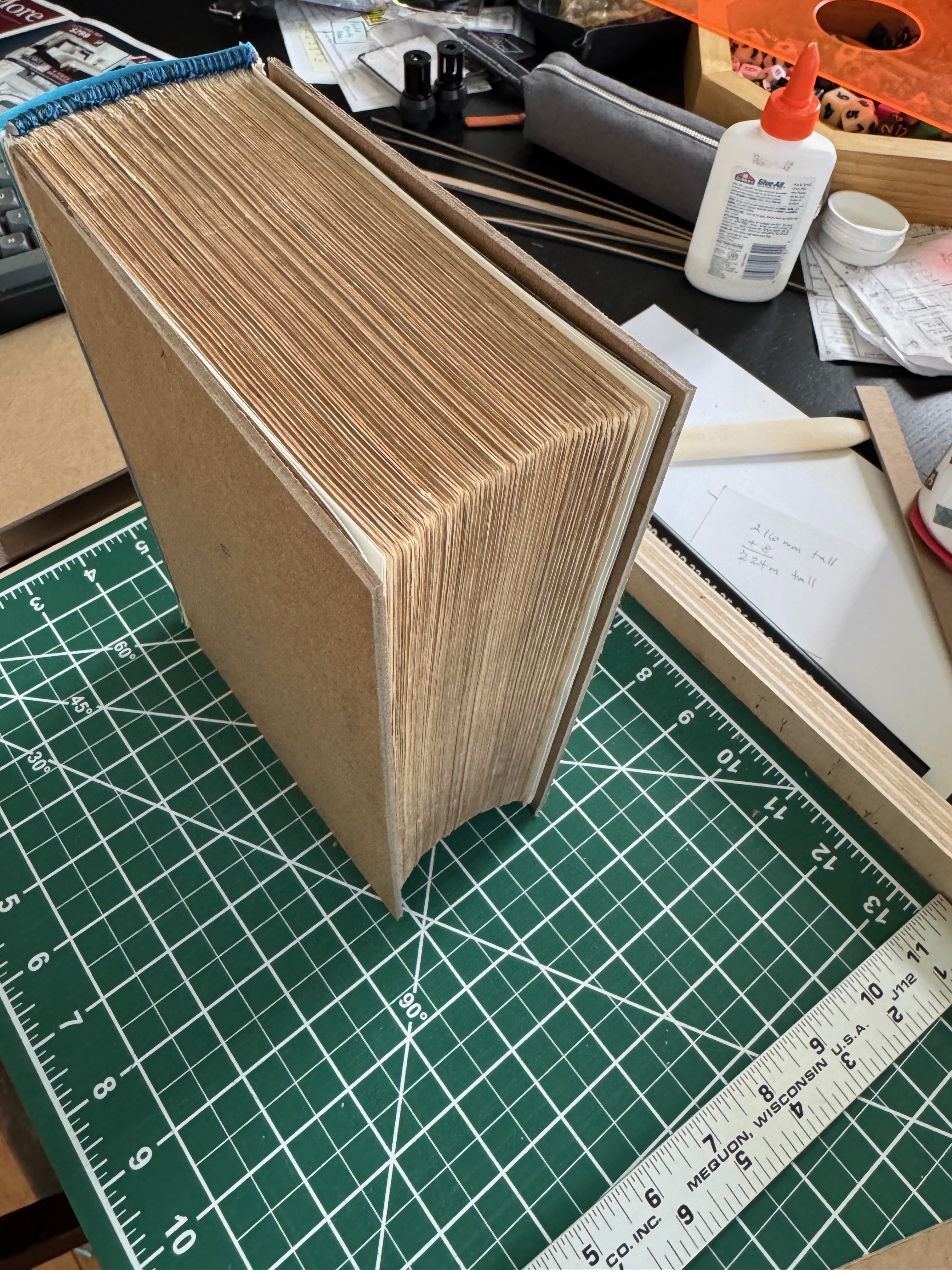
Creating the deboss cards
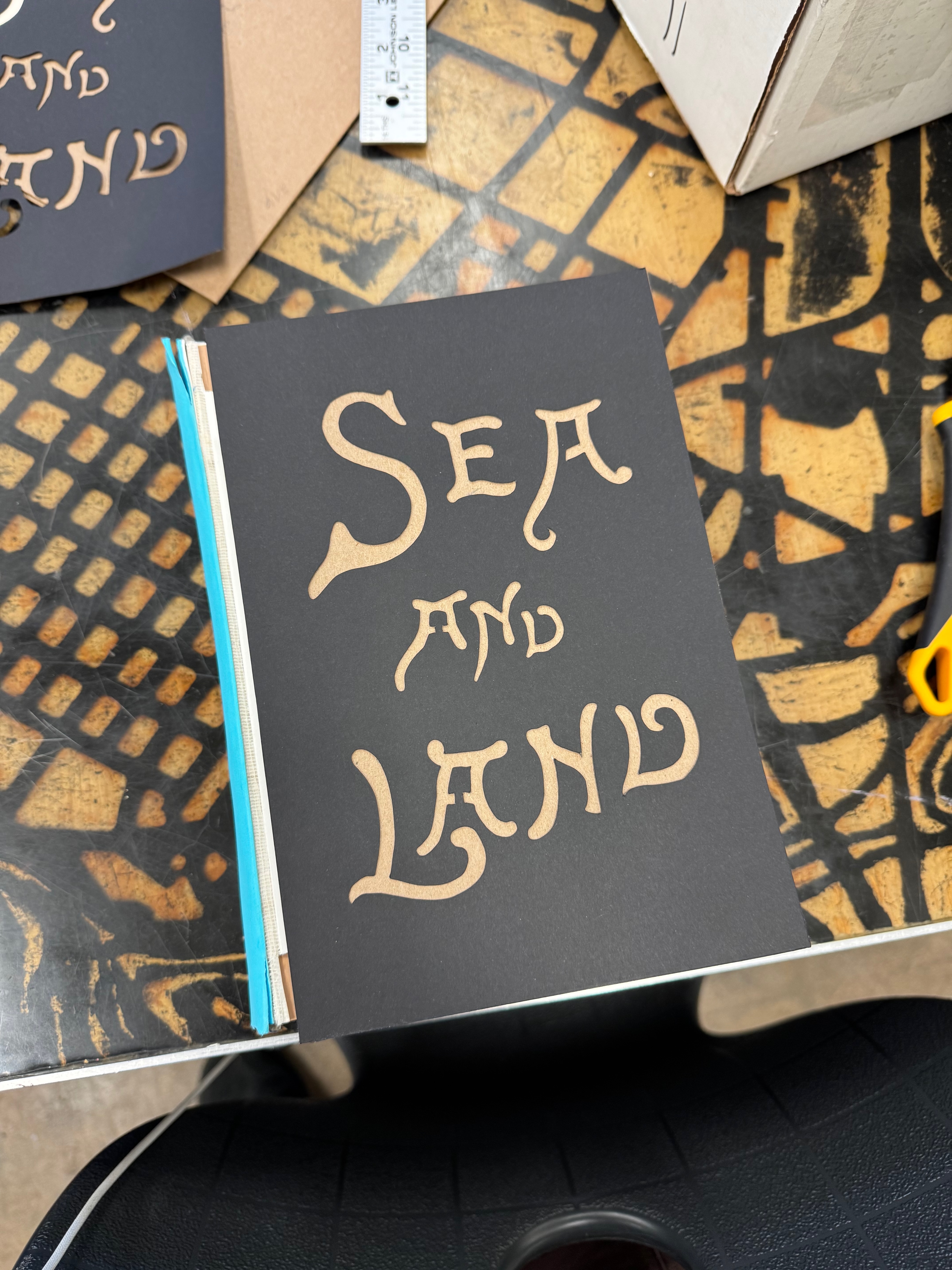
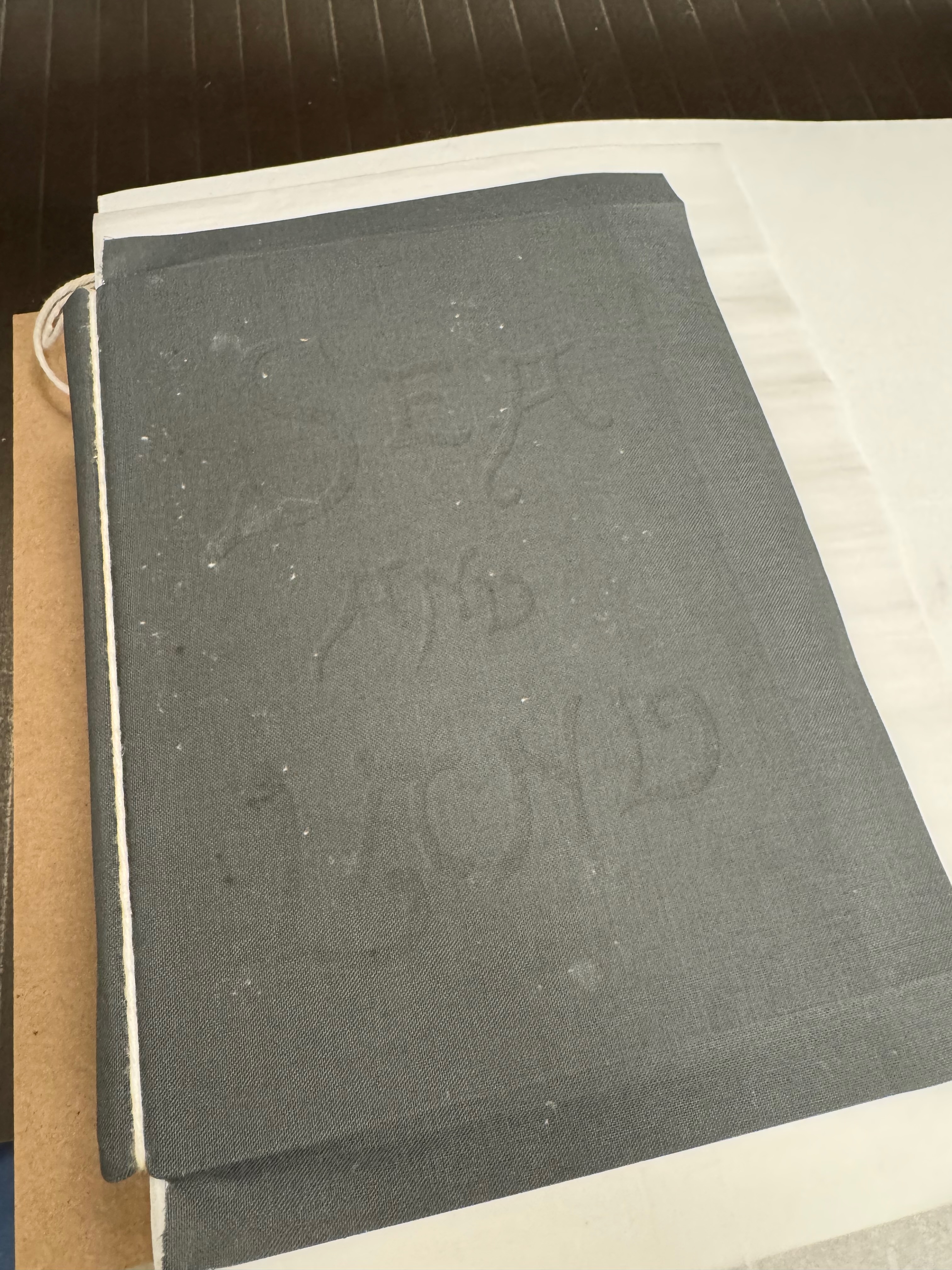
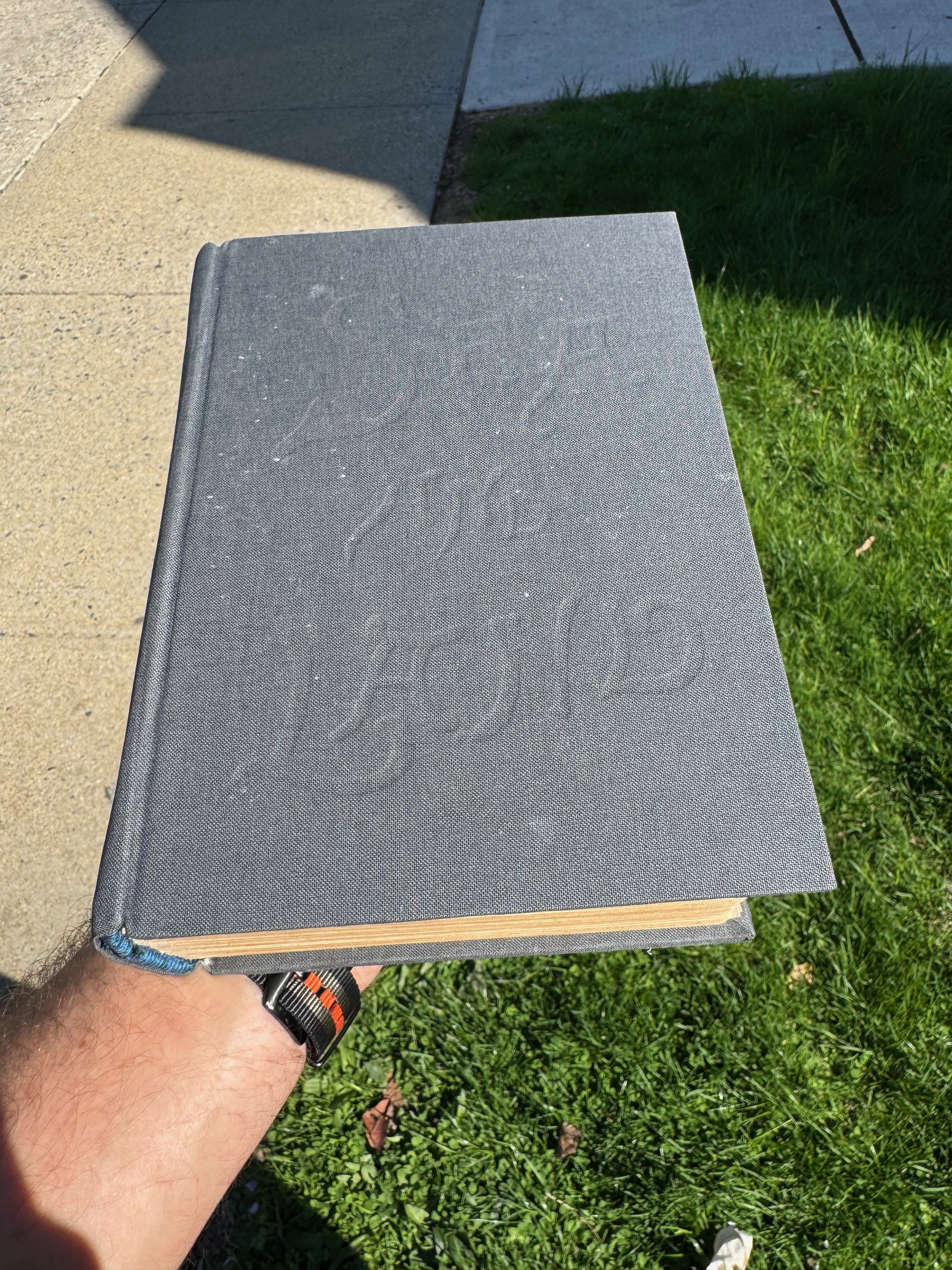
Since I was not reusing the original covers, but I wanted to pay homage to its design, I traced the title lettering in Affinity Designer and turned it into an SVG, which I could scale and place and make full cover size. I cut it out with a Cricut at the studio and glued the cardstock to the cover boards and set them to dry in the press.
Clothing the book
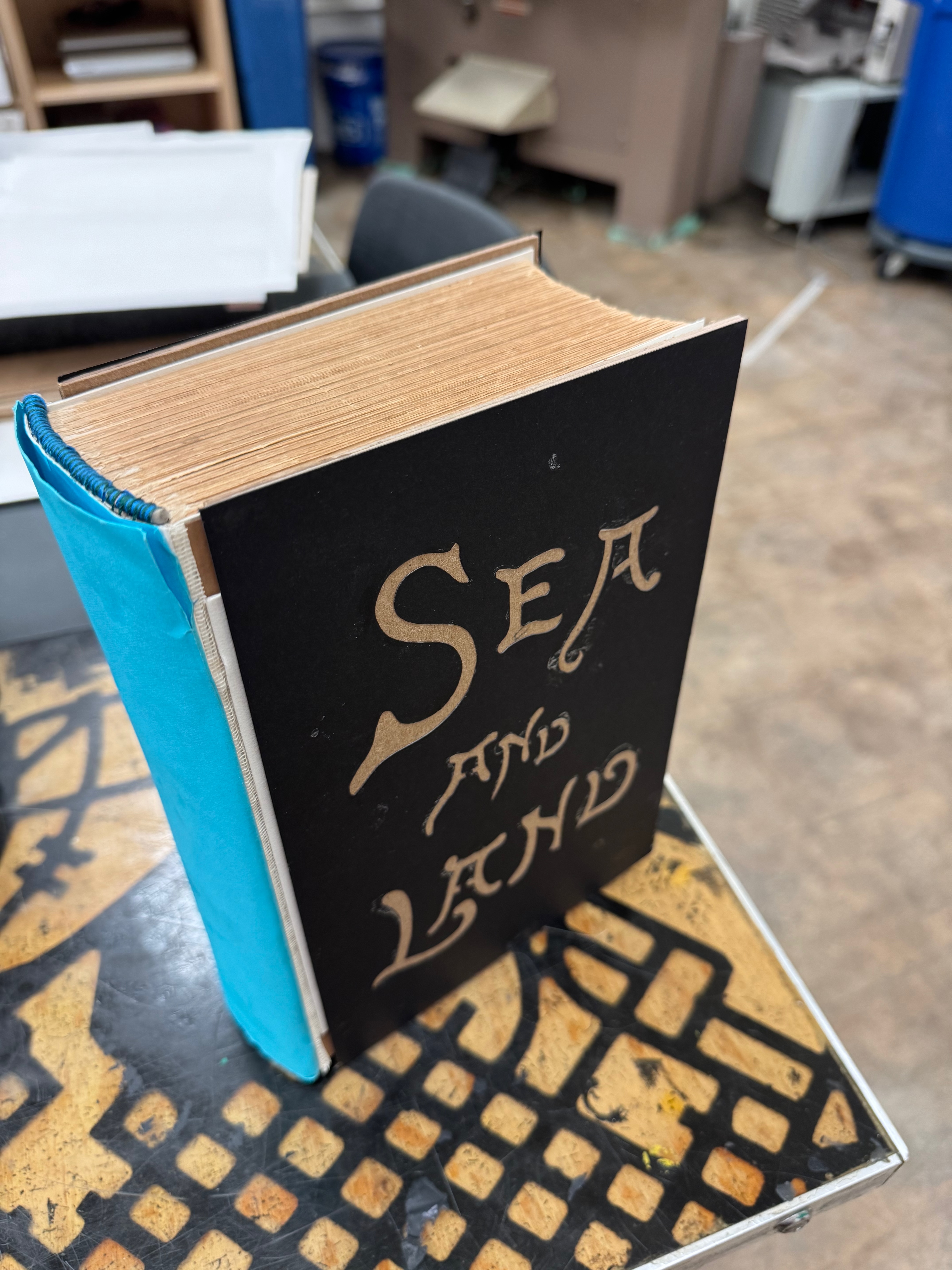
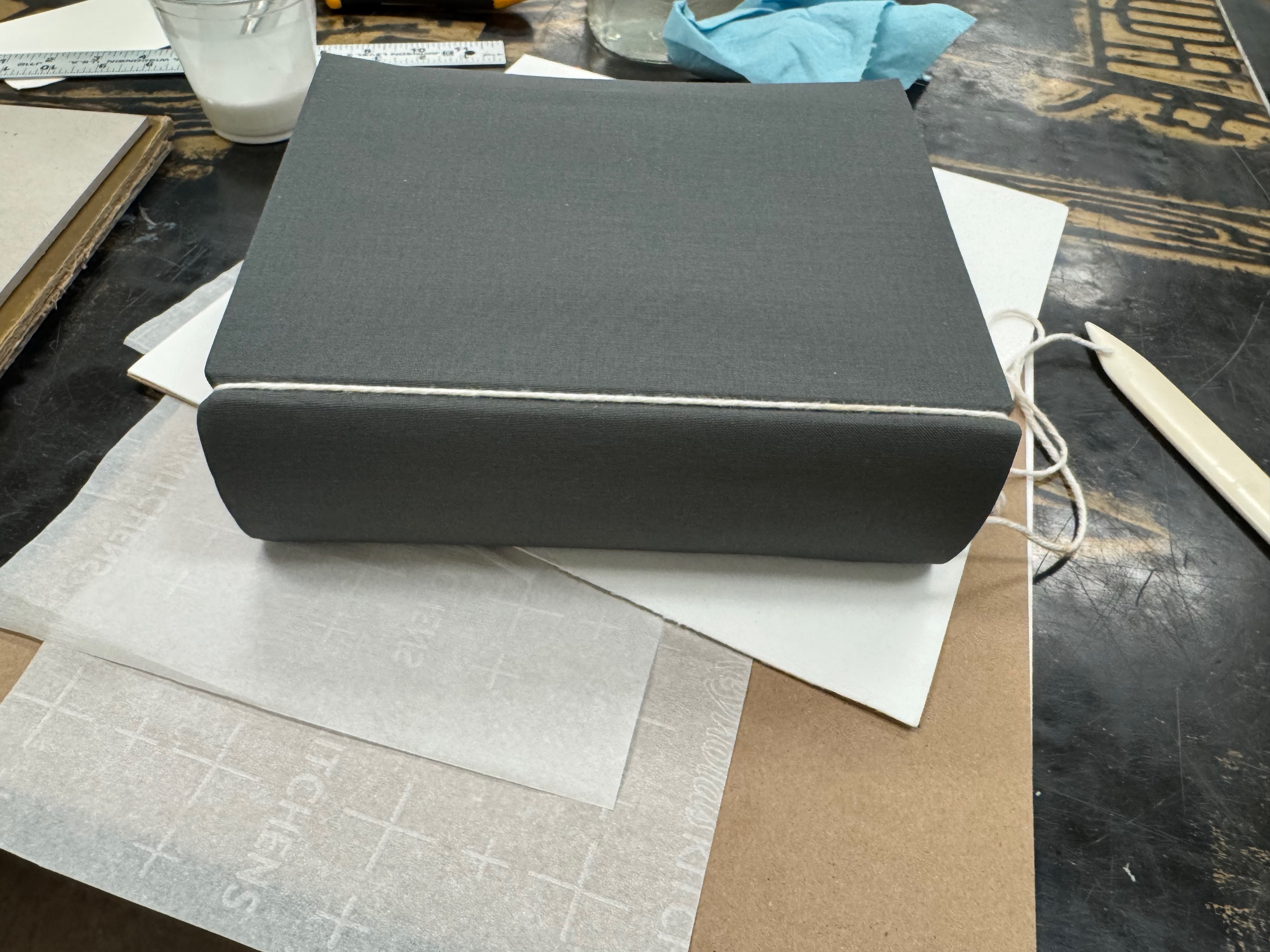
The book was structured, but still vulnerable. Gluing down book cloth and putting it in the press allowed the cloth to be debossed into the stencil I cut out. I was in a bit of a rush, and the blotter paper I used outside the book met up with some glue coming through the book cloth, and left little fuzzy bits.
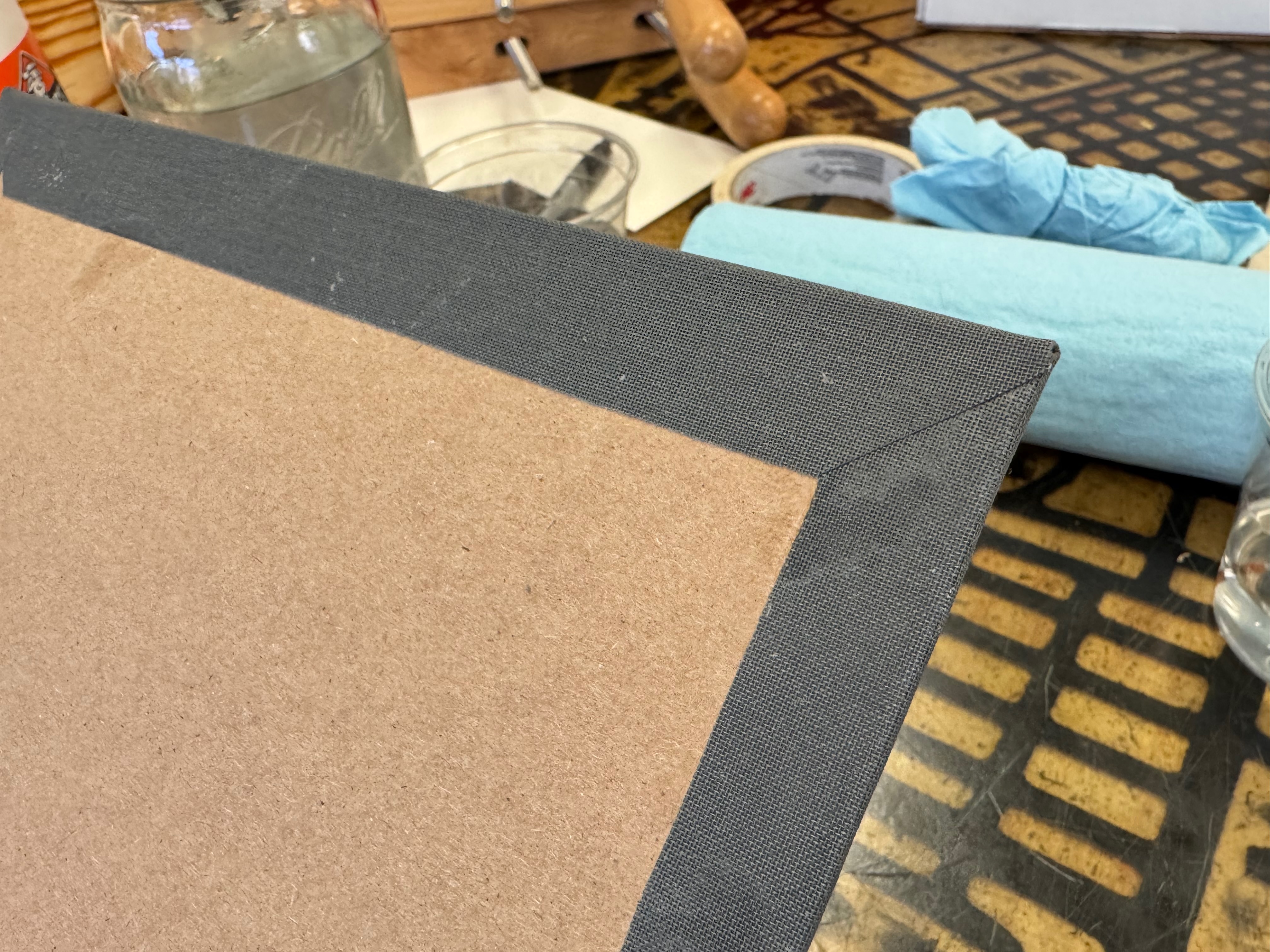
Attaching endpapers
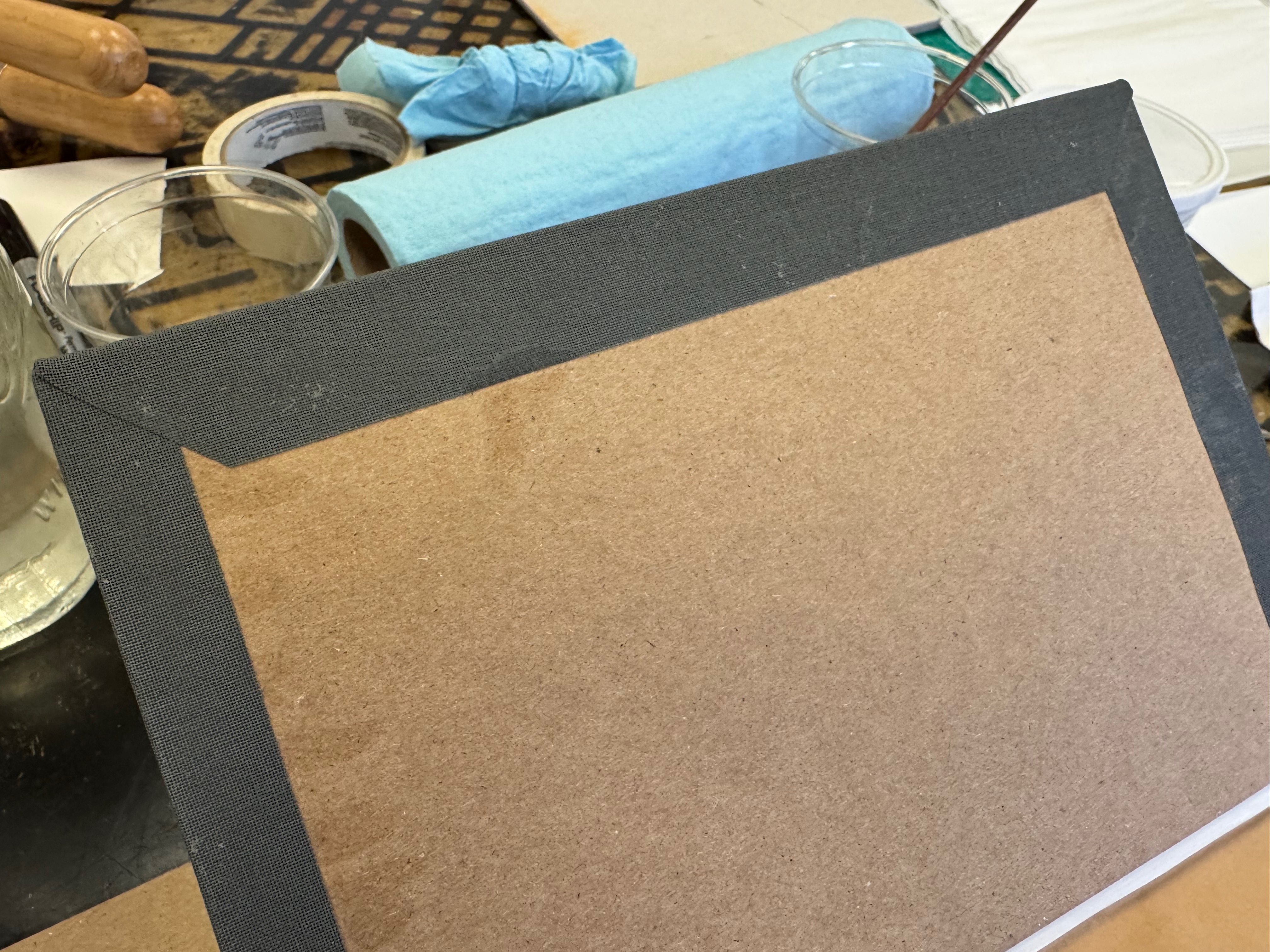
The last step was attaching the endpapers, fully connecting and making secure the cover to the text block. A mixture of PVA glue and methylcellulose gives a bit more working time and allows the endpapers to be smoothed against the cover boards. The cover boards had bowed slightly as the cloth compressed, and gluing the endpapers inside would counter that bend and the tension would pull them back flat.
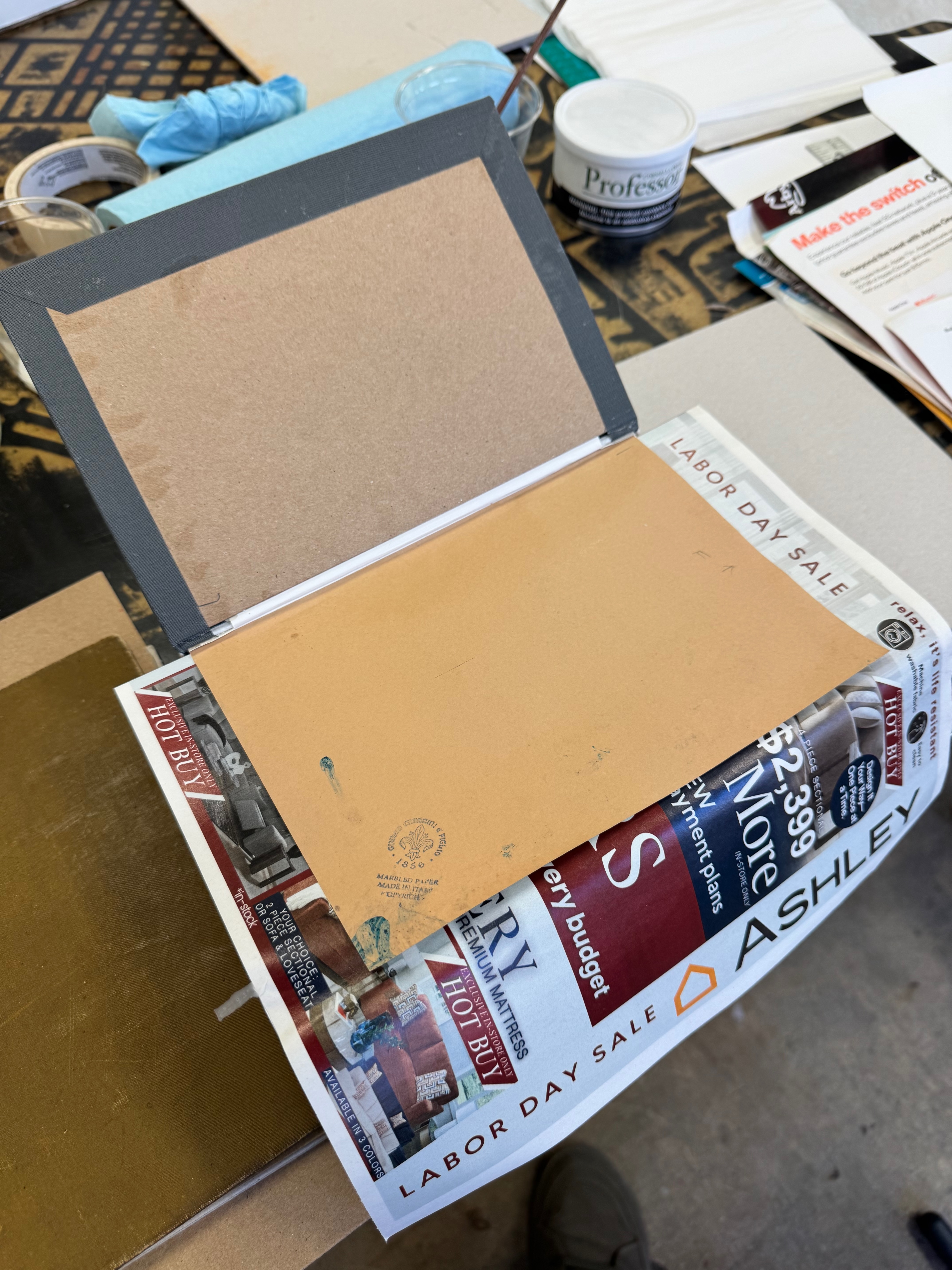
Assembling the shadowbox
The back cover had no decoration or ornamentation, but the front cover and spine still retained some of their former beauty. In addition, the personal note and pressed flowers found in the book all made for a nice memento of the book's former life. I mounted them all in a shadow box, which would accompany the book and get presented to Stu.
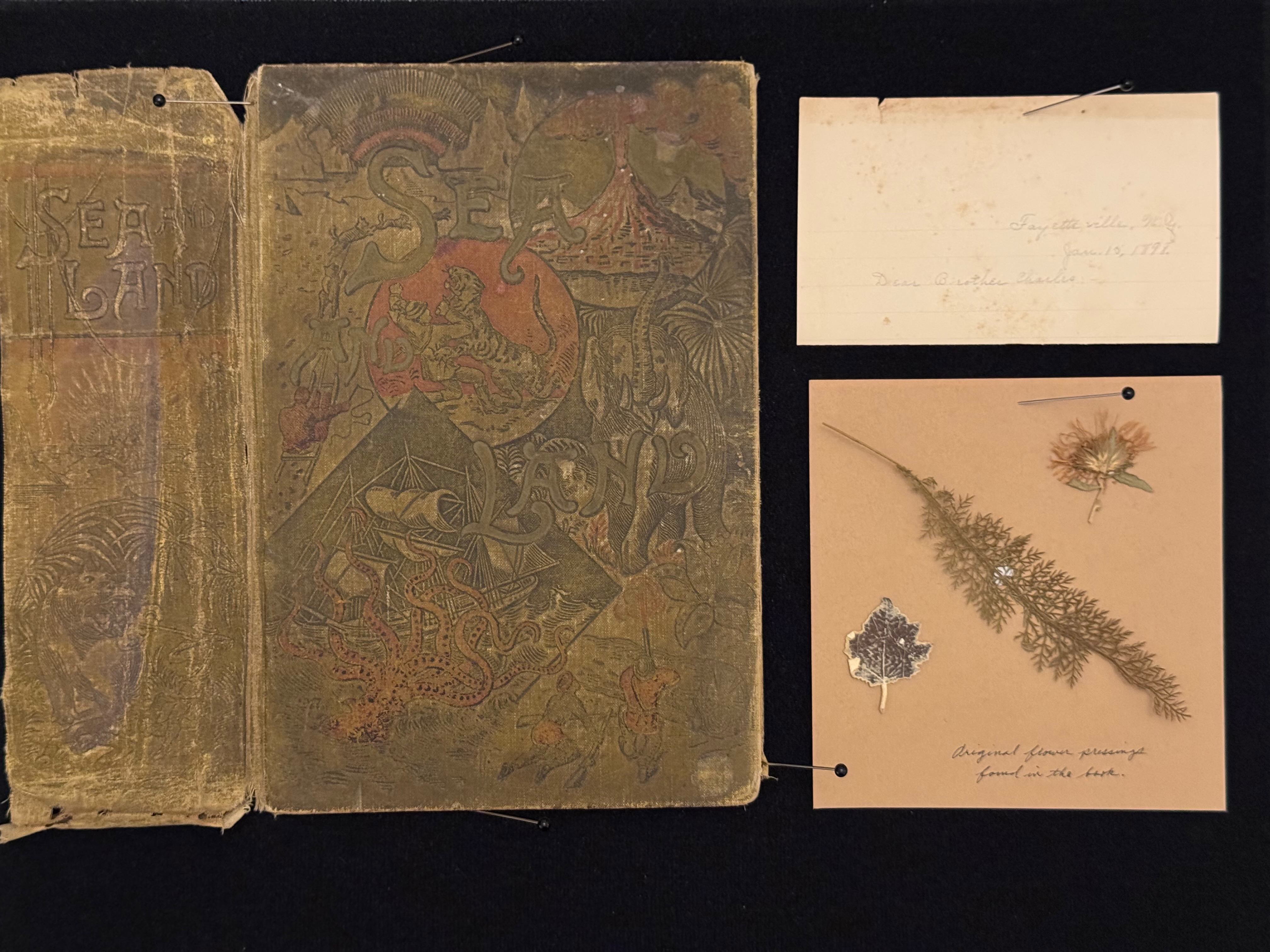
Ready for presentation
I drove up the morning of Geek Flea with the book still in the nipping press, where it had sat overnight, receiving as much pressure as I could muster and as much time as I could give it. When I finally pulled it out the press, it was as much a surprise to me as it was to Stu, and I couldn't have been more pleased with how well it all turned out.
The next step for me is to try and recreate the original cover artwork as a dust jacket so Stu will have something other than a grey spine to look at on his shelf.
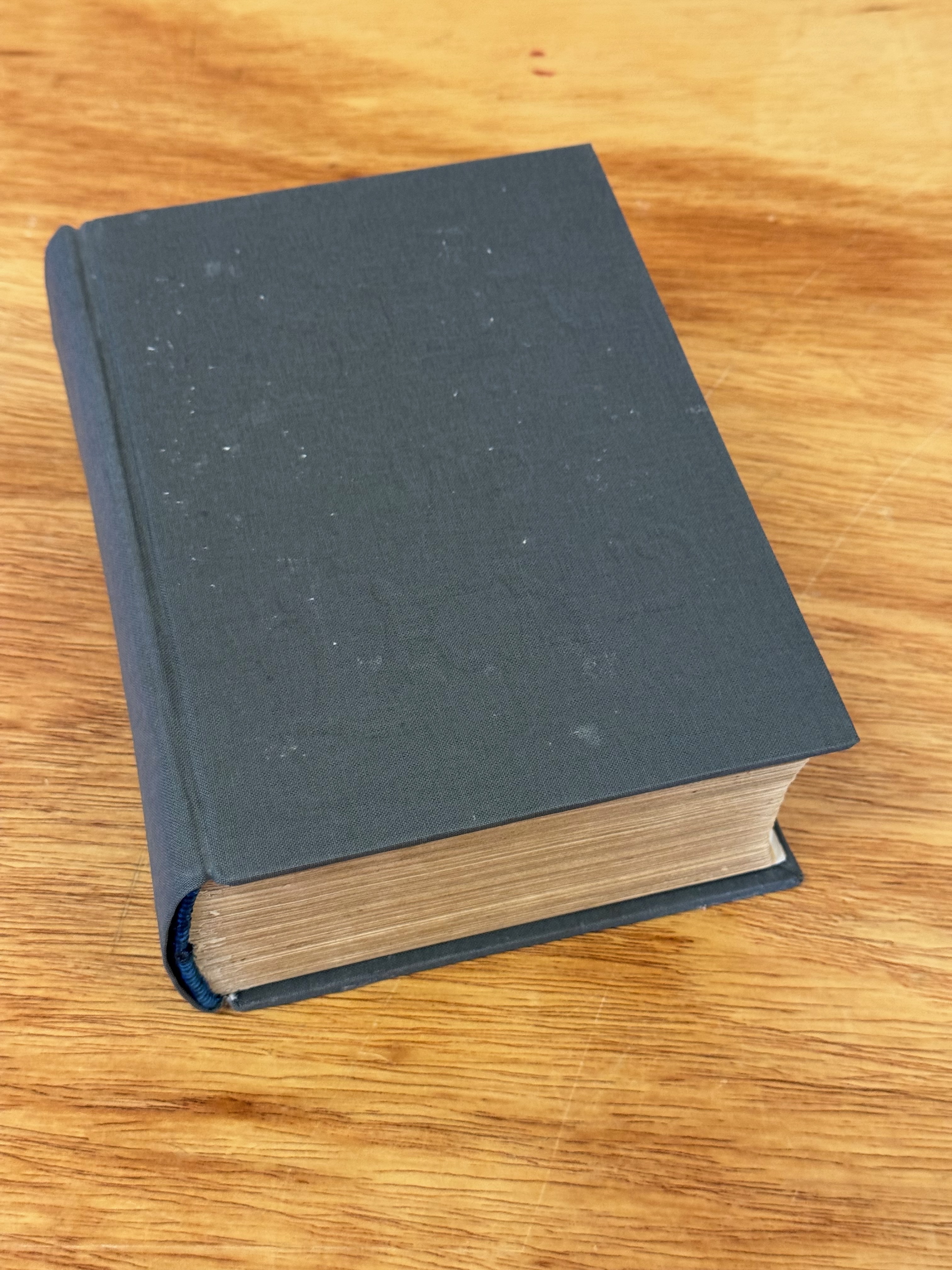
-
Elegance, distilled: the 60% Apple Extended Keyboard II
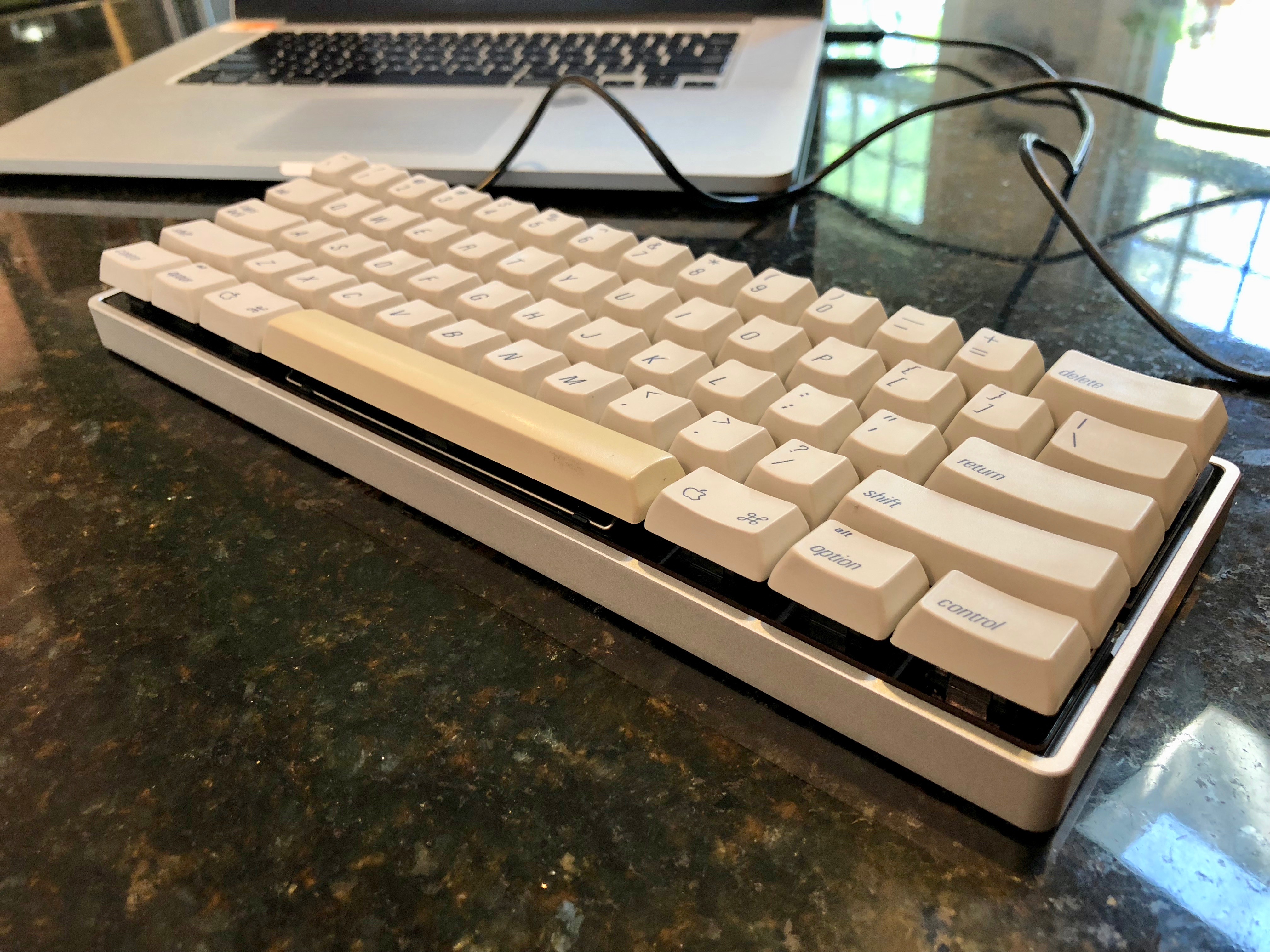
Have I mentioned that I love mechanical keyboards? I have? Well, I’ve just finished up another little project, and I’m typing on it right now. It’s considerably smaller than the Nimitz, but just as satisfyingly clicky.
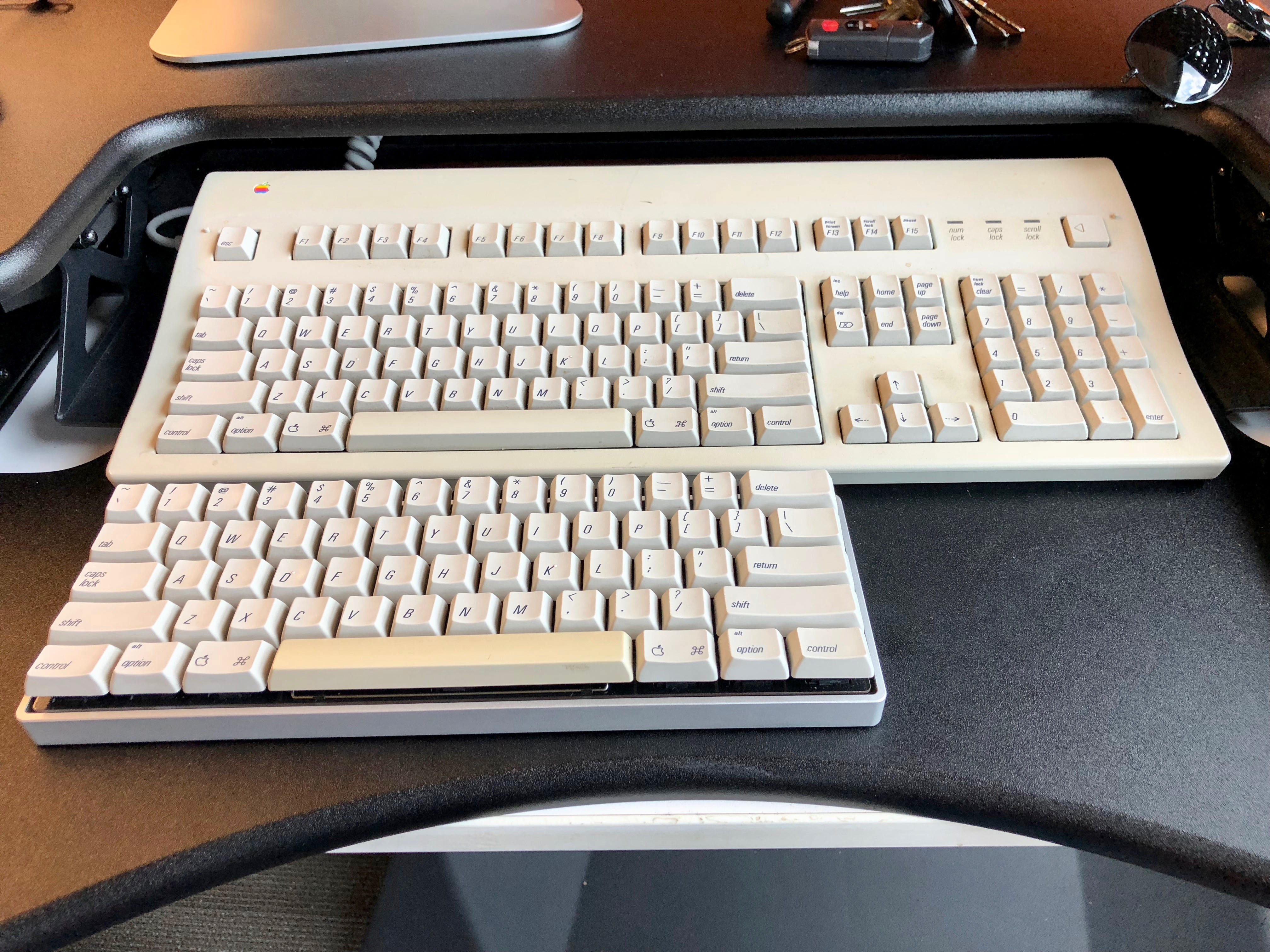
The Hook
I don’t remember exactly what prompted me to visit this picture, but I was utterly captivated when I saw it. You’ll recall, I have several spares. I have switches, keycaps, and solder. All I need is a custom PCB and a GH60 case. Help me, Hasu. I ordered one set of the PCB and plates. I still have two spare keyboards, having built a second Teensy adapter so I could leave one keyboard at work and one at my studio. This keyboard is so much smaller, I can actually fit it in my bag and tote it along with me, and I have future plans to make it a truly on-the-go tool.
Desoldering switches
The Apple Extended Keyboard II disassembles pretty easily. There’s only one screw, and a minimal amount of prying to get the case open. A keycap puller gets the switches clear for removal. Luckily, the only keycap that had problems on this keyboard was the
helpkey. Who needs that, with Geek Hack and Deskthority available? Slow and steady gets the switches desoldered. Several of them had the pins bent down, presumably to make a better connection. Patience and needle nosed pliers won out in the end, though. Cleared out and bent straight, I had 60 little switches ready to be redeployed.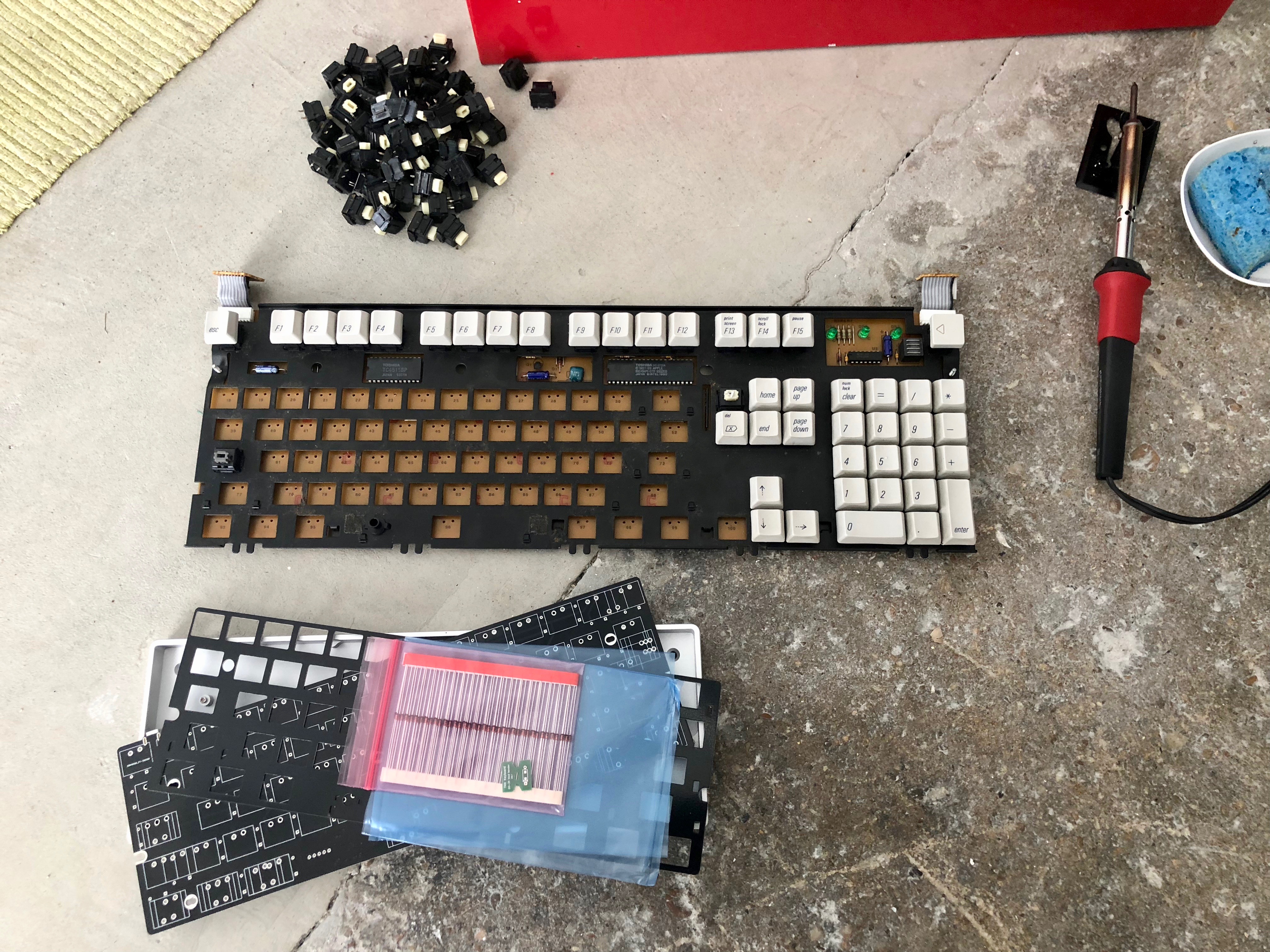
Cleaning keycaps
Once I had those keycaps off, it was obvious they were filthy. Threw them in a big, quart-sized Mason jar with some dish washing liquid and warm water, screwed the lid on, and put them through the gentle cycle. If your keyboard’s keycaps are removable, do yourself a favor and clean them once in a while. Your fingertips will thank you. The spacebar keycap is made of ADP rather than PBT, so it yellows over time, just like the case. I could apply retr0bright, but I think I’ll just let it be for the time being.
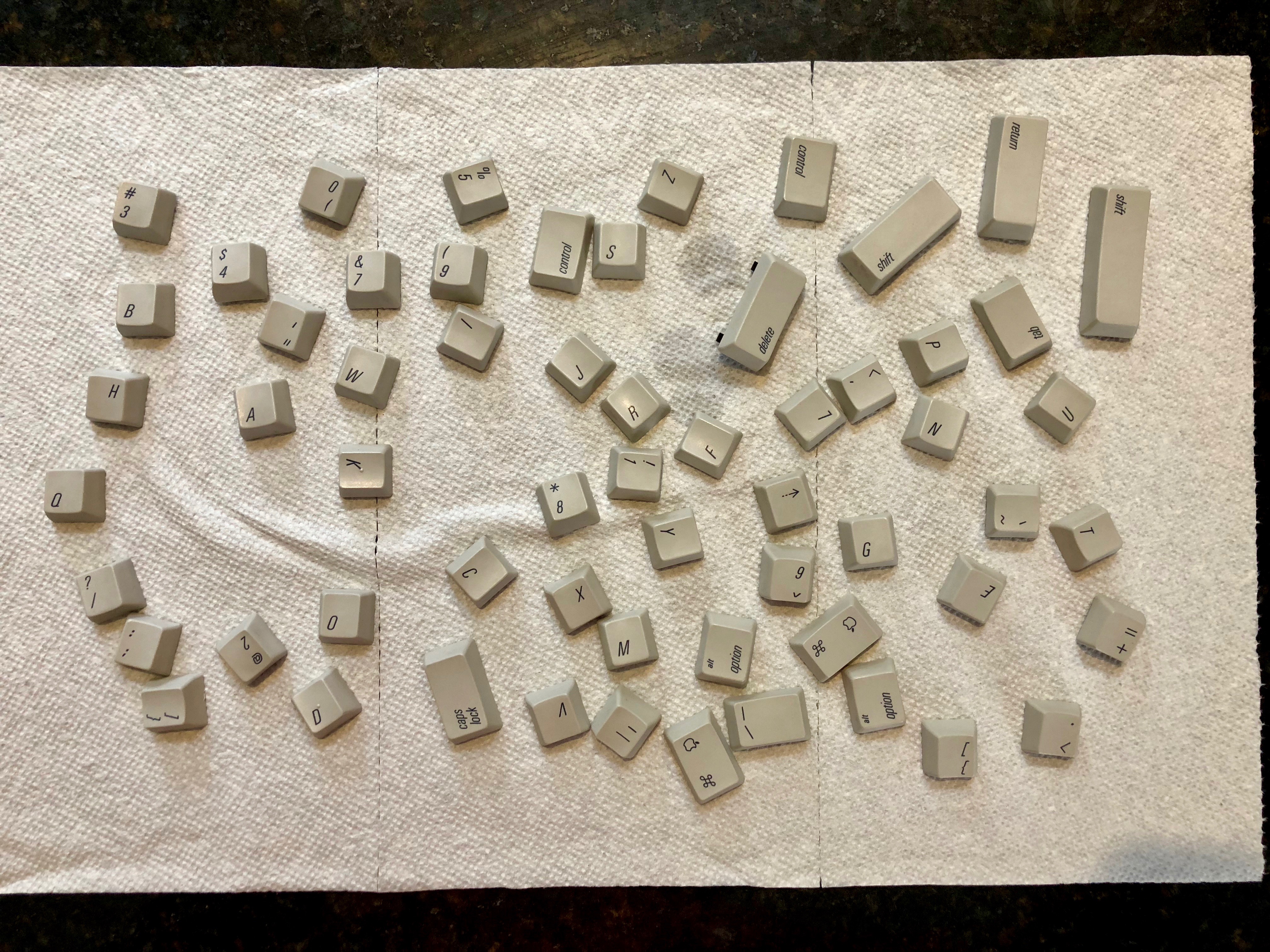
Folding and soldering diodes
When you order the Alps64 board from Hasu, it requires some assembly. He includes a strip of diodes that need to be soldered to the board. I suppose he does this because the board also includes SMT pads if you are crazy and want to surface mount your own diodes. I opted to fold (using the included little tool!) each and every one, and aligning them properly (line side goes to the square pad), solder them all in place. For future reference: use flux and more solder than you think. I’m pretty sure I’ve got decent connections (I’m typing this on the keyboard now), but it seemed pretty clear to me that the solder is really only on one side of the PCB. It’s not that big a deal, but if I were to do it again, I’d be a bit more generous with the solder and make that connection as solid as possible.
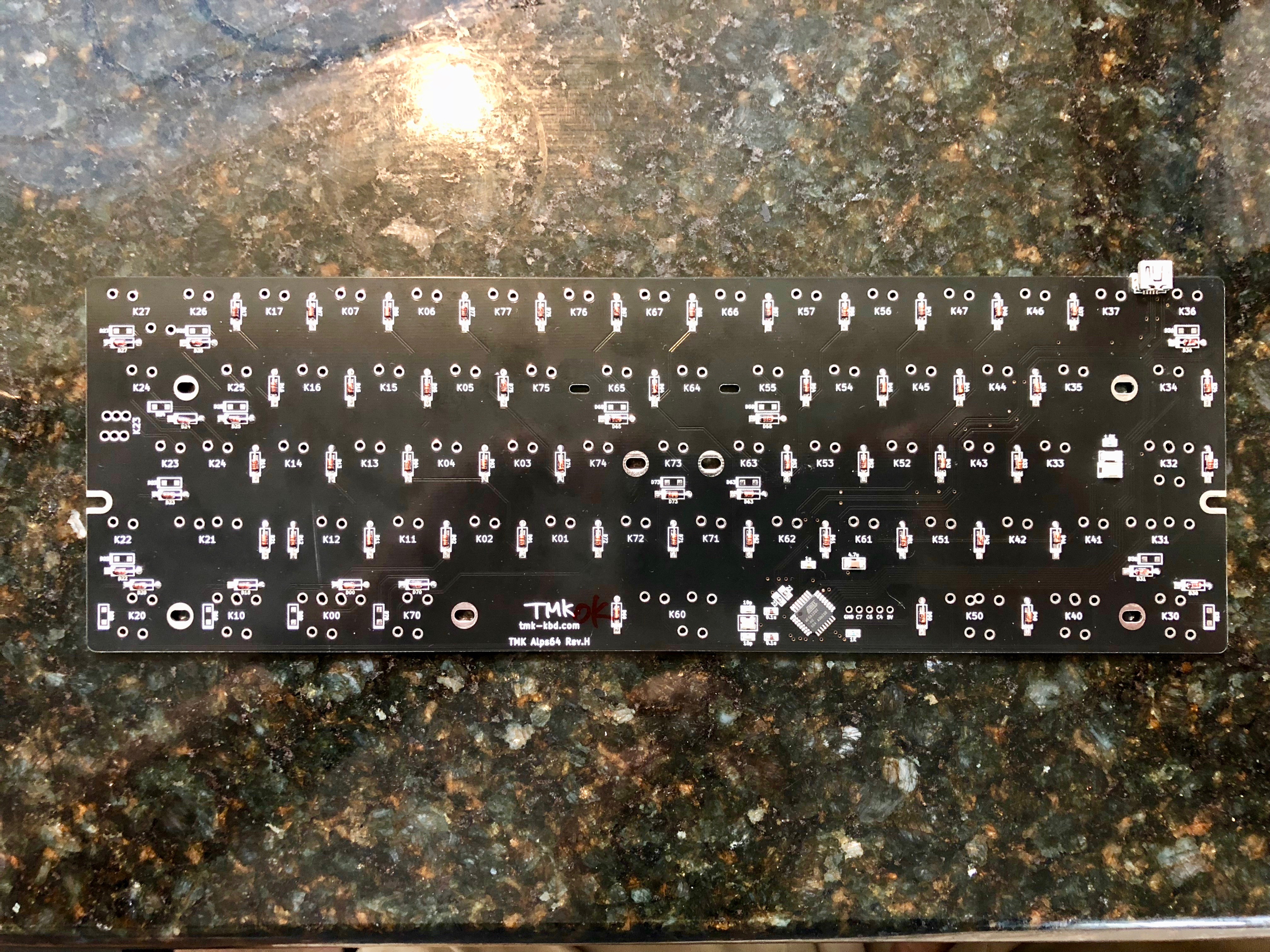
Soldering switches
The diodes live on the underside of the PCB, hidden from view, so you need to do them first. Once attached, the switches will sandwich the top plate down and obscure the top of the PCB. So, you’ll also want to ensure that the leads are clipped as close as comfortably possible. At this point in the project, I was actually running low on solder, so I placed the switches, and soldered the four corners plus the space bar. After acquiring more, it was a simple job to apply flux to the leads and solder them one row at a time. I tested as I went: hook up the keyboard, launch TextEdit, and press switches, when you see characters appearing, you’ve got a good, solid connection. Once I had everything done, I noticed a few switches weren’t registering. I tested the PCB by bridging the switch pads with the accompanying diodes with tweezers and seeing characters typed in TextEdit, so I deduced the switches must be bad. Luckily, going from a 104-key keyboard to a 60-key means you have a reserve supply. I desoldered three more switches and tested each before fixing them in place.
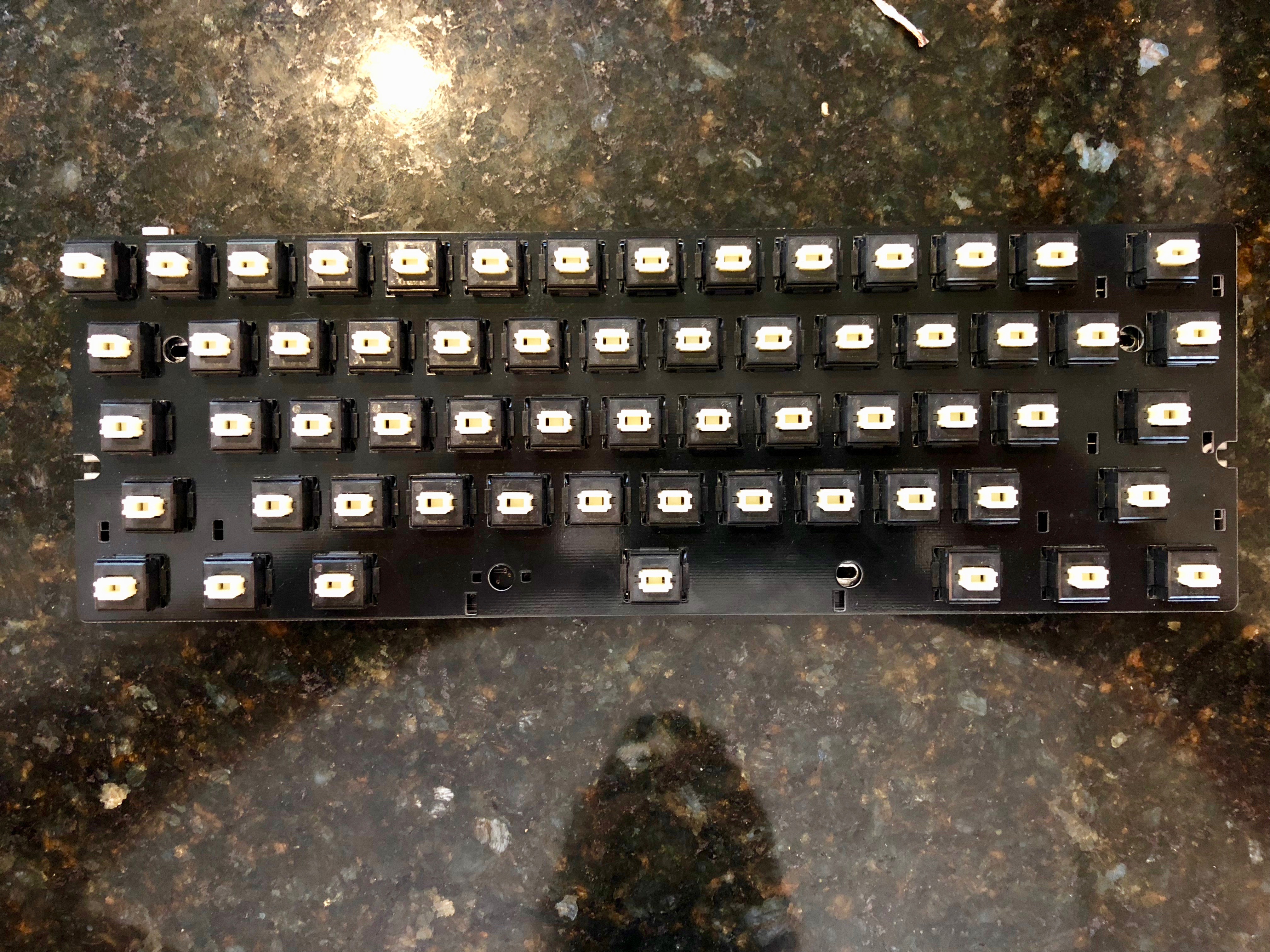
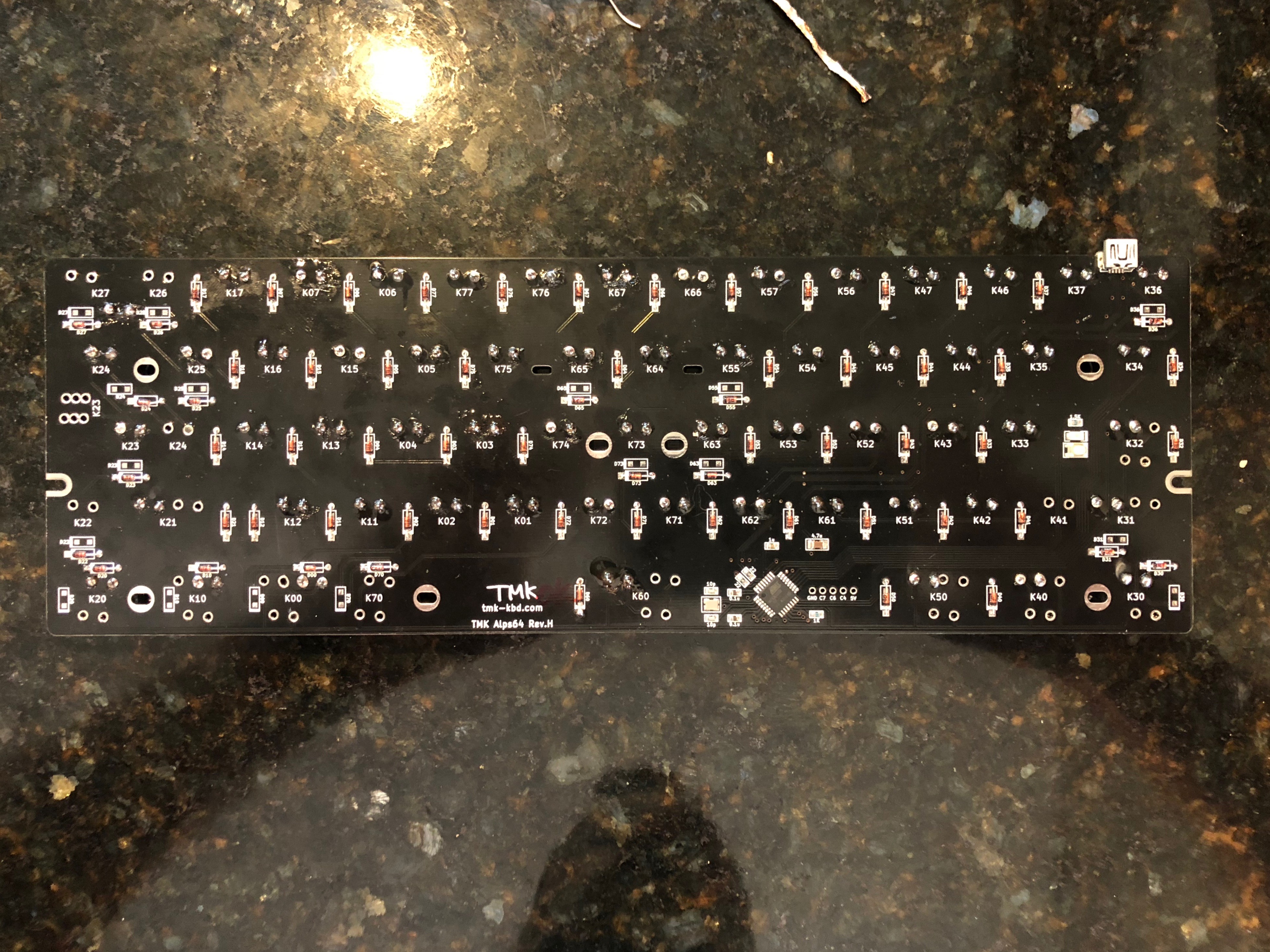
Installing the PCB and plate
At this point, all the switches were working with the default onboard keymapping, so I attached the PCB to the case with screws and tested and retested and retested (a lot of testing). I set all the stabilizers back in, and attached the largest keycaps first, starting with the space bar.
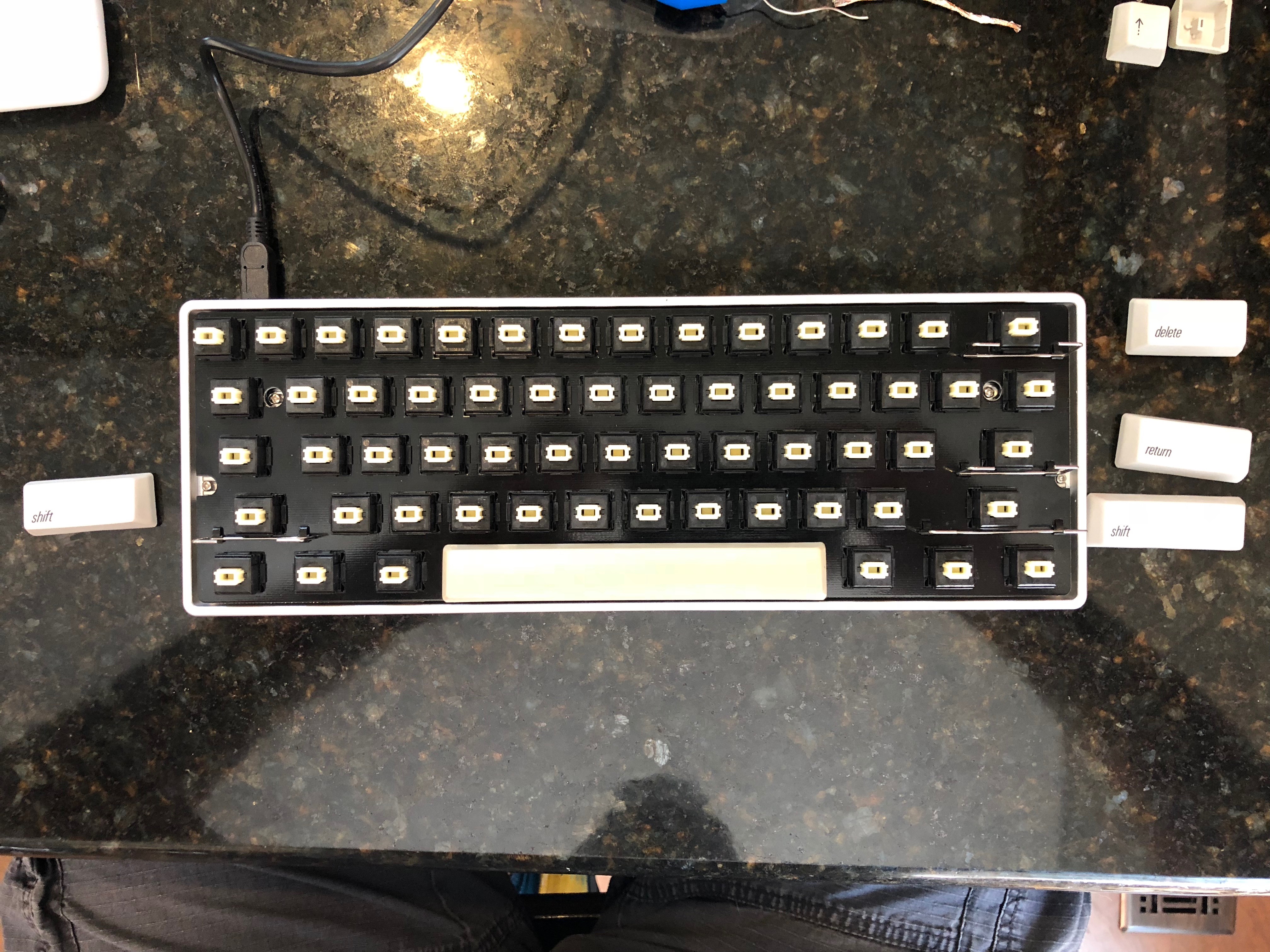
Installing keycaps
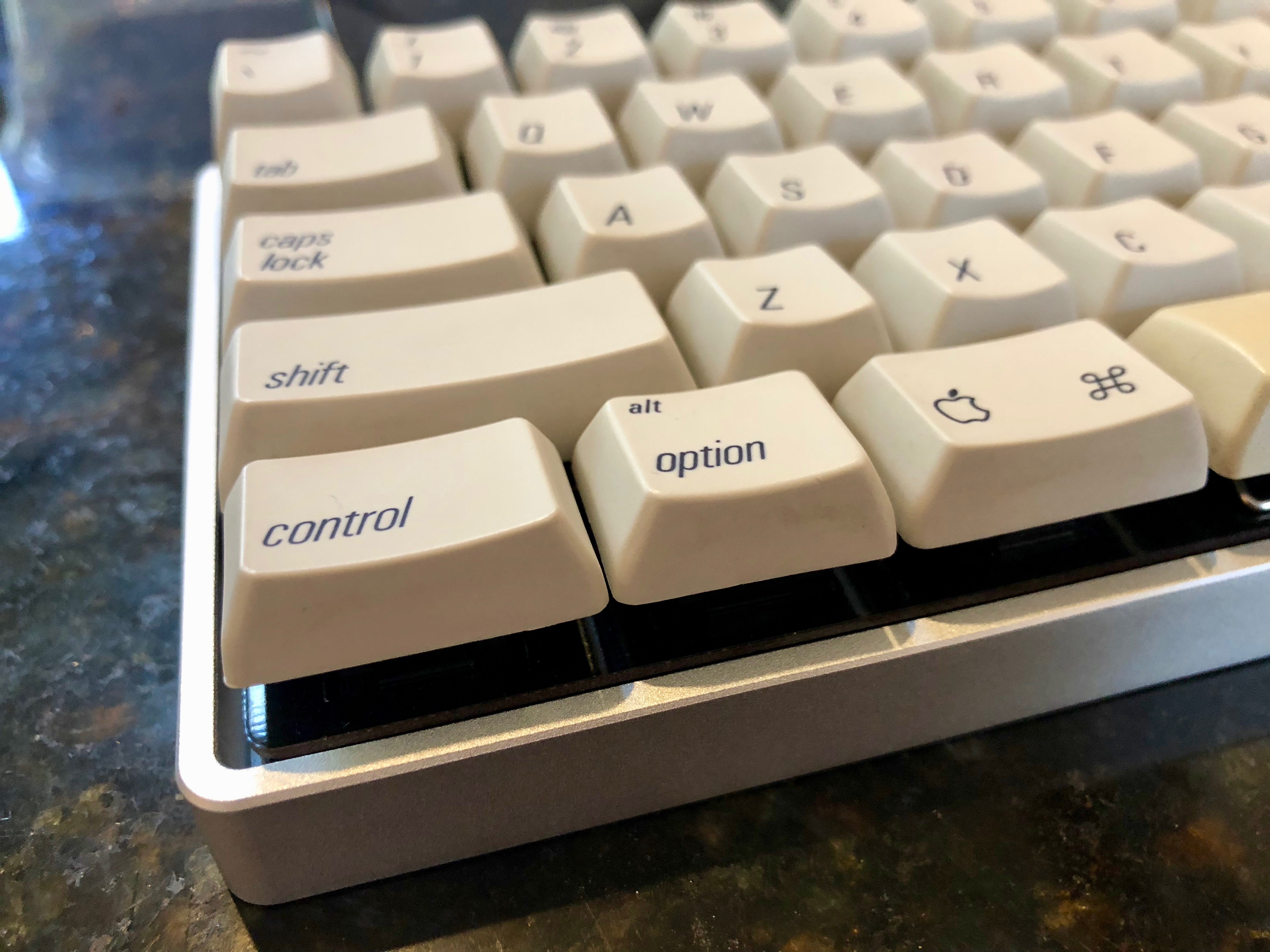
The keycaps are simple enough to install by themselves: just place over the switch and push down with moderate force until it clicks. With no particular order to follow, it was kind of fun trying to match muscle memory with where keys went. When I wasn’t sure, I just looked at my Macbook Pro for confirmation. Muscles remember, but they don’t talk.
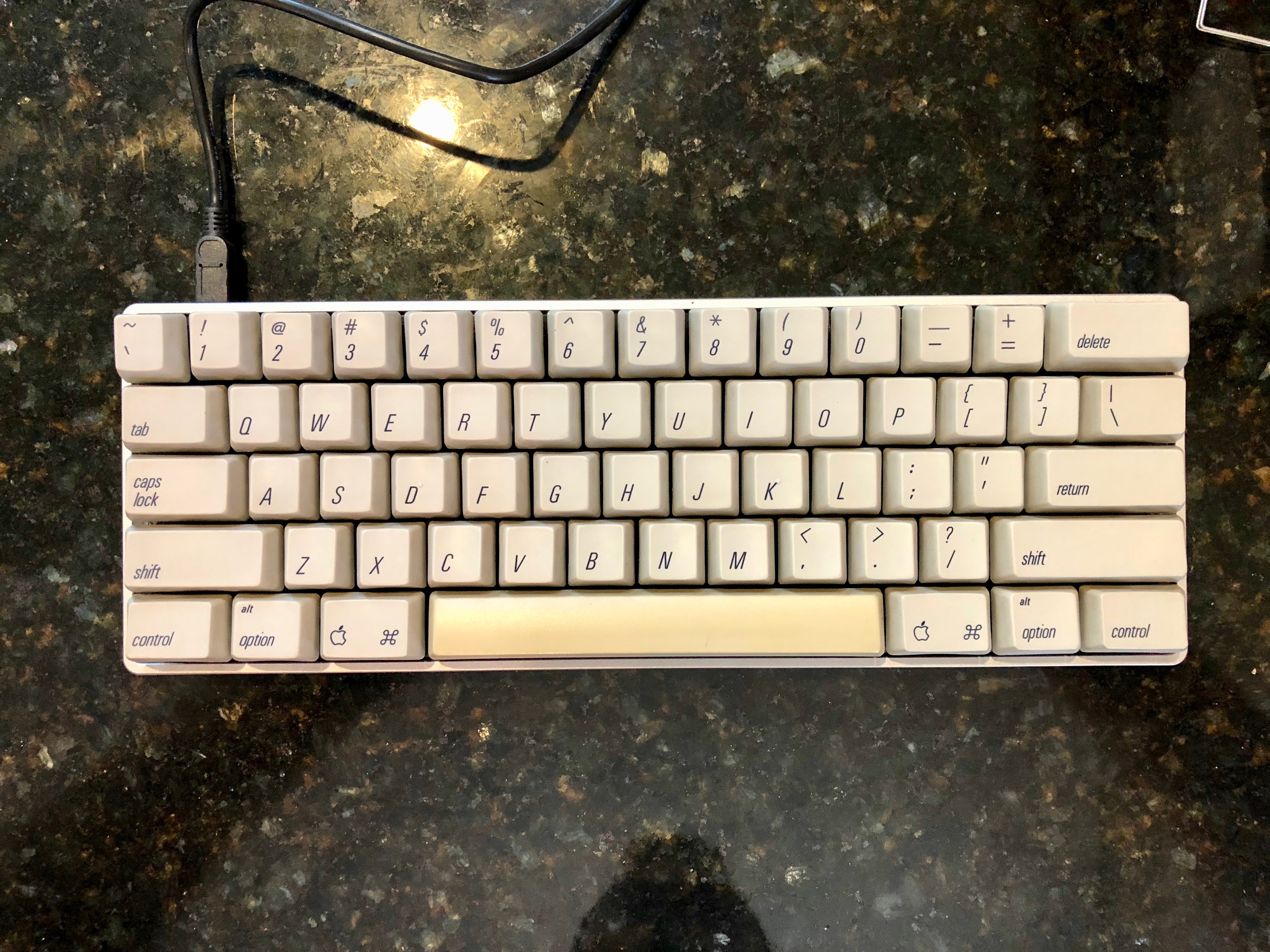
Test drive
I found the default key layout a little wanting. Luckily, the onboard chipset is completely programmable, and Hasu provides an online configurator to specify just exactly how your keyboard should act.
Configuring and flashing the firmware
I used Hasu’s TMK Keymap Editor to set up a few layers on my keyboard. It supports up to 7, but I haven’t explored more than the three I have so far:
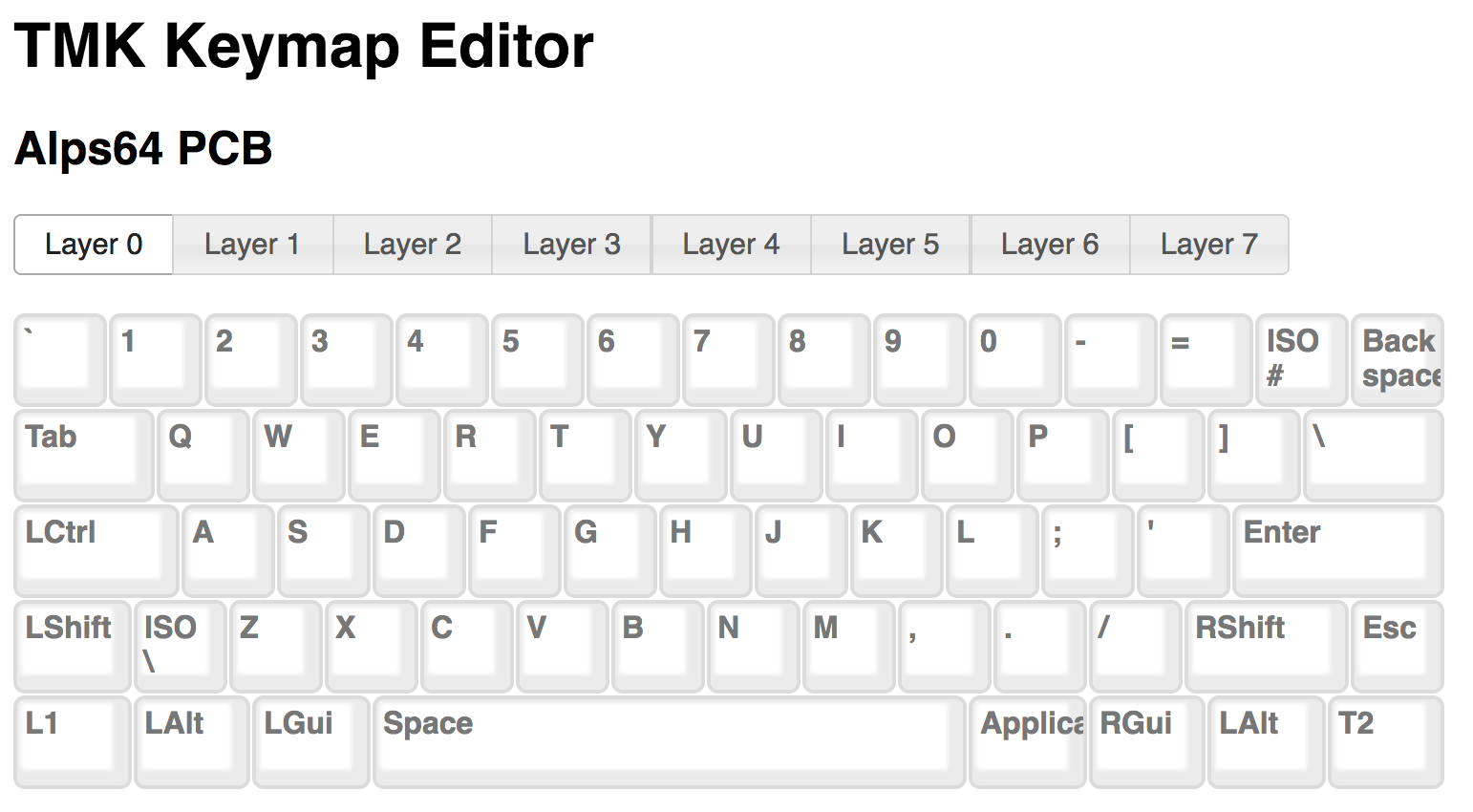
In the default layer, most everything is normal, with the exception of the two
controlkeys in the bottom row.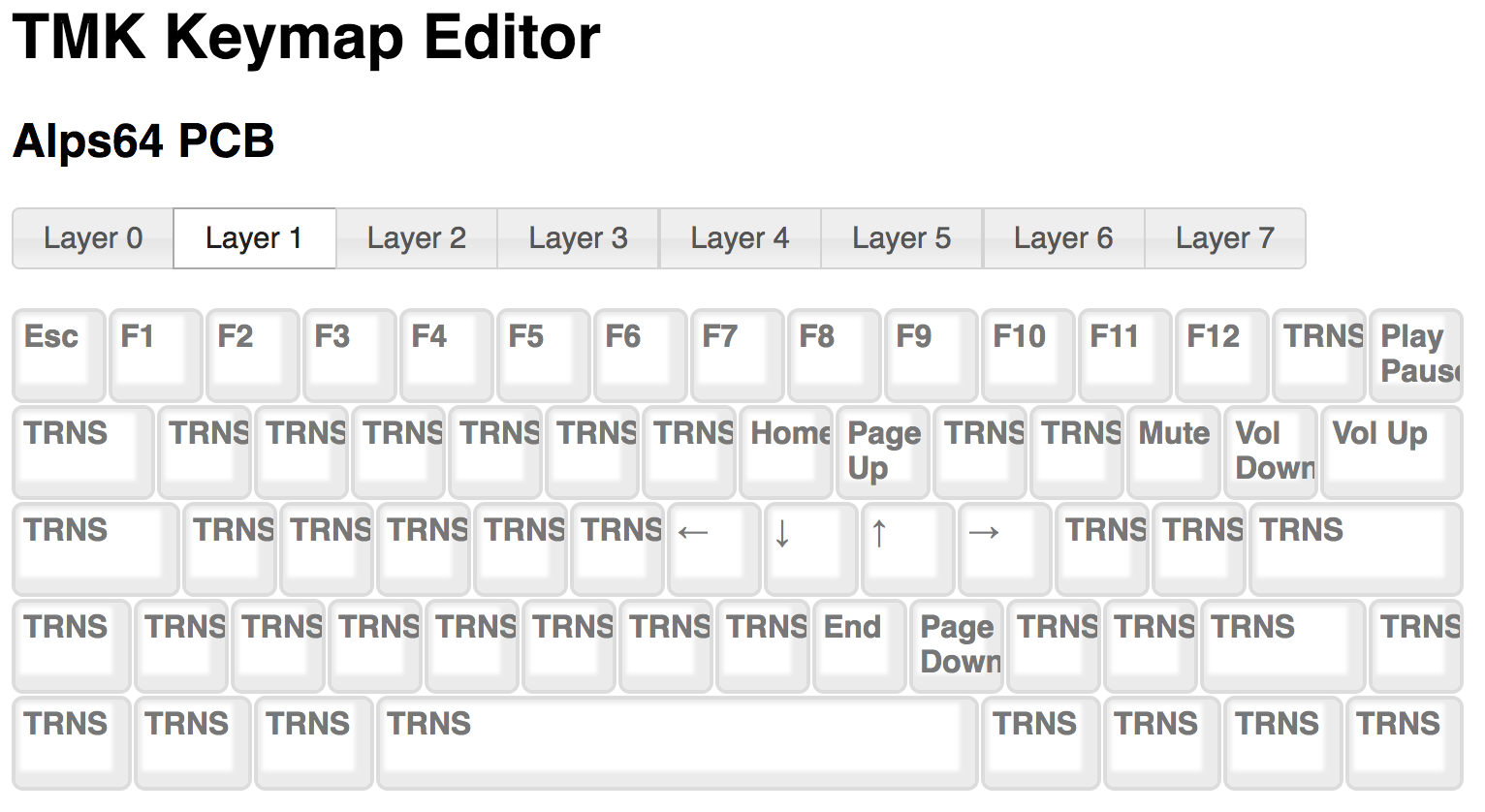
The left control key activates Layer 1, but only when held, making it a modifier to enable arrow keys, function keys, and media keys.
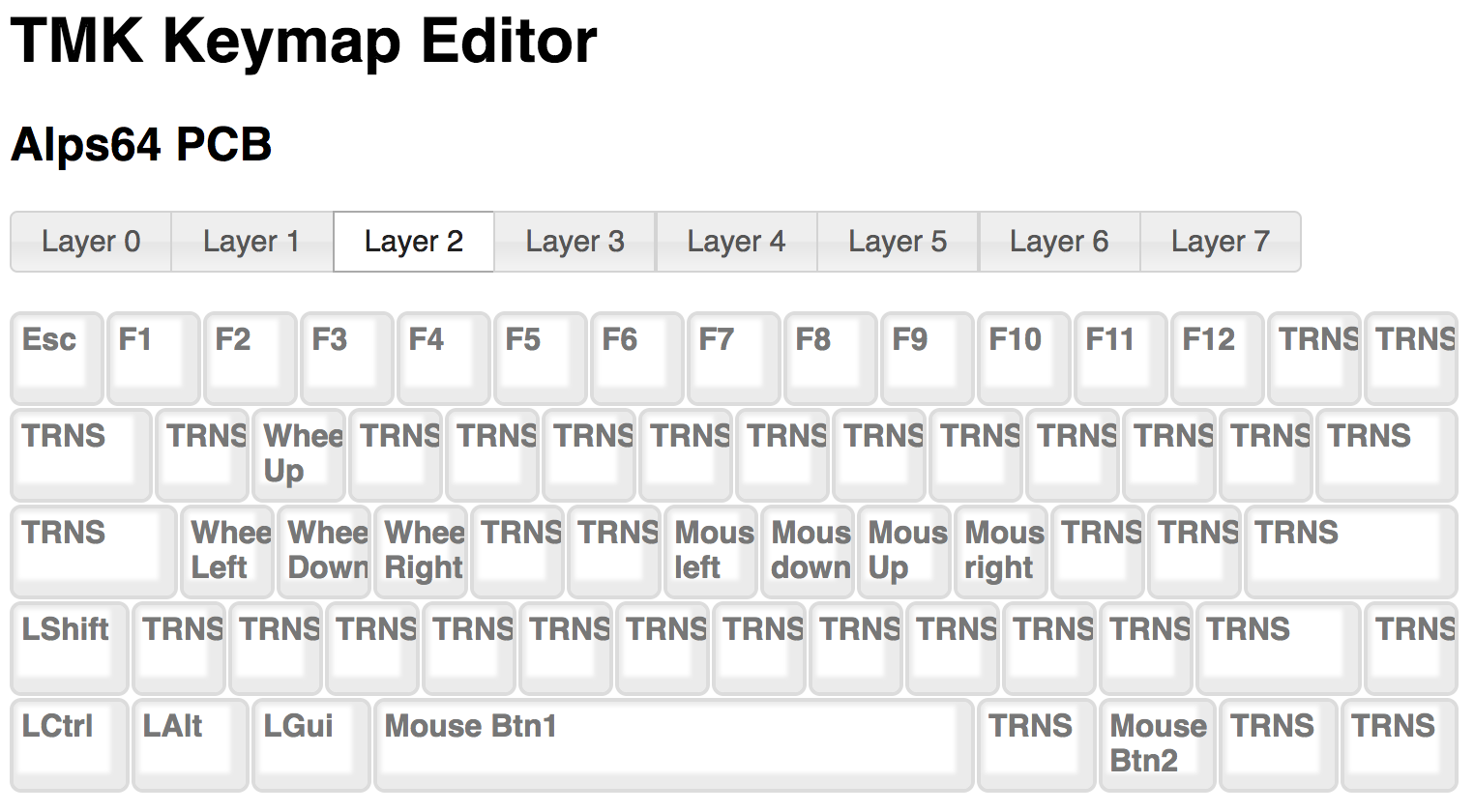
Press the right control key, however, and the entire keyboard switches into mouse mode. I’ve mapped the vim keys for
left,down,up, andrightto the corresponding mouse events, left, down, up, and right, and I’ve reused the standardWASDkeys for scrolling behavior. Space bar becomes mouse button 1, and the right Command key becomes mouse button 2. I now have a fully capable (if slow, and currently frustration-inducing) mouse mode.In use
So far, after a day of use, it’s becoming a bit more familiar, and a whole lot more intuitive. As a heavy vim user, I still get caught up in using the Esc key on layers 1 or 2. I’ve swapped it to be Esc on Layer 0, but it turns out I also make heavy use of the backtick and tilde! In the meanwhile, I’m quite enjoying the aestheic nature of my new keyboard, and the challenge involved in mastering yet another set of fingertip-driven conventions. With a pleasing click and a solid build, I’ll give it another 100 years.
Future Plans
There are a couple ideas I’m already exploring in my head:
- Bluetooth! There’s a writeup of adding a BT controller and battery inside the case. There should be enough room to make that happen, and there are a few other keyboard enthusiasts at work planning on just such a project for theirs.
- 3D printing a new case that doesn’t leave the top plate and switches so exposed.
-
Self Control
In response to my recent keyboard posts, Alpha Chen posed a really good question:
@zacbir Re: http://t.co/AmXWBktHHe Why not remap caps lock to control directly in the firmware instead of doing it in OS X?
— Alpha Chen (@kejadlen) January 18, 2015The answer to which is: *headslap* Of course!
I’ve modified my firmware again to map the key to LCTL, and now the keyboard converter will always send Control when that key is pressed, regardless of OS settings. In fact, it’ll send Control regardless of OS.
Thanks for the dose of obvious, Alpha Chen!
Current keymap file:
download #include "keymap_common.h" const uint8_t PROGMEM keymaps[][MATRIX_ROWS][MATRIX_COLS] = { KEYMAP_EXT_ANSI( ESC, F1, F2, F3, F4, F5, F6, F7, F8, F9, F10, F11, F12, FN0, SLCK,PAUS, PWR, GRV, 1, 2, 3, 4, 5, 6, 7, 8, 9, 0, MINS,EQL, BSPC, INS, HOME,PGUP, NLCK,PEQL,PSLS,PAST, TAB, Q, W, E, R, T, Y, U, I, O, P, LBRC,RBRC,BSLS, DEL, END, PGDN, P7, P8, P9, PMNS, LCTL,A, S, D, F, G, H, J, K, L, SCLN,QUOT, ENT, P4, P5, P6, PPLS, LSFT,Z, X, C, V, B, N, M, COMM,DOT, SLSH, RSFT, UP, P1, P2, P3, LCTL,LALT,LGUI, SPC, RALT,RCTL, LEFT,DOWN,RGHT, P0, PDOT,PENT ), KEYMAP_EXT_ANSI( ESC, F1, F2, F3, F4, F5, F6, MPRV,MPLY,MNXT,MUTE, VOLD,VOLU, FN0, SLCK,PAUS, PWR, GRV, 1, 2, 3, 4, 5, 6, 7, 8, 9, 0, MINS,EQL, BSPC, INS, HOME,PGUP, NLCK,PEQL,PSLS,PAST, TAB, Q, W, E, R, T, Y, U, I, O, P, LBRC,RBRC,BSLS, DEL, END, PGDN, P7, P8, P9, PMNS, LCTL,A, S, D, F, G, H, J, K, L, SCLN,QUOT, ENT, P4, P5, P6, PPLS, LSFT,Z, X, C, V, B, N, M, COMM,DOT, SLSH, RSFT, UP, P1, P2, P3, LCTL,LALT,LGUI, SPC, RALT,RCTL, LEFT,DOWN,RGHT, P0, PDOT,PENT ), }; const uint16_t PROGMEM fn_actions[] = { [0] = ACTION_LAYER_MOMENTARY(1), };